Use Next Design MCP
Overview
Next Design MCP is an MCP server for AI clients and AI agents to reference, edit, validate, and operate the screen of a running Next Design project through MCP (Model Context Protocol).
It serves as the integration layer connecting AI and Next Design in the Next Design AI Toolkit.
It can be used not only for model reference and updates, but also for cross-cutting engineering tasks such as:
- Designing and modifying models with the full structure in mind
- Setting and analyzing traceability
- Automatically arranging diagrams
- Handling sequence diagrams
Build the environment
Install
Prepare the following tools and files:
- OS: Windows 11
- Agentiqs: v1.2 or later (Professional license)
- Next Design: v5.0 or later
- NDInterop (Next Design extension): v1.1.5 or later
The Next Design MCP binaries and dedicated skill are bundled with the DC Agentiqs installer.
Installing DC Agentiqs v1.2 is enough; no separate download or extraction is required.
| Included item | Installation path |
|---|---|
| Next Design MCP binaries | %LOCALAPPDATA%\DENSO CREATE\Agentiqs\app\mcp\nextdesign-mcp\NextDesignMcp.exe |
Skill: nextdesign-mcp | %LOCALAPPDATA%\DENSO CREATE\Agentiqs\app\skills\nextdesign-mcp\ |
Create an agent
Create a new agent and select the appropriate one from the template gallery.
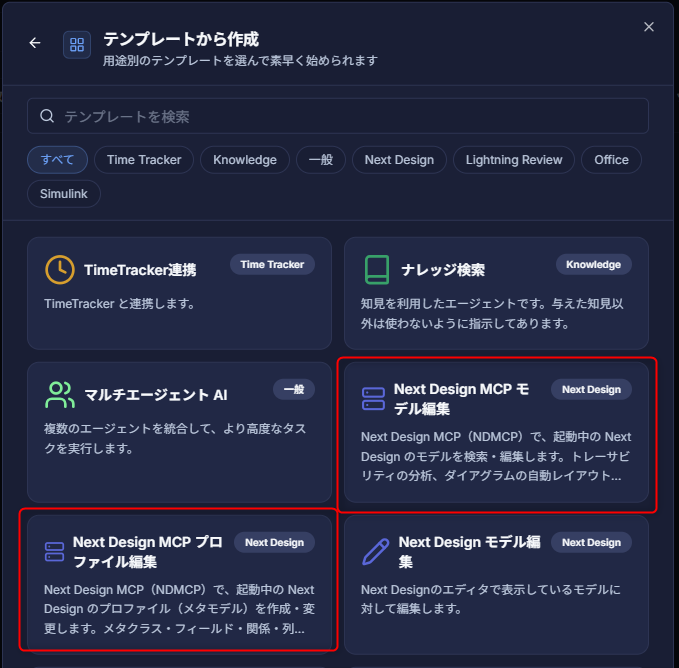
Skill is already configured for the intended use.Basic usage
Follow these steps:
- Start Next Design and open the project you want to operate.
- If multiple Next Design instances are running, make sure you are using the intended project.
- Start chatting with the AI agent configured with Next Design MCP.
- If multiple agents issue operations, the requests are executed in the order they were made.
- Describe what you want in natural language.
- While an operation is in progress, do not modify the target project by other means (manual edits or extensions).
- Check the result in Next Design and save it there if everything is correct.
- If the operation fails, the system returns to the state before execution.
- The project is not saved by Next Design MCP, so be sure to save it yourself.
Example requests
Use requests like the following depending on your goal.
| Goal | Example request |
|---|---|
| Understand the current state | "Show me the profile structure of this project" / "List the system requirements" |
| Define profiles | "Create metaclasses for requirements, use cases, and subsystems, and define traces from requirements to use cases" |
| Create models | "Generate design elements from these requirements and connect the traces" |
| Investigate impact | "If I change this requirement, what is affected?" |
| Check omissions | "Find requirements that are not linked to test cases" |
| Arrange diagrams | "Auto-layout the state transition diagram for driving control" / "Arrange this flowchart from top to bottom" See "8. Automatic diagram layout" for diagram editing targets. |
| Sequence diagrams | "Import this PlantUML as a sequence diagram" / "Add a response message to the existing sequence diagram" |
| Screen checks | "Open the found requirement in Next Design" |
Tips for effective use
- Narrow the target
- A project model can contain tens of thousands of items.
- Specifying "which package" and "which process" makes results faster and more accurate.
- Group related edits together
- Combining related changes into one request makes them a single rollback unit and avoids leaving the project in a half-finished state.
- Verify results in Next Design
- You can confirm auto-layout and patch application results in the Next Design screen.
- If the result is not what you intended, you can go back with Undo (Ctrl+Z).
- Split large changes by process
- For large changes that span requirements, design, and test, it is easier to review them if you split the requests by process.
Feature list
The features exposed by Next Design MCP are listed below.
1 Session / project
| Feature | Summary | Read-only |
|---|---|---|
SessionGetContext | Gets the current project statistics, editor state, the model selected in the view, and the model attached to the chat | ○ |
SessionOpenProject | Opens the project at the specified path |
2 Reference profiles (metamodel)
| Feature | Summary | Read-only |
|---|---|---|
ProfileGetDesignMap | Gets the overall ownership and trace structure (design map) | ○ |
ProfileGetRelationsMap | Lists relationships between metaclasses (ownership, reference, trace) | ○ |
ProfileListPackages | Gets a list of packages | ○ |
ProfileListClasses | Gets a list of metaclasses | ○ |
ProfileGetClassDetails | Gets metaclass definitions (fields, types, multiplicity, and relation kinds) | ○ |
ProfileGetClassHierarchy | Gets the inheritance hierarchy of metaclasses (parents and children) | ○ |
ProfileListEnums | Gets a list of enum definitions and values | ○ |
ProfileGetViewDefinition | Gets an overview of a view definition | ○ |
ProfileGetViewDefinitionDetails | Gets detailed view definitions (column definitions, form parts, nodes, connectors) | ○ |
3 Edit profiles (metamodel)
| Feature | Summary | Read-only |
|---|---|---|
ProfileApplyPatch | Applies package, metaclass, field, enum, relation, and inheritance definitions together | |
ProfileClassDiagramApplyPatch | Creates a class diagram and adds classes | |
ProfileViewDefinitionApplyPatch | Applies edits to view definitions (forms, TreeGrid, ER, tree) together |
4 Reference and search models
| Feature | Summary | Read-only |
|---|---|---|
ModelListHierarchy | Gets the ownership hierarchy of the model as a tree | ○ |
ModelListChildren | Gets children directly under multiple parent models together | ○ |
ModelGetDetails | Gets detailed information (field values) for multiple models | ○ |
ModelQuery | Searches models by owner, metaclass, name, field values, strings, relationship count, and other conditions | ○ |
ModelGetRelationships | Gets ownership, reference, and trace relationships for multiple models | ○ |
5 Edit models
| Feature | Summary | Read-only |
|---|---|---|
ModelApplyPatch | Applies model creation, update, move, deletion, reference settings, trace connections, and downstream artifact generation in one transaction |
6 Traceability
| Feature | Summary | Read-only |
|---|---|---|
ModelGetTraceabilityChain | Gets upstream and downstream trace chains | ○ |
ModelGetImpact | Analyzes the scope of impact (downstream, upstream, sibling, dependency) | ○ |
ModelGetTraceCoverage | Checks trace coverage and unconnected elements between specified processes | ○ |
7 Validation and error management
| Feature | Summary | Read-only |
|---|---|---|
ModelGetDiff | Gets field-level diffs (add, delete, update, move) from comparisons run in Next Design | ○ |
ModelAddErrors | Adds validation errors to a model | |
ModelGetErrors | Gets validation errors attached to a model | ○ |
ModelClearErrors | Clears validation errors from a model |
8 Automatic diagram layout
| Feature | Summary | Read-only |
|---|---|---|
ModelDiagramAutoLayout | Automatically arranges ER diagrams according to common layout patterns for each diagram type (only coordinates and sizes are changed) | |
ModelDiagramSuggestLayoutHints | Reviews the contents of a diagram and suggests a draft of the diagram type, direction, and layout hints | ○ |
Use case diagram / state transition diagram / swimlane activity diagram / block diagram / data flow diagram / layer architecture diagram / flowchart / class diagram / hierarchy diagram / fault tree / lifecycle diagram / V-model / generic diagram
9 Sequence diagrams
| Feature | Summary | Read-only |
|---|---|---|
ModelSequenceDiagramImportFromPlantUml | Creates a new sequence diagram from PlantUML | |
ModelSequenceDiagramGet | Gets the contents of an existing sequence diagram | ○ |
ModelSequenceDiagramApply | Applies diff edits to an existing sequence diagram without rebuilding the diagram | |
ModelSequenceDiagramRelayout | Rearranges an existing sequence diagram (coordinates only) |
10 Editor integration
| Feature | Summary | Read-only |
|---|---|---|
UINavigateTo | Navigates the screen to the specified model | |
UISwitchView | Switches the view to be displayed | |
UISelectElements | Selects specified elements in the editor |