Setup Instructions
Download it from the "Download Page".
Installation
- Double-click the downloaded installer to run it.
- Follow the on-screen instructions to proceed with the installation.
- Once the installation is complete, "Agentiqs" will be added to the Start Menu.
- Launch the application from the Start Menu.
License registration is required the first time you launch the application after installation.
Please follow the "License Activation" procedure.
If Windows shows a warning when you run the installer, continue using one of the following methods:
-
Right-click the installer, open Properties, select "Allow" under Security in the General section, and then run it again.
-
Click "More information" on the warning screen, and then click "Run".
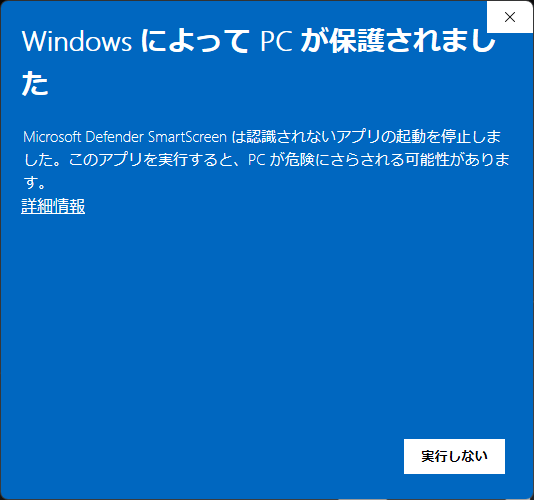
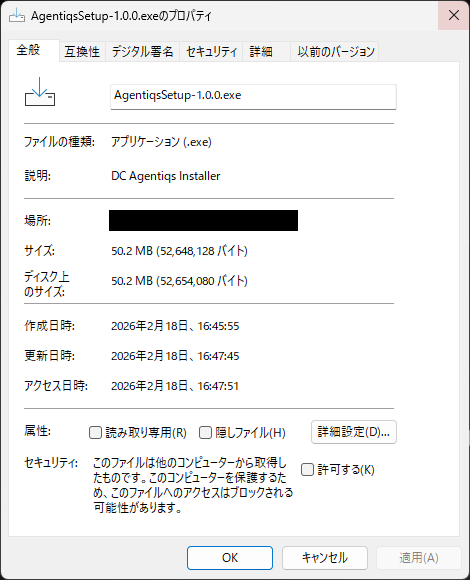
If any DENSO CREATE products (Next Design, Lightning Review, etc.) are running, close them before installing.
(If you run the installer while they are still running, the update may fail or files may be locked, which can interrupt the installation.)
Agentiqs requires the .NET 10 Runtime.
If it is not installed, the Agentiqs installer will install it automatically (you may be asked for administrator privileges during runtime installation).
If automatic installation fails because of your company's permission or security settings, manually install the .NET 10 Runtime from the following link:
Notes
- Agentiqs is installed per user.
- The installation location is
%LOCALAPPDATA%\DENSO CREATE\Agentiqs.
Updates
With automatic updates, you can update Agentiqs directly from within the app.
- Click [Settings] > [Check for Updates].
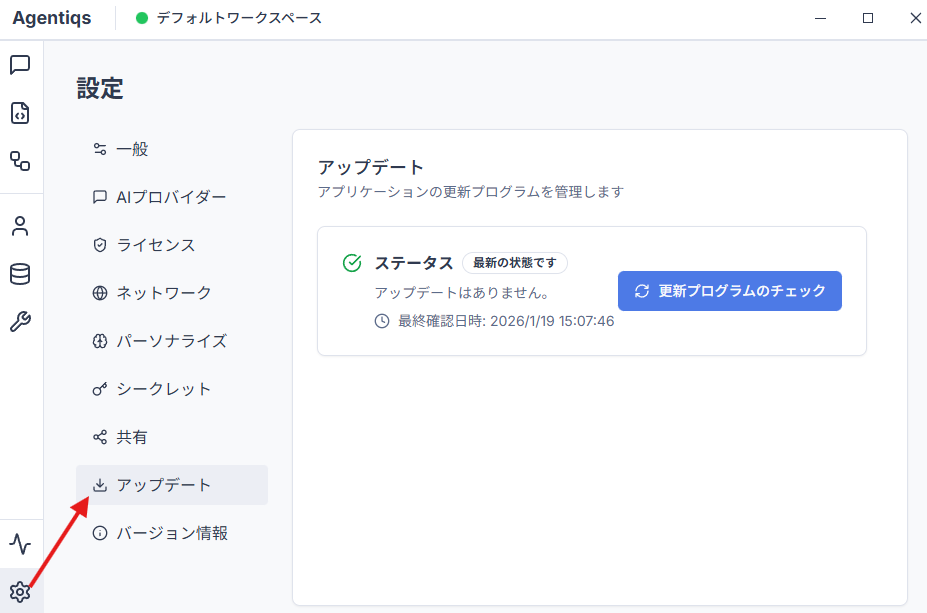
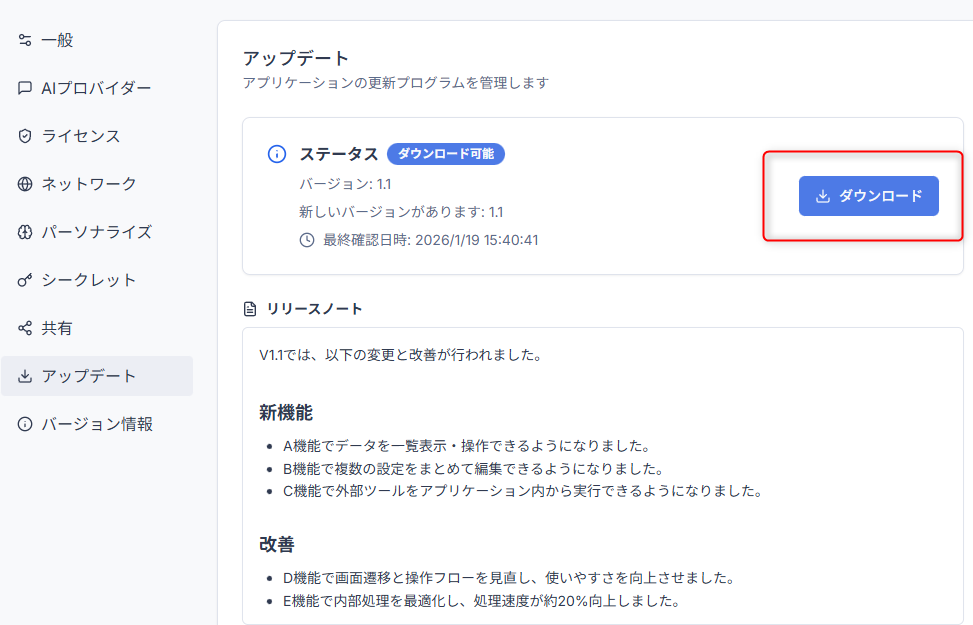
- Click "Check for Updates".
The display in the red box in the image below will change. Download the program and install the new version.
Uninstallation
You can uninstall from "Apps & features" or from the context menu of "DC Agentiqs" in the Start Menu.
Before uninstalling, deactivate this device from [Settings] > [License].
For the procedure, see "License Management".