License Management
This page explains Agentiqs license management.
- License key (not required for trial use)
- Email address used for authentication
- Please configure your spam settings and domain-specific email reception settings so that you can receive emails from the
@denso-create.jpdomain.
- Please configure your spam settings and domain-specific email reception settings so that you can receive emails from the
Before switching accounts, stop the Agentiqs processes in Task Manager.
(This applies to both AgentiqsServer and Agentiqs.)
License Activation
This section explains how to activate your Agentiqs license.
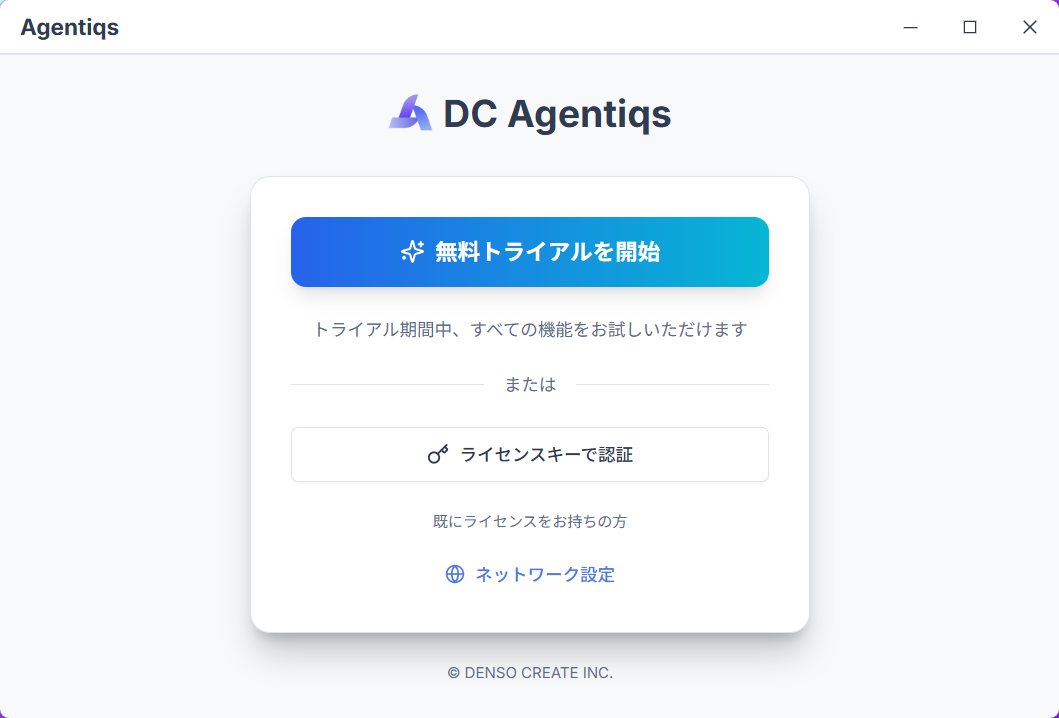
- On the initial screen, select "Start Trial" or "Activate with License Key," and follow the on-screen instructions to proceed with activation.
- For identity verification, receive the verification code by email and enter it to verify your identity.
- An email titled "[DC Agentiqs] Email Verification Code" will be sent from
no-reply@denso-create.jp. - Depending on network conditions, it will be sent in a few seconds to a few tens of seconds.
- An email titled "[DC Agentiqs] Email Verification Code" will be sent from
- After identity verification is complete, register your license key and begin using Agentiqs.
For first-time Agentiqs users, this provides an overview of the quickest path to getting started.
For details, see "Quick Start".
If you do not receive the email after waiting a few minutes, check that the email address you entered is correct and that the message was not filtered into your spam folder, then resend the email.
If you still do not receive the email, please contact our support desk (agsupport@denso-create.jp) by email.
License Deactivation
Before uninstalling or replacing your PC, please deactivate the license for this device.
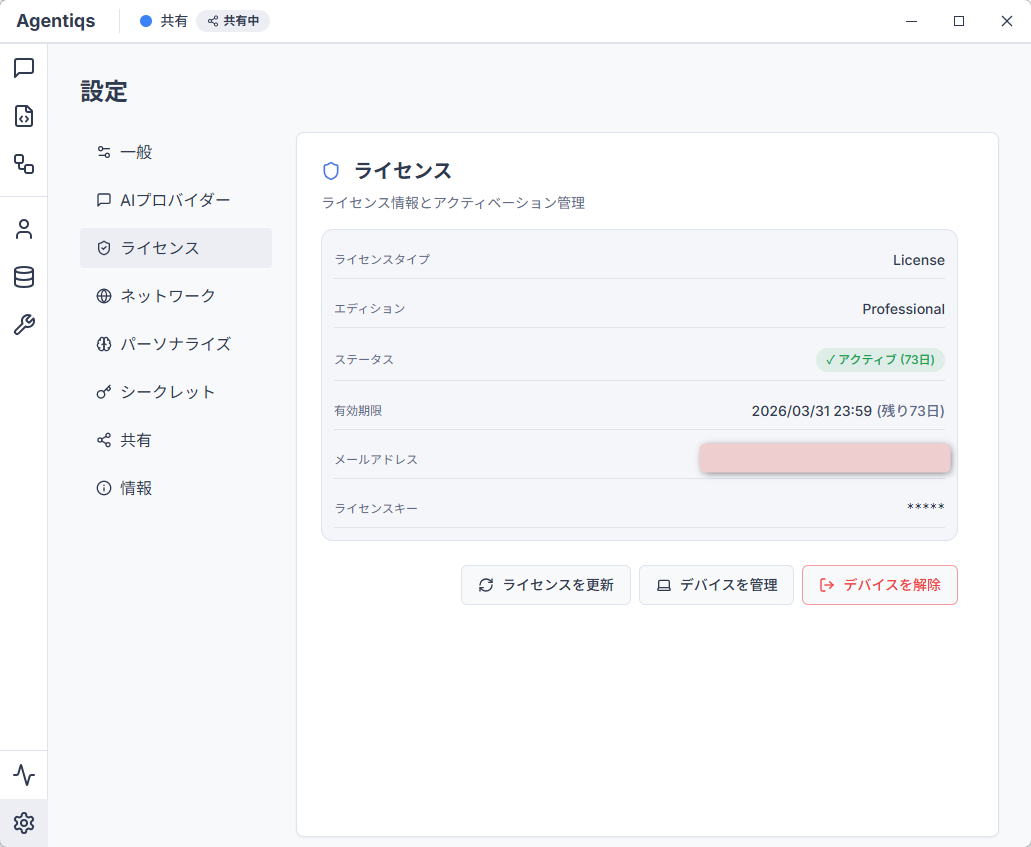
- Open [Settings] > [License].
- Click the [Deactivate Device] button on the [License] screen.
- When the [License Deactivation Confirmation] dialog appears, click [Deactivate].
- Once deactivation is complete, you will return to the initial screen.
Device Management
From [Settings] > [License], you can check current license information and view/deactivate activated devices.
- Open [Settings] > [License].
- Click the [Manage Devices] button on the [License] screen.
- A list of devices authenticated with the registered email address and license key will be displayed.
- You can deactivate licenses on other devices.
Even if you deactivate another device in [Device Management], it may not be reflected immediately (changes are reflected immediately on your own device).
Restarting Agentiqs on the removed device will apply the changes, but there may be a temporary period where the device can still be used even after being deactivated.
What to Do When Your License Expires
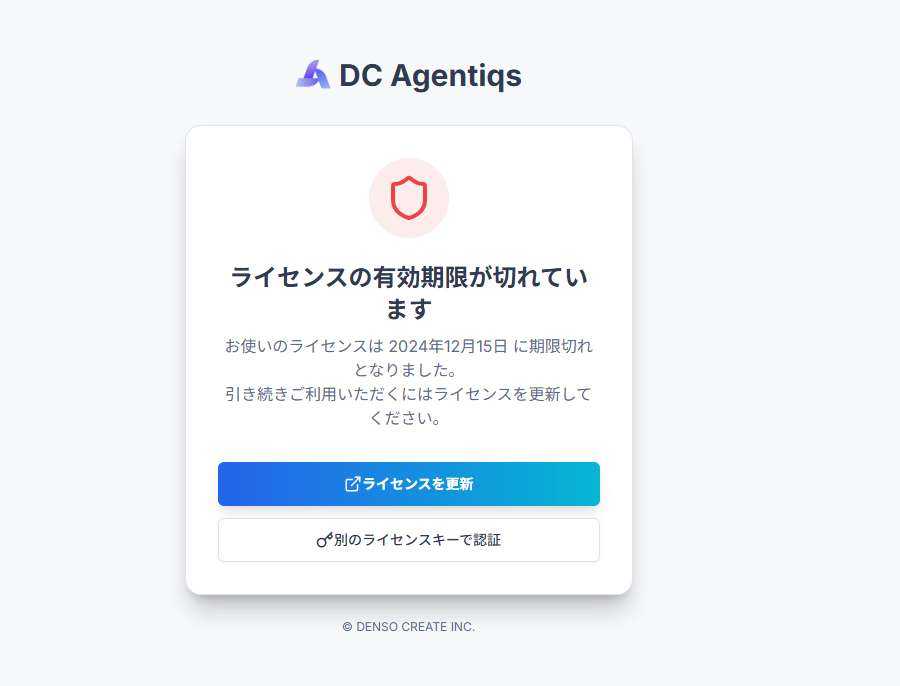
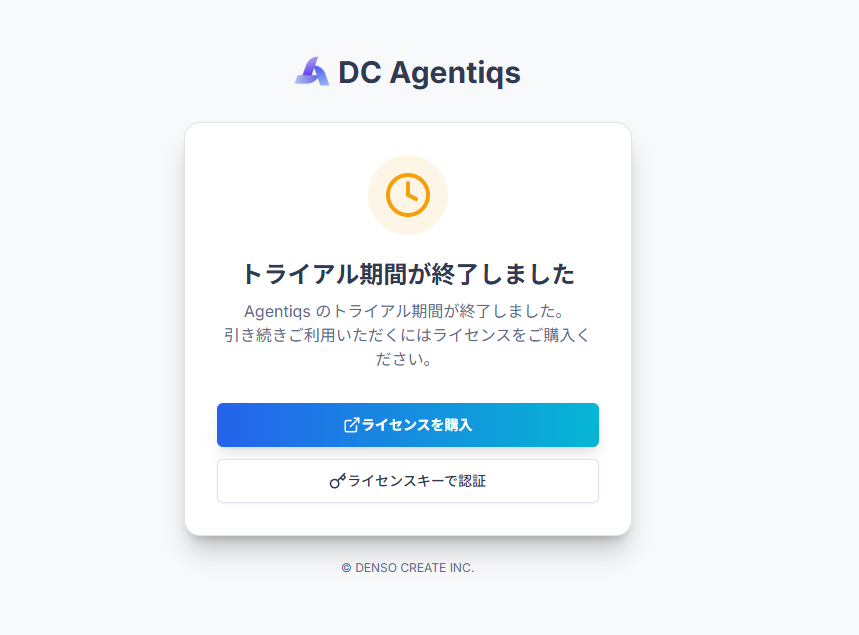
When your license expires, the following screen is displayed and Agentiqs cannot be used. Check (or purchase) your license key, then authenticate the license key again.
Troubleshooting
- If you do not receive the authentication email, check your spam folder and domain reception settings (
@denso-create.jp), then request the email to be resent. - If communication is blocked by your internal network/proxy environment, also check the proxy settings.
- If the issue is not resolved, contact our support desk (agsupport@denso-create.jp) by email.