Proxy Settings
You can configure the proxy used by Agentiqs.
You can configure two proxies depending on your needs: External Connection Proxy and LLM Dedicated Proxy.
You can also relax certificate chain verification and specify hosts that allow self-signed certificates.
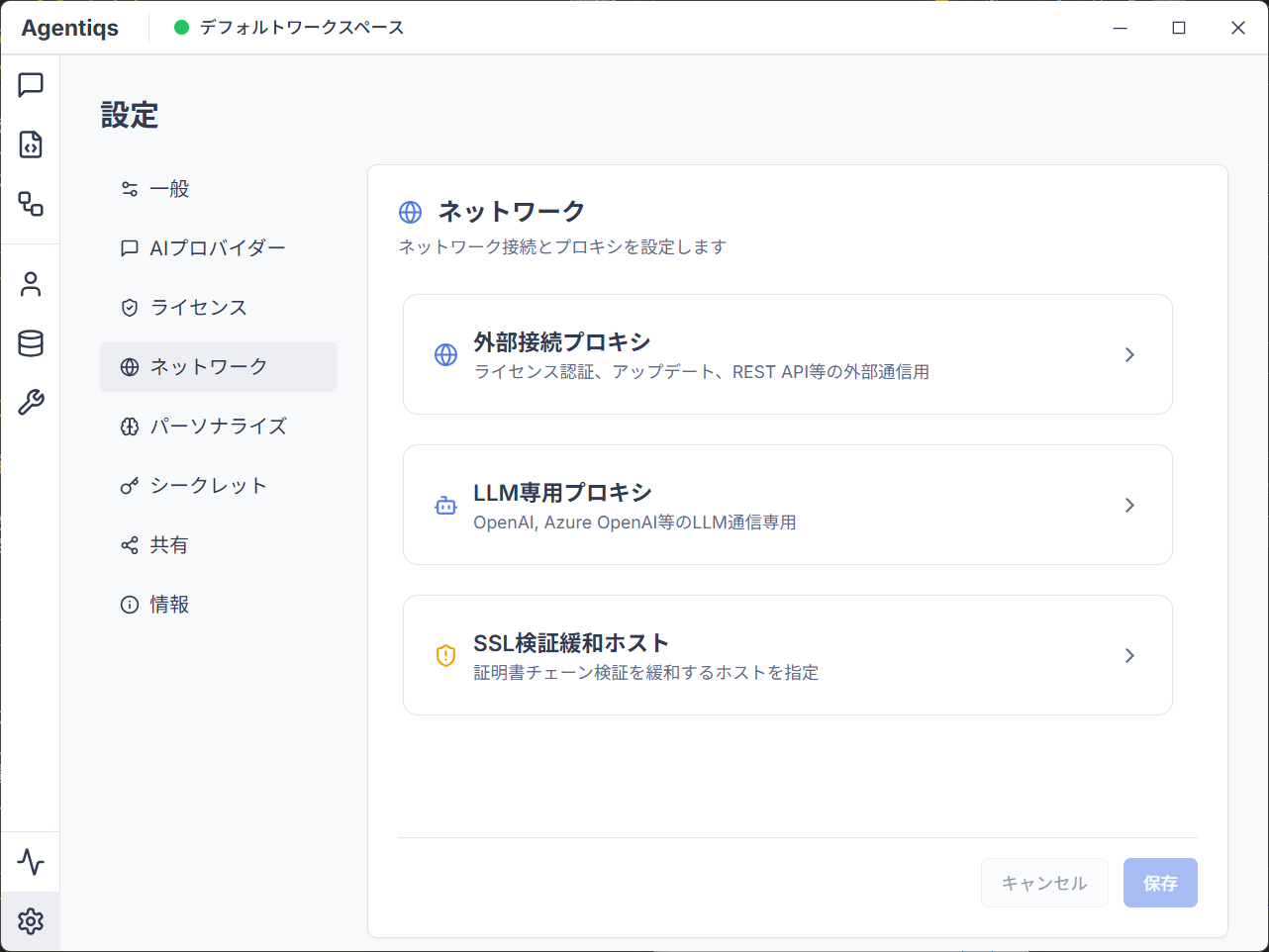
External Connection Proxy Settings
This section explains how to configure a proxy for Agentiqs license authentication, updates, and external communication via the REST API.
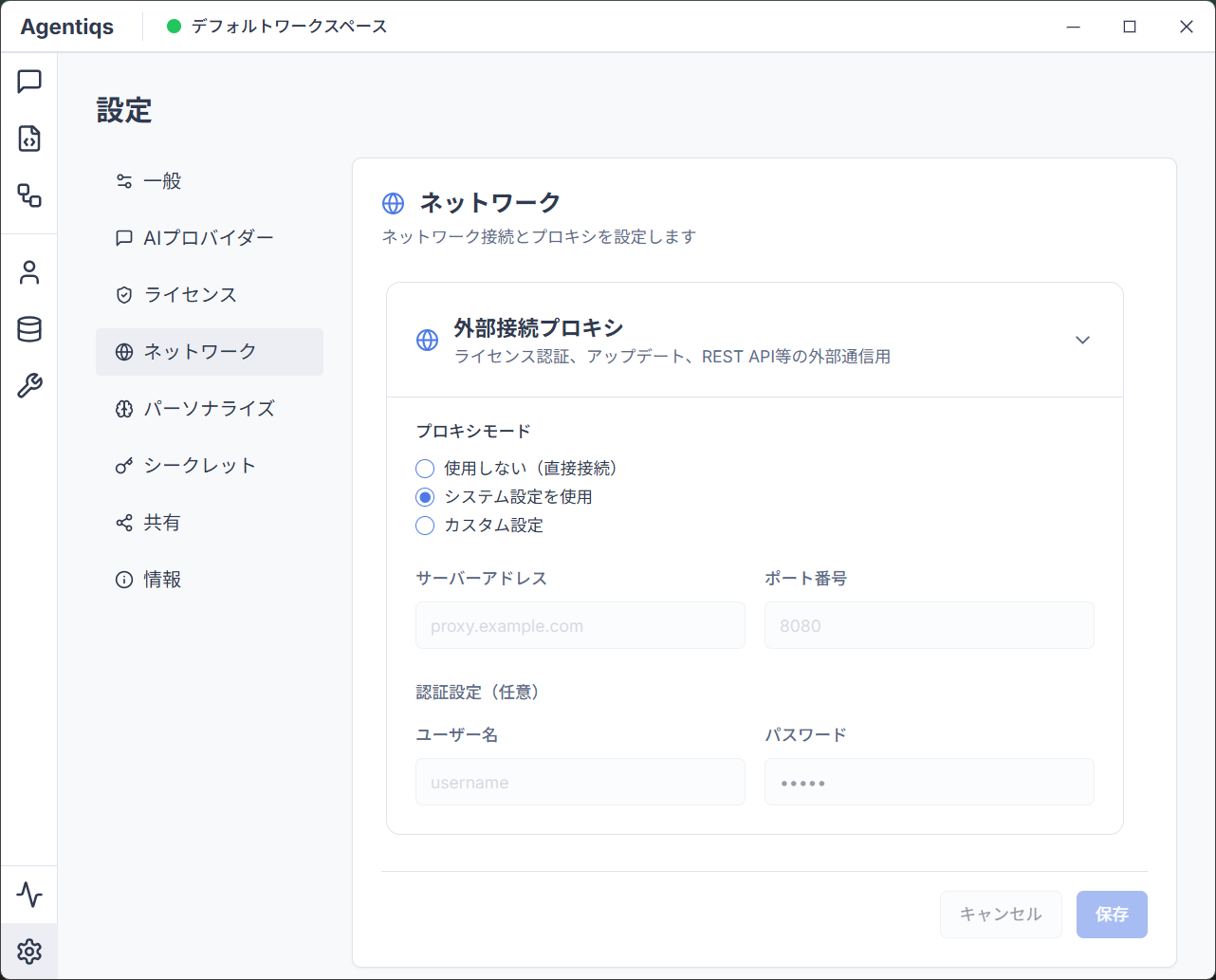
Procedure
- Change the proxy mode in [Settings] > [Network] > [External Connection Proxy] to [Custom Settings].
- The following settings will be enabled:
- Server Address
- Port Number
- Authentication Information (Username, Password)
- The following settings will be enabled:
- Enter any desired values for each setting, then click the [Save] button.
- The proxy settings will be saved.
LLM Dedicated Proxy Settings
This section explains how to configure a proxy for Agentiqs LLM communication.
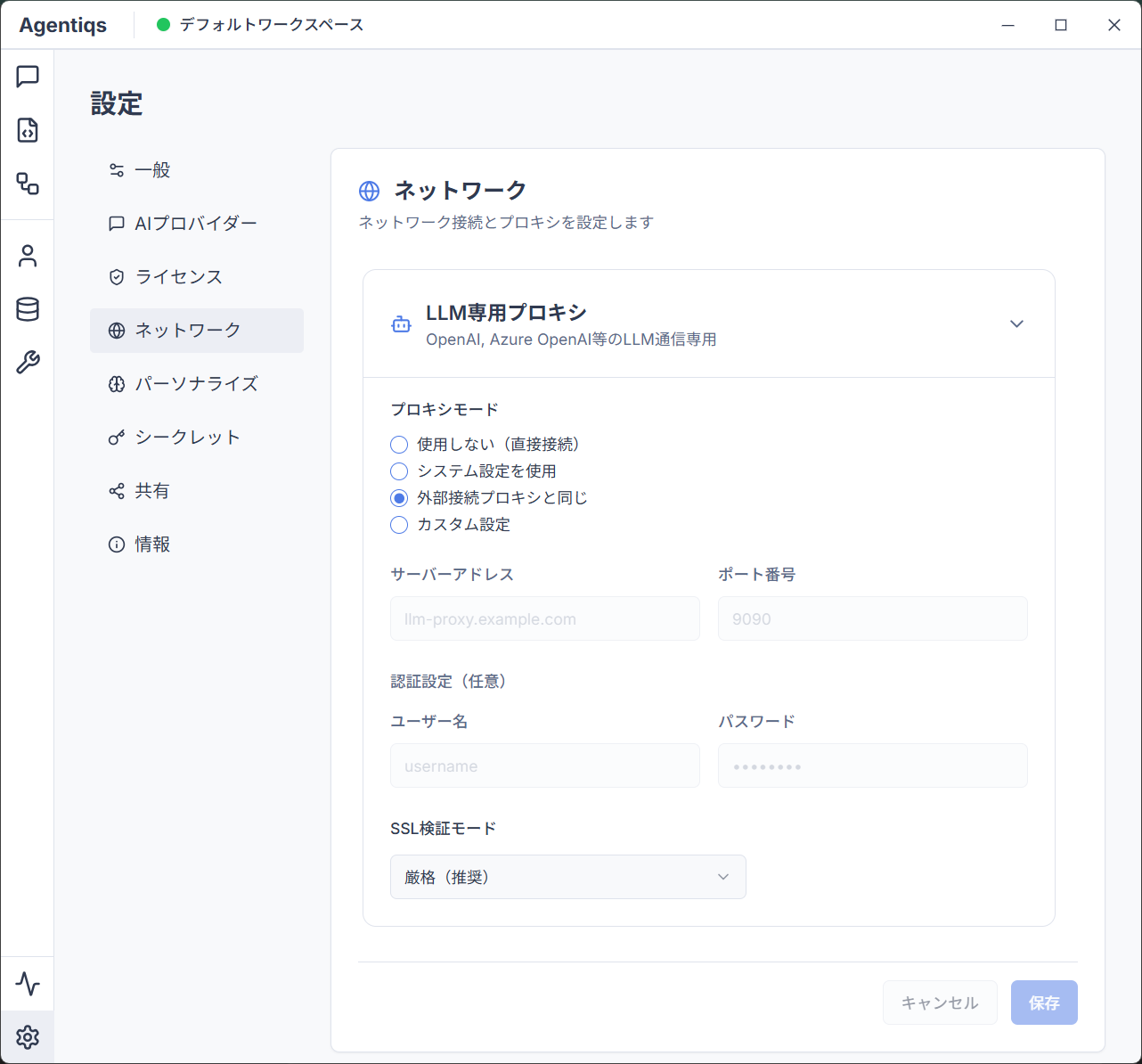
Procedure
- Change the proxy mode in [Settings] > [Network] > [LLM Dedicated Proxy] to [Custom Settings].
- The following settings will be enabled:
- Server Address
- Port Number
- Authentication Information (Username, Password)
- The following settings will be enabled:
- Enter any desired values for each setting, then click the [Save] button.
- The proxy settings will be saved.
Information
- By specifying a proxy different from the External Connection Proxy, you can separate communication paths by purpose.
- Proxy settings are not applied to Google Gemini.
- If you want to use the same settings as the External Connection Proxy, change the proxy mode to [Same as External Connection Proxy].
SSL Verification Relaxation Host Settings
This section explains how to configure hosts that relax Agentiqs certificate chain verification.
You can allow hosts using self-signed certificates as needed.
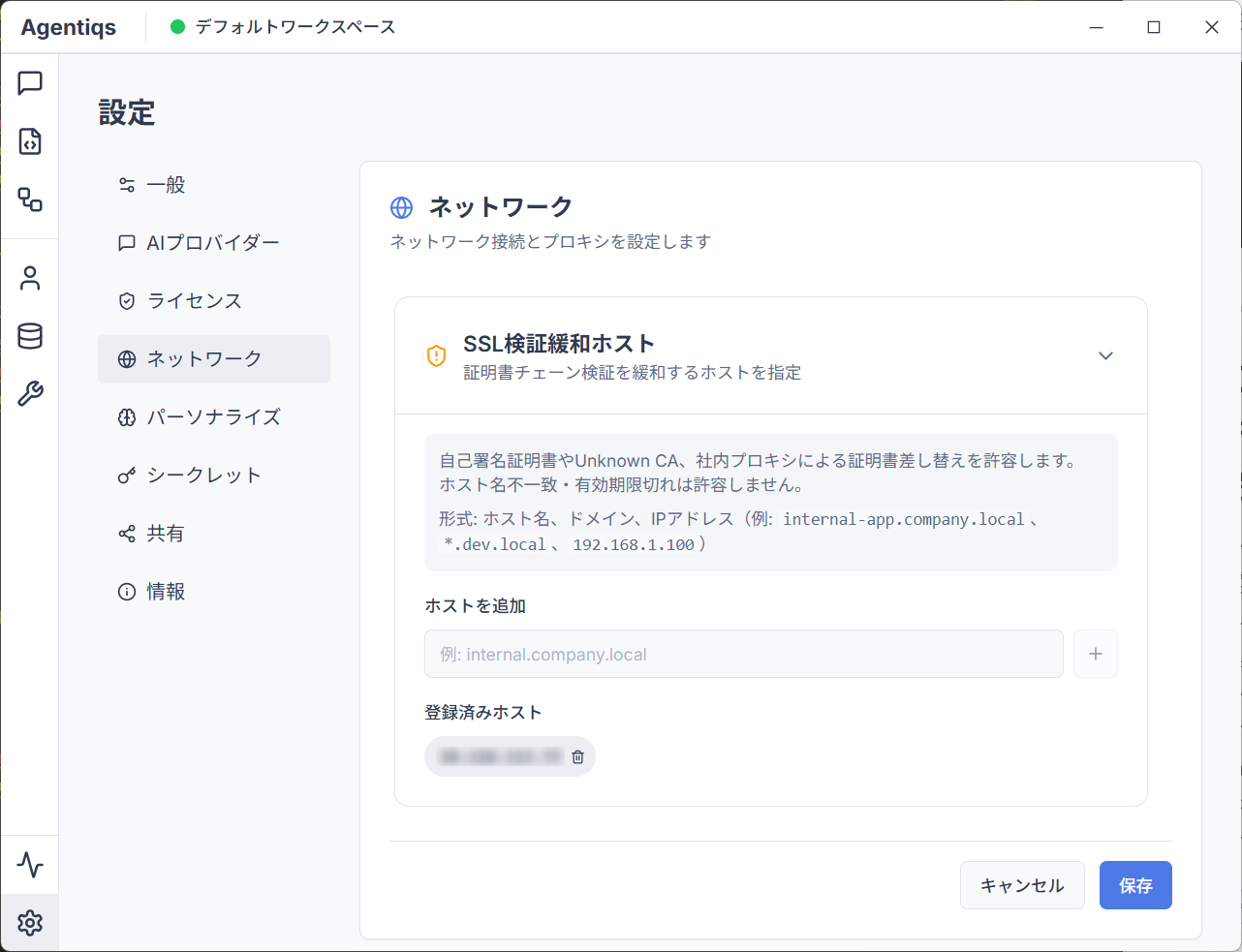
Procedure
- Set any host in [Settings] > [Network] > [SSL Verification Relaxation Hosts] > [Add Host].
- Click the [+] button to the right of [Add Host].
- The SSL verification relaxation host will be registered.
- Repeat steps 1 and 2 to set all desired hosts, then click the [Save] button.
- The registered SSL verification relaxation hosts will be saved.
Information
- This setting applies to both External Connection Proxy and LLM Dedicated Proxy.
Note
- Use SSL verification relaxation host settings with caution and in accordance with your security policy.