Use It in Workflows Basic Guide
This page explains how to configure and use Next Design model data across workflows, including how to retrieve and update it.
To implement the procedures in this page, use the Next Design Functions tool in Agentiqs.
Next Design FunctionsNext Design Functions is a tool for accessing Next Design model data.
In workflows, you can perform operations such as searching, retrieving, and updating models.
Goal of This Guide
Learn how to build workflows using Next Design Functions so that you can do the following.
- Understand the basic way to create workflows using Next Design Functions
- Retrieve information across models and ask an AI agent to perform tasks
Processing Flow
This page explains the following flow.
- Basic settings for Next Design Functions
- Check the functions available in Next Design Functions
- Create a workflow that searches across models and asks an AI agent to perform tasks
Prerequisites
To complete the tutorial on this page, the following environment is required.
| Item | Requirement |
|---|---|
| Agentiqs | V1.1 or later |
| Next Design | V4 or later |
| Sample data | Embedded Software Development Sample |
The Embedded Software Development Sample is stored in the sample data as "Next Design Sample Data."
For setup instructions, see How to Set Up the Sample Data Environment.
Use it if you want to follow the same operations as in this tutorial.
1. Basic Settings for Next Design Functions
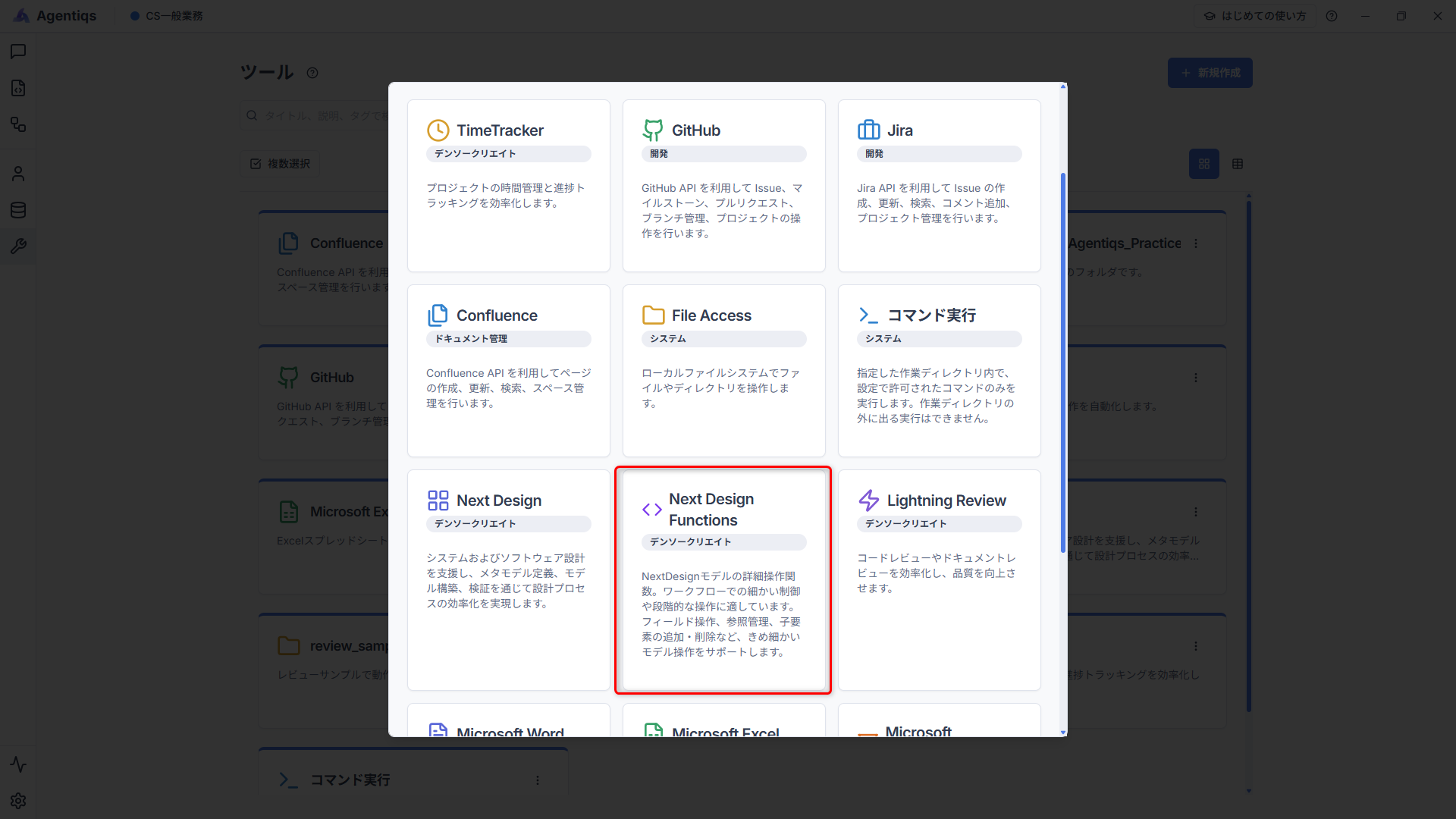
First, add Next Design Functions as a tool.
-
From [Tools] - [Create New], select [Next Design Functions].
2. Check the Functions Available in Next Design Functions
Before creating a workflow, check the functions available in Next Design Functions.
-
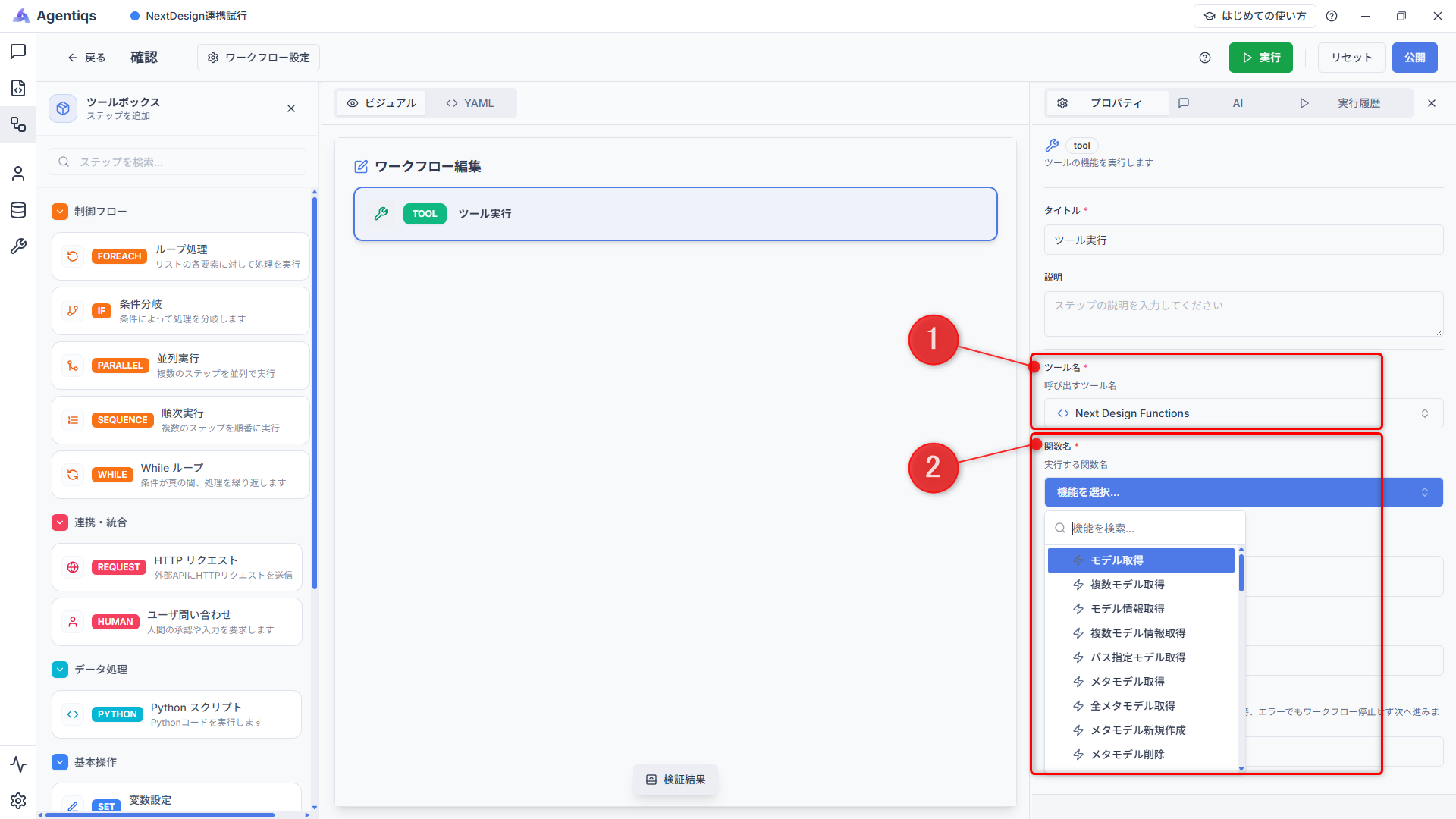
In a blank workflow, drag and drop "Run Tool" from the toolbox on the left.
-
Select the Next Design Functions that you created in [Tool Name] (1 in the figure below).
-
From the [Function Name] dropdown list (2 in the figure below), select the function to use.
tipSelect the function to use in the workflow from the list shown here.
If you check the available operations in advance from Tool List - Next Design Functions, workflow design will be smoother.
3. Create a Workflow
Here, create the following workflow.
- Search for models marked as T.B.D. from the specified class in the Embedded Software Development Sample.
- Ask an AI agent to update the contents of T.B.D.
This is a sample case to learn one example of how to use Next Design workflows.
In actual operation, build workflows according to your intended use case and the metamodel structure.
Workflow Processing Flow
- Specify the target parent model by model path
- Search for software requirement models under the parent model
- Retrieve the information of each model and extract only models marked as T.B.D.
- Ask an AI agent to update the contents
Preparation: Create an AI Agent
Before opening the workflow screen, create the AI agent used in this workflow.
-
From the [Agent] tab - [Create New], select [NextDesign Model Editing] in the gallery.
-
Enter the following content in the system prompt.
[Purpose]- Inspect SoftwareRequirement models in NextDesign and autonomously supplement and update undetermined descriptions such as TBD.
Create the Workflow
-
Open the workflow editor and set variables.
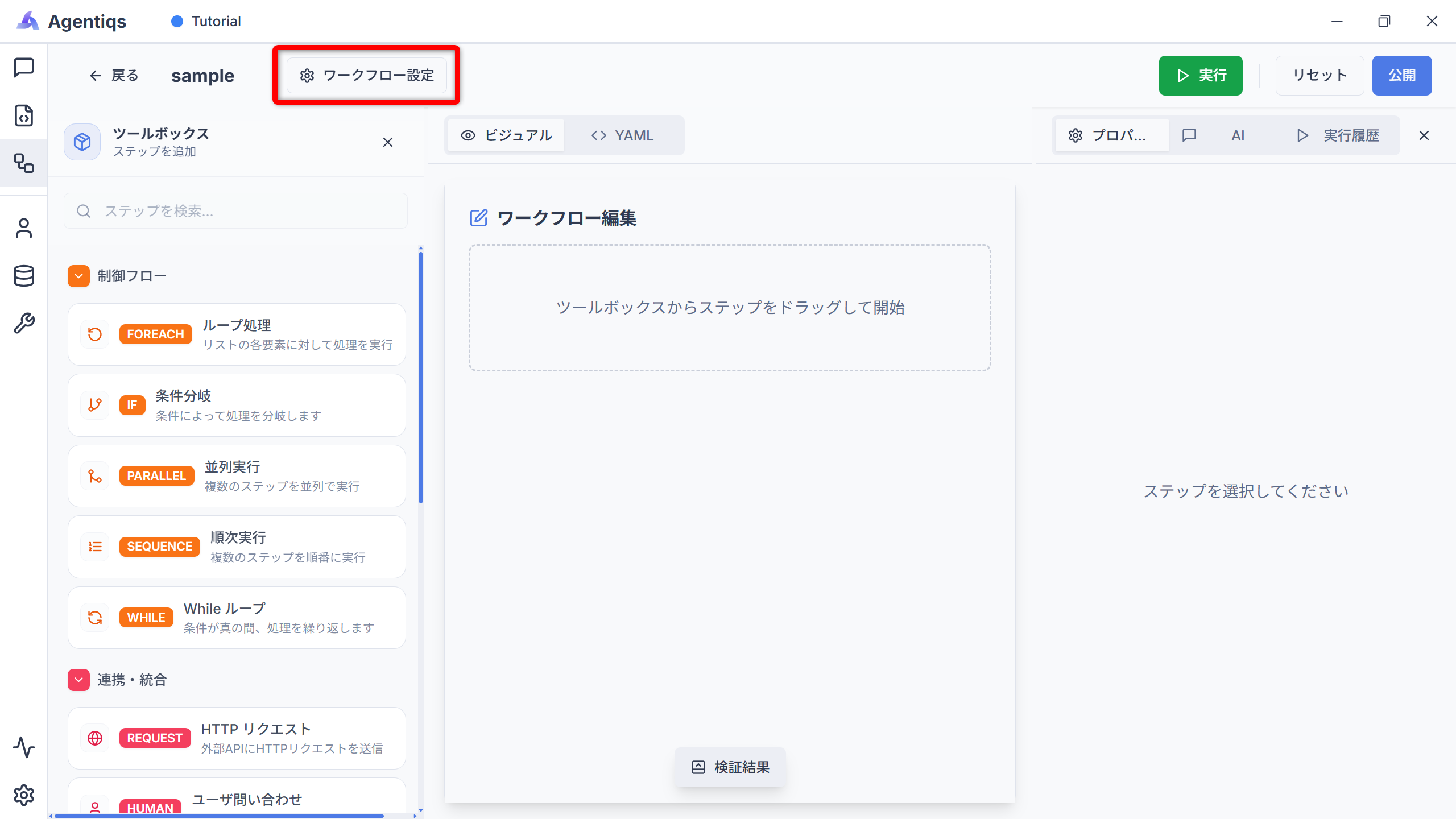
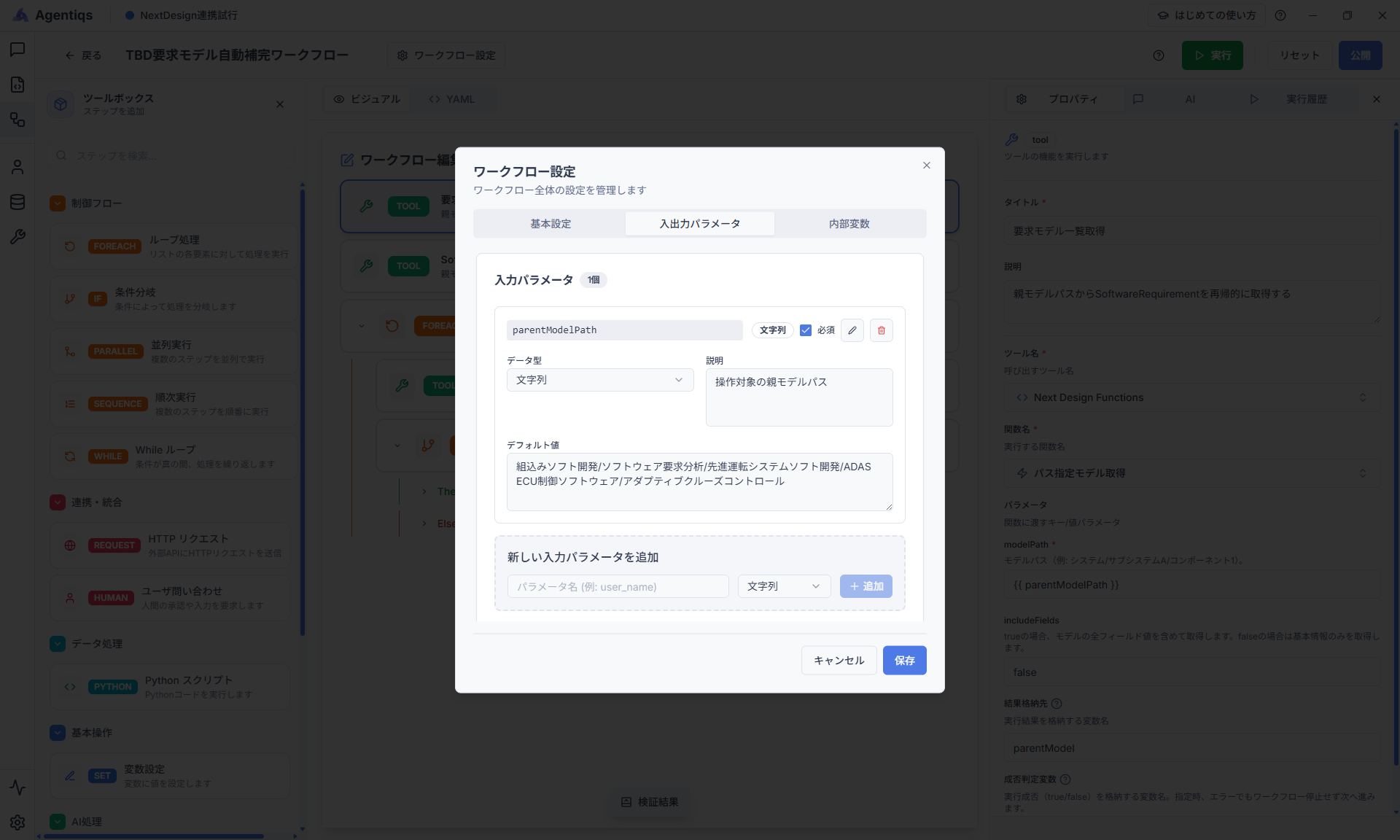
From the workflow editor, open [Workflow Settings] - [Input/Output Parameters] and set the variables used in the workflow.
Parameter settings
Set the variables used in the workflow together with their initial values.
Property Required Setting Item Details Variable Name Yes parentModelPathUse a clear name that can be identified later Description Path of the parent model to operate on Add any description for the variable Default Value If you use the sample data Embedded Software Development/Software Requirements Analysis/Advanced Driver Assistance System Software Development/ADAS ECU Control Software/Adaptive Cruise ControlBy entering this in advance, you can avoid having to input it every time you run the workflow -
Specify the parent model.
Specify the model path to retrieve the parent model targeted this time.
Drag and drop "Run Tool" from the toolbox on the left as the first step, and configure its properties.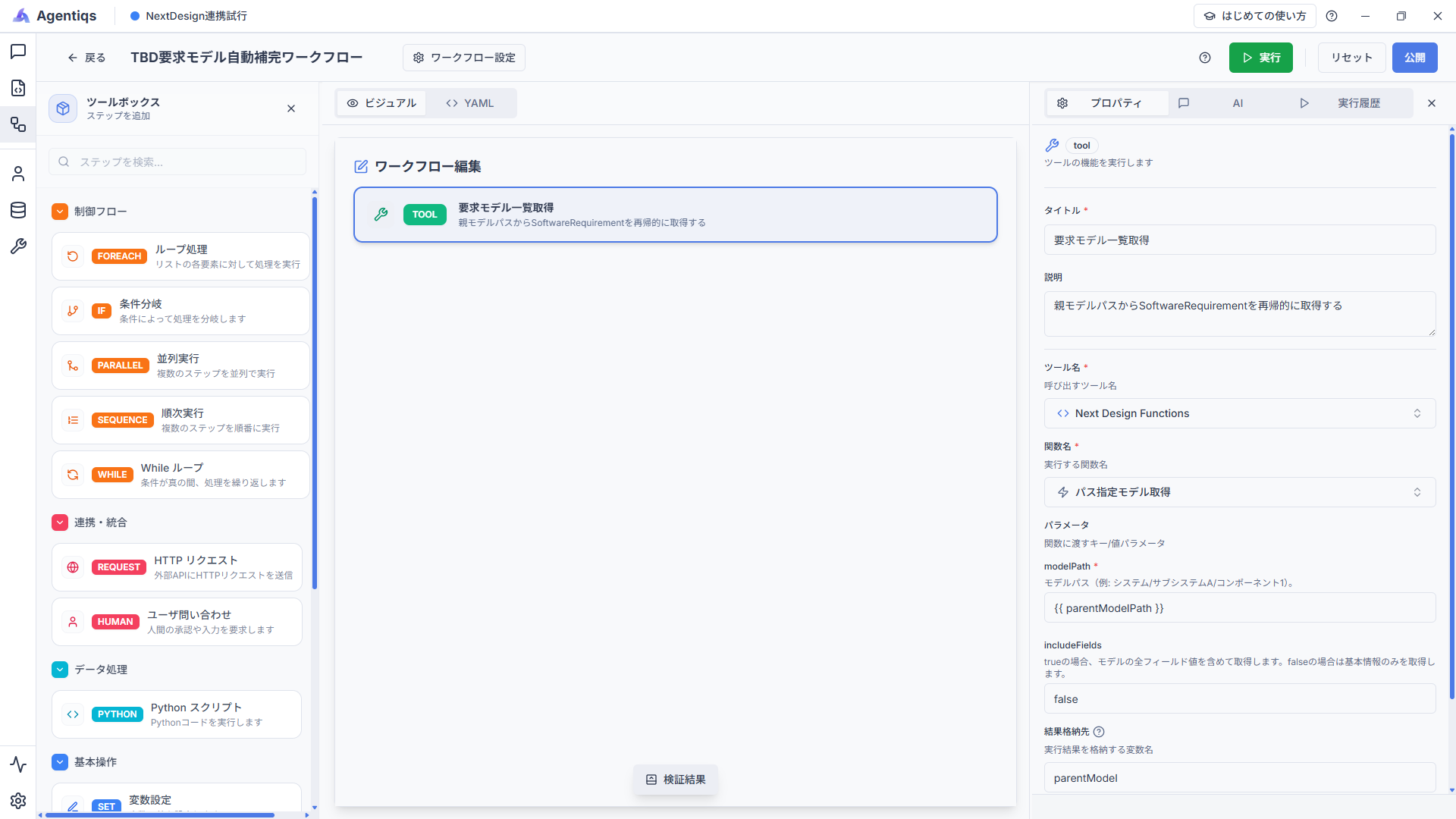
Property settings
Specify the model path, retrieve the parent model, and store it in a variable.
Property Required Setting Item Details Title Get Requirement Model ListUse a clear name that can be identified later. Description Recursively retrieve SoftwareRequirement from the parent model pathTool Name Yes Next Design FunctionsFunction Name Yes Get Model by PathSelect the function that retrieves a model by specifying a model path. modelPath Yes {{ parentModelPath }}Specify the path of the target parent model. includeFields falseIf false, only basic information is retrieved. Store Result In Yes parentModelStore the execution result in a variable. -
Search for software requirement models.
Search for all software requirement models under the parent model.
Drag and drop "Run Tool" and configure its properties.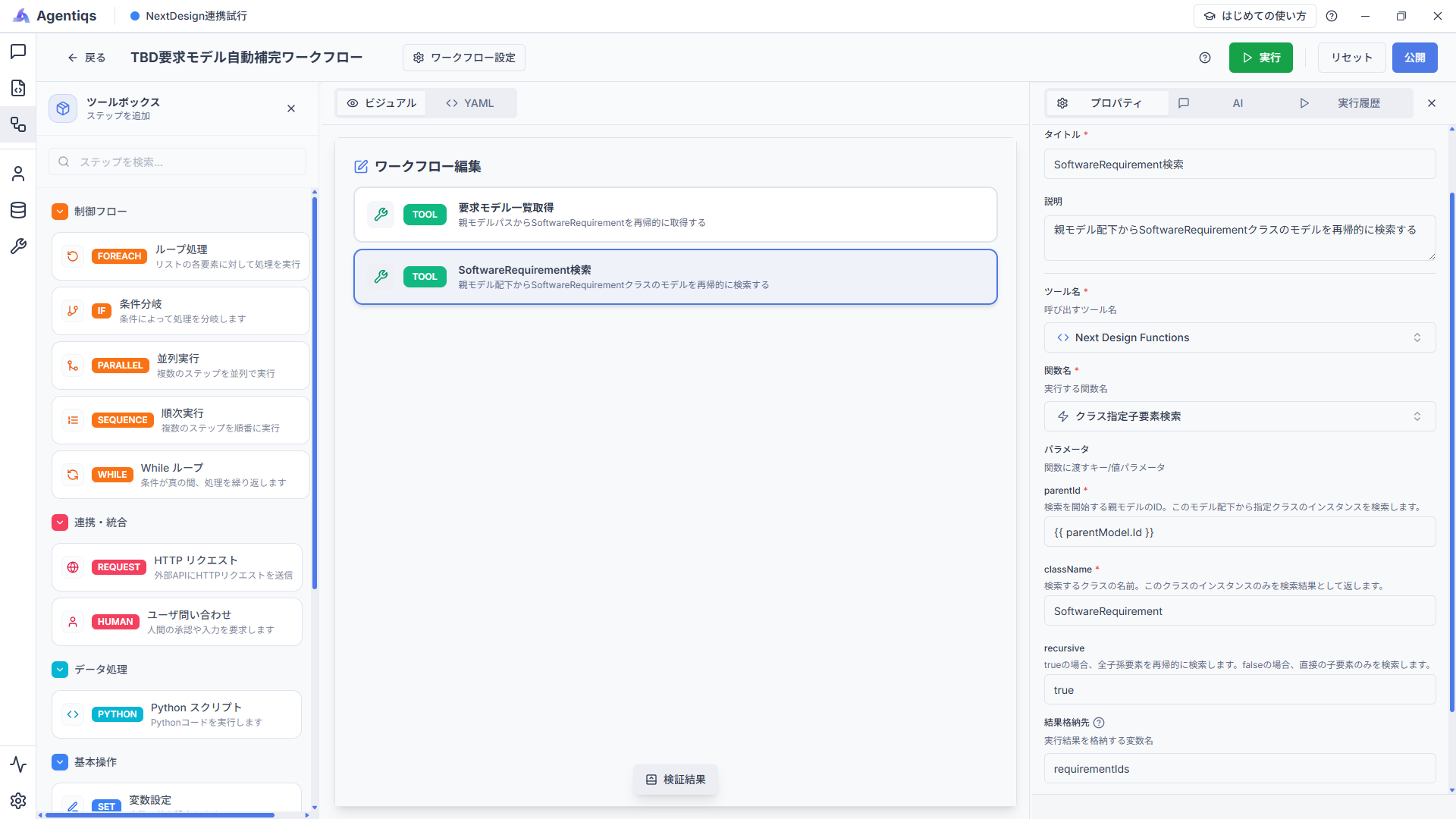
Property settings
Search for models of the specified class under the parent model and retrieve the list.
Property Required Setting Item Details Title Search SoftwareRequirementUse a clear name that can be identified later. Description Recursively search for SoftwareRequirement class models under the parent modelTool Name Yes Next Design FunctionsFunction Name Yes Search Child Elements by ClassSelect the function that searches for models of the specified class. parentId Yes {{ parentModel.Id }}Specify the ID of the parent model retrieved in step 2. className Yes SoftwareRequirementSpecify the class name to search for. recursive trueIf true, all descendant elements are searched recursively. Store Result In Yes requirementIdsStore the execution result in a variable. -
Set loop processing.
Set loop processing for the software requirement models retrieved in step 3.
Drag and drop "Loop" and configure its properties.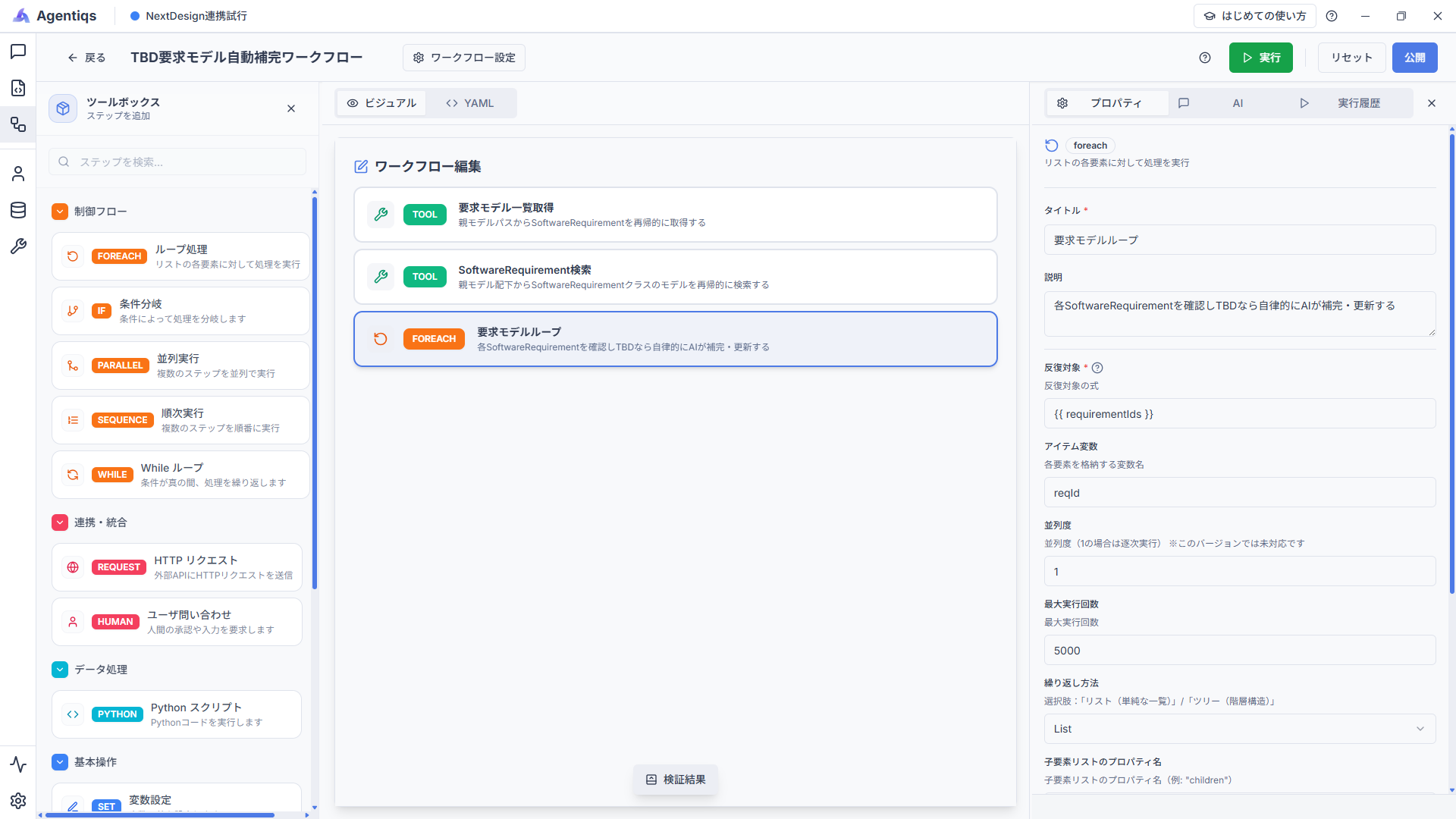
Property settings
Retrieve models one by one from the software requirement model list (
sw_req_list) obtained in the previous step.Property Required Setting Item Details Title Requirement Model LoopUse a clear name that can be identified later. Description Check each SoftwareRequirement, and if it is TBD, let AI autonomously supplement and update itIteration Target Yes {{ requirementIds }}Pass the list data to iterate over. Output from step 3. Item Variable Yes reqIdThe variable name used inside the loop. Used in the next step. Parallelism 1If 1, execution is sequential. Maximum Iterations Yes 5000If the count is large, processing takes time, so specify 2 to 5 during debugging. Iteration Method ListRepeat in list format. -
Retrieve model information.
Retrieve information about the target software requirement model.
Drag and drop "Run Tool" into the child elements of the loop and configure its properties.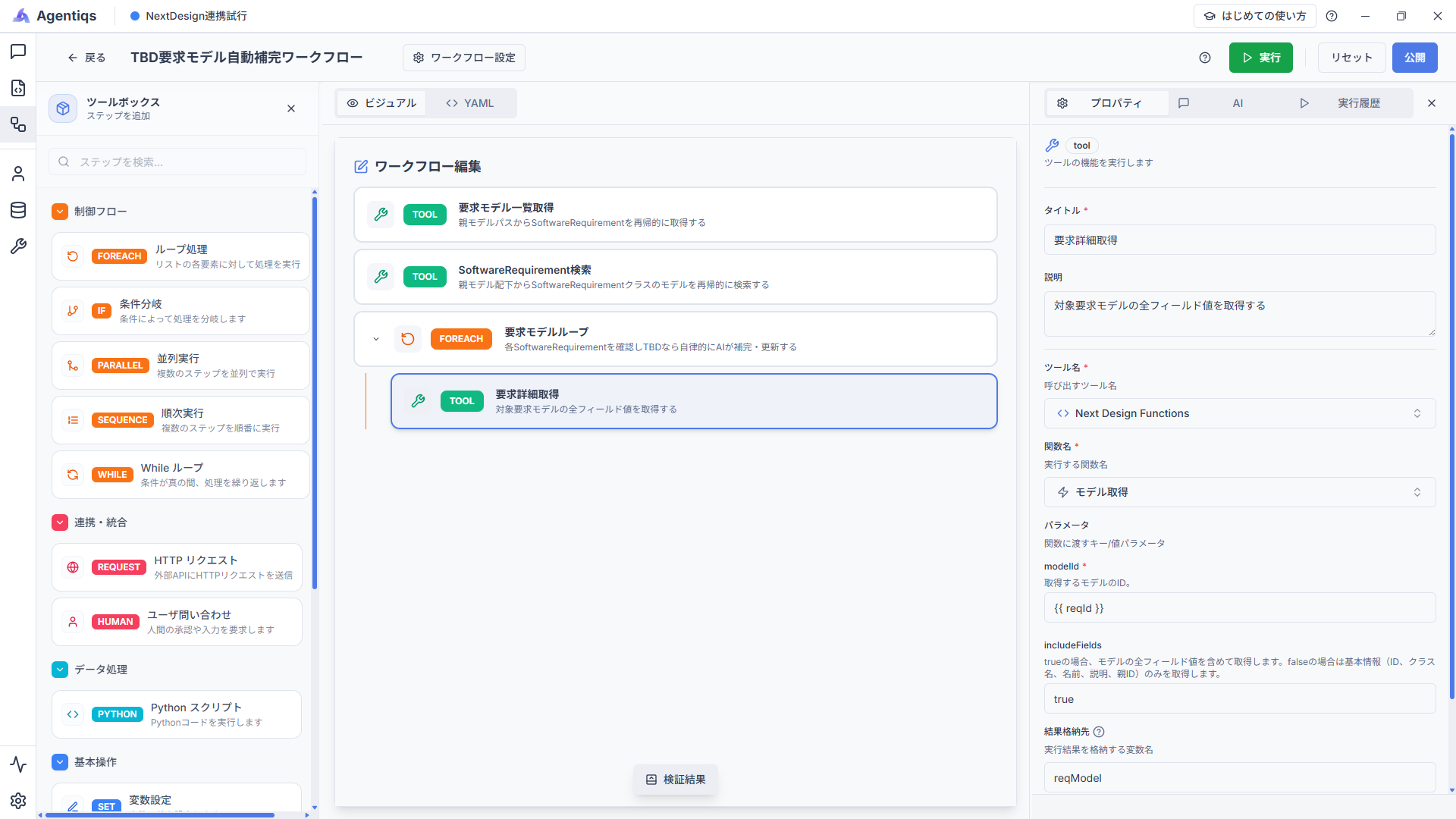
Property settings
Retrieve detailed information about each software requirement model in the loop.
Property Required Setting Item Details Title Get Requirement DetailsUse a clear name that can be identified later. Description Retrieve all field values of the target requirement modelTool Name Yes Next Design FunctionsFunction Name Yes Get ModelSelect the function that retrieves detailed model information. modelId Yes {{ reqId }}Specify the item variable set in step 4. includeFields trueIf true, all field values of the model are included. Store Result In Yes reqModelStore the execution result in a variable. -
Extract only T.B.D. models.
This time, set conditional branching because only models whose model name is
T.B.D.are targeted.
Drag and drop "IF" into the child elements of the loop and configure its properties.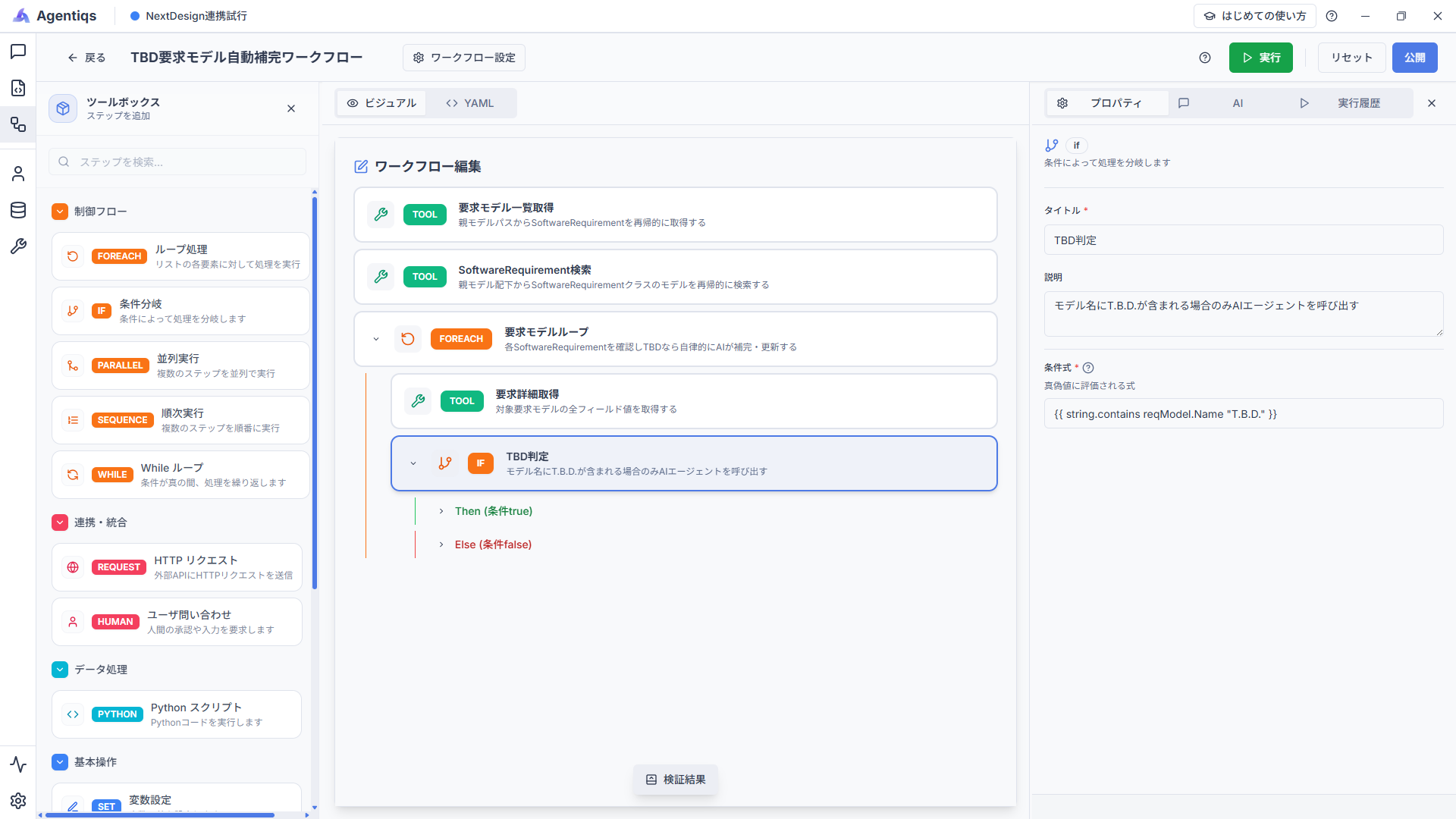
Property settings
Determine whether the model name is
T.B.D..Property Required Setting Item Details Title TBD CheckUse a clear name that can be identified later. Description Call the AI agent only when the model name contains T.B.D.Condition Yes {{ string.contains reqModel.Name "T.B.D." }}Specify the condition to determine whether the model name contains T.B.D. -
Ask the AI agent to update the model.
If the condition in step 6 evaluates to true, call the AI agent and ask it to update the model contents.
Drag and drop "Call AI Agent" on the true side of the conditional branch and configure its properties.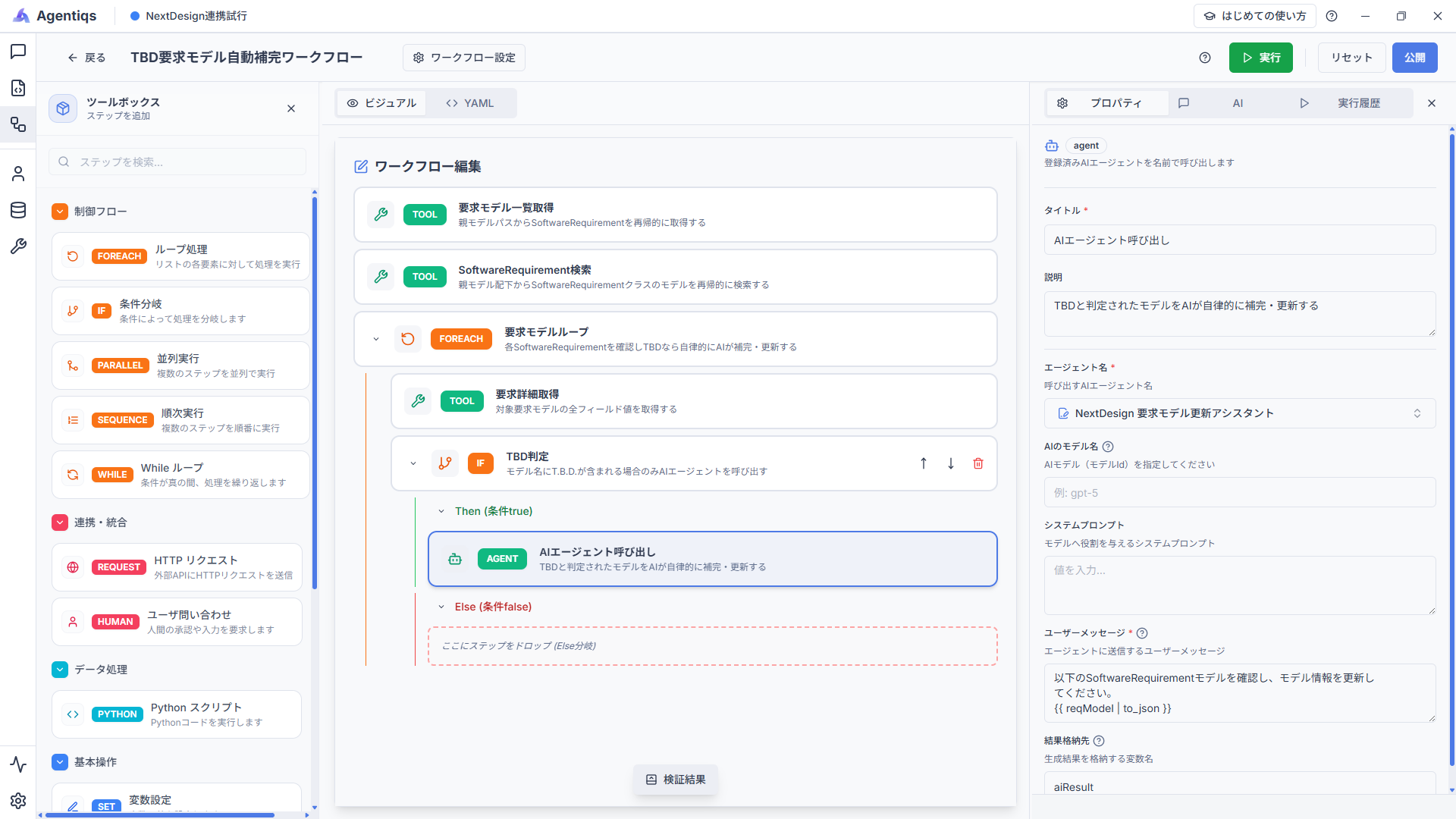
Property settings
The AI agent supplements and updates the contents of T.B.D. models.
Property Required Setting Item Details Title Call AI AgentUse a clear name that can be identified later. Description AI autonomously supplements and updates models judged to be TBDAgent Name Yes NextDesign Requirement Model Update AssistantSelect the AI agent created in the preparation step. User Message Yes Please review the following SoftwareRequirement model and update the model information. {{ reqModel | to_json }}Describe the instruction for the AI agent. Store Result In aiResultStore the execution result of the AI agent in a variable.
This completes workflow creation.
Check the Execution Results
Run the workflow with the Embedded Software Development Sample and check the results.
- Output of step 3: Confirm that the list of software requirement models is retrieved correctly
- Output of step 5: Confirm that the information of each model is retrieved correctly
- Branch in step 6: Confirm that only T.B.D. models branch to the true side
- Output of step 7: Confirm that the AI agent supplements and updates the model contents
In this tutorial, T.B.D. models were targeted, but by changing the condition expression in the conditional branch, you can target various models.
Also, by changing the prompt for the AI agent, you can request different tasks such as review or summarization.
Notes
Design According to the Metamodel Structure
This tutorial is a sample case.
When building workflows for actual operation, check the metamodel structure of the target project and specify appropriate class names and model paths.
Loop Count During Debugging
When debugging a workflow, we recommend setting the maximum number of loop iterations to 2 to 5.
If the count is large, processing time becomes longer and token consumption also increases.
After confirming the behavior, change it to the number for production use.