Tool List
This is a list of standard tools available in Agentiqs.
| Type | Tool Name | Overview | Provided Functions (Example) |
|---|---|---|---|
| Microsoft 365 | Microsoft Word | Automates the creation and editing of Word documents, as well as heading extraction and content retrieval. | Retrieve Selection Range |
| Microsoft Excel | Automates Excel spreadsheet operations. | Retrieve Sheet Name List | |
| Microsoft PowerPoint | Automates the creation and editing of presentations. | Retrieve Slides | |
| DENSO CREATE | Next Design | Supports system and software design, and improves design-process efficiency through metamodel definition, model construction, and verification. | Retrieve Profile Context |
| Next Design Functions | Detailed operation functions for NextDesign models. Suitable for fine-grained control and step-by-step operations in workflows. Supports detailed model operations such as field operations, reference management, and adding/deleting child elements. | Retrieve Model | |
| Lightning Review | Streamlines code reviews and document reviews to improve quality. | Add/Update Documents | |
| TimeTracker | Streamlines project time management and progress tracking. | Actual Effort | |
| Engineering | Simulink | Generates Simulink models. | Add Block |
| Development | GitHub | Uses the GitHub API to manage issues, milestones, pull requests, branches, and projects. | Retrieve Issue |
| Jira | Uses the Jira API to create, update, search, comment on issues, and manage projects. | Create Issue | |
| Document Management | Confluence | Uses the Confluence API to create, update, search, and manage spaces. | Create Page |
| System | Execute Command | Executes only commands allowed in the settings within the specified working directory. Execution outside the working directory is not possible. | Check Execution Settings |
| File Access | Manipulates files and directories in the local file system. | Create/Update Files | |
| Clipboard Operations | Retrieves and writes text from the clipboard. | Retrieve Clipboard | |
| MCP | MCP Tool | Configures and uses MCP servers. | MCP Server Functions |
Standard Tools
Microsoft 365
Microsoft Word
Automates the creation and editing of Word documents, as well as heading extraction and content retrieval.
Provided Functions
- Retrieve Selection Range
- Create Documents from Markdown
- Retrieve Heading List
- Extract Content by Specified Heading
Configuration Parameters
- None
Microsoft Excel
Automates Excel spreadsheet operations.
Provided Functions
- Retrieve Sheet Name List
- Activate Sheet
- Retrieve Active Sheet Name
- Add Sheet
- Rename Sheet
- Retrieve Data Input Cell Range Information
- Retrieve Header Section Range
- Retrieve Selected Range Address
- Retrieve Range Data
- Retrieve Cell Value
- Set Cell Value
- Set Values for Multiple Cells in a Range
- Insert Row
- Insert Column
- Delete Row
- Delete Column
- Clear Range
- Retrieve Cell Formatting
- Set Cell Formatting
- Create Graph
Configuration Parameters
- None
When operating Excel from Agentiqs, Excel's Undo function cannot be used.
Instead of directly updating existing forms, please create a new sheet or file to work with.
Microsoft PowerPoint
Automates the creation and editing of presentations.
Provided Features
- Retrieve Slides
- Create Slides from Markdown
- Retrieve Slide Count
- Retrieve All Slides
- Retrieve Text from a Specified Slide
- Retrieve Current Slide Number
Configuration Parameters
- None
DENSO CREATE
Next Design
Supports system and software design, and improves design-process efficiency through metamodel definition, model construction, and verification.
Provided Features
- Retrieve Profile Context
- Create/Update Metamodel
- Define ER Diagram View
- Define Tree Diagram View
- Define Form View
- Define Tree Grid View
- Retrieve Model Context
- Retrieve Child Entities
- Create/Update Model
- Search Model
- Add Error Information
Configuration Parameters
- None
- Be sure to set the following value in the AI agent's context. If the configured value is different, you may not be able to use the Next Design tool.
- For model editing:
{{NextDesign.GetModelContext}} - For profile editing:
{{NextDesign.GetProfileContext}}
- For model editing:
- Because Next Design loads extensions, please start it for the first time using the following procedure. (If Next Design is already running, close it first and then start it again.)
- Start Agentiqs.
- The extension path will be set in the Next Design content source.
- Start Next Design.
- Restart Next Design.
- It will start with the extension path linked.
- Start Agentiqs.
- The Agentiqs chat window can be integrated into the Next Design UI, allowing you to use AI seamlessly in your normal design work without switching tools.
For details, see "Next Design User's Manual - Development Using AI".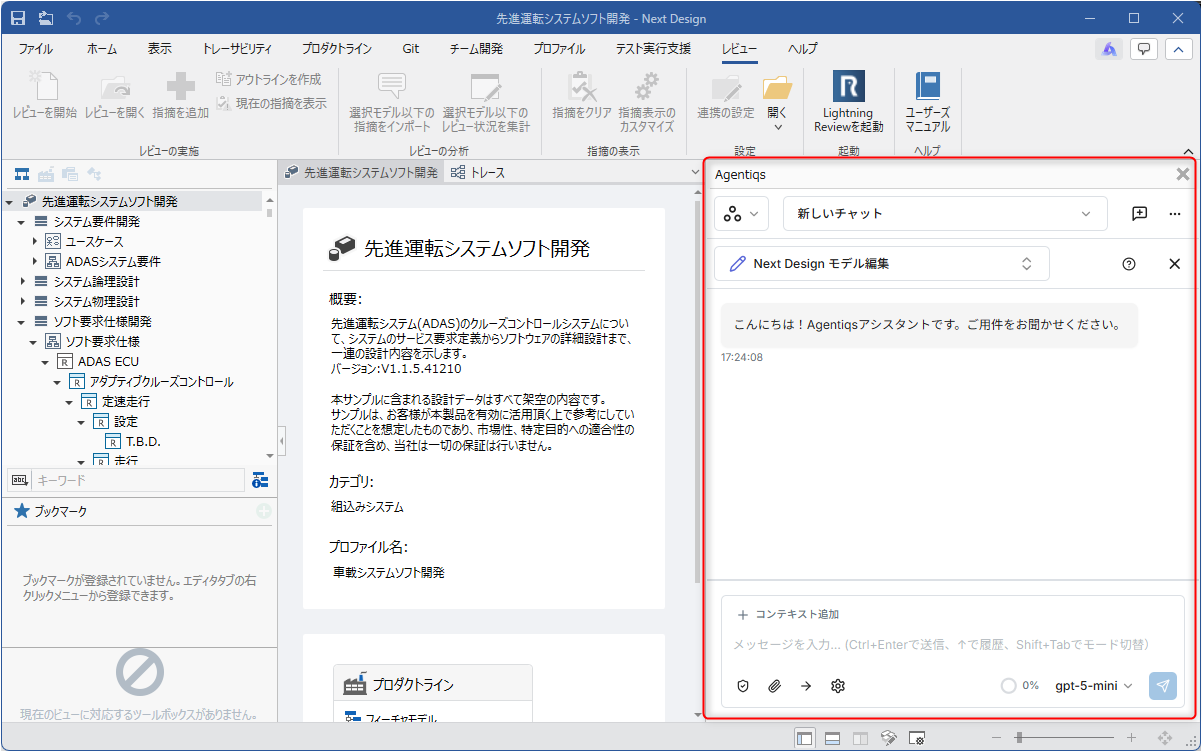
- See "Tips - Next Design Integration" for a concrete setup procedure for Next Design integration.
Next Design Functions
Detailed operation functions for NextDesign models. Suitable for fine-grained control and step-by-step operations in workflows. Supports detailed model operations such as field operations, reference management, and adding/deleting child elements.
Provided Features
- Retrieve Model
- Retrieve Multiple Models
- Retrieve Model Information
- Retrieve Multiple Model Information
- Retrieve Model by Path
- Retrieve Metamodel
- Retrieve All Metamodels
- Create New Metamodel
- Delete Metamodel
- Add Property
- Delete Property
- Add Superclass
- Delete Superclass
- Create New Enumeration Type
- Add Enumeration Value
- Delete Enumeration Value
- Retrieve Package
- Retrieve All Packages
- Create New Package
- Retrieve Association
- Retrieve Field Value
- Retrieve Field String
- Retrieve Multiple Field Values
- Set Field Value
- Delete Field
- Retrieve Child Element ID
- Retrieve All Descendant IDs
- Retrieve Child Element
- Retrieve All Descendant Elements
- Search Model Name
- Search Child Element by Class
- Add Model
- Delete Model
- Move Model
- Retrieve Owner ID
- Retrieve Reference ID
- Associate
- Delete Association
- Retrieve Referenced Related Model
- Retrieve Derived Source Model ID
- Retrieve Derived Destination Model ID
- Retrieve Error Information
- Add Error
- Determine Class
- Retrieve Model Path
- Select Model
- Retrieve Root Model
- Retrieve Navigator Selected Model ID
- Retrieve Editor Selected Model ID
- Execute Script
- Output Message
- Output Formatted Message
- Clear Output
- Clear All Output
Configuration Parameters
- None
NextDesign Functionsis a tool primarily intended for use in workflows.
Adding it to an AI agent may increase unintended calls and thus increase usage costs.
This tool requires the Next Design extension "NDInterop" to be installed before use. Please install NDInterop in Next Design before using this tool.
Lightning Review
Streamlines code reviews and document reviews to improve quality.
Provided Features
- Add/Update Documents
- Add/Update Outlines
- Add/Update Issues
- Delete Documents
- Delete Outlines
- Delete Issues
- Retrieve Documents
- Retrieve Document Outlines
- Retrieve Review Settings
- Retrieve Issues
- Move Issue
- Retrieve Workspace Folder
- Retrieve Folders in the Workspace Folder
- Retrieve Review List
- Open Review
- Retrieve Template
- Create Review
- Update Review Settings
- Classify Issue
- Retrieve Notes List
- Retrieve Note
Configuration Parameters
- None
This tool requires the Lightning Review extension "LightningReview.Interop" to be installed before use. Please install LightningReview.Interop in Lightning Review before using this tool.
TimeTracker
Streamlines project time management and progress tracking.
Provided Features
- Logged-in User
- Retrieve User List
- Create Project
- Update Project
- Retrieve Project
If the project name contains "[]", it cannot be retrieved using "Retrieve Project".
Please specify the project ID (*) instead of the project name.
* This can be obtained by executing "Retrieve Project List". - Retrieve Project List
- Create Work Item
- Update Work Item
- Retrieve Work Item Package List
- Retrieve Work Item
- Retrieve Work Item List
- Actual Effort
- Retrieve Load Data
Configuration Parameters
| Item | Overview |
|---|---|
| Server URL | TimeTracker server URL |
| API Key (Secret) | TimeTracker API authentication key |
Engineering
Simulink
Generates Simulink models.
Provided Functions
- Start a MATLAB shared session
- Launch Simulink
- Open/Create a model
- Edit Simulink models, blocks, and lines
- Retrieve SLDD file settings
- Overwrite/Add SLDD file settings
- Retrieve Simulink context
- Execute MATLAB commands
- Run simulations
- Retrieve library category list
- Retrieve block list by library category
- Retrieve block details from the library
- Search the library
- Retrieve model hierarchy structure
- Retrieve the list of elements directly under a subsystem
- Retrieve block details within a model
- Retrieve the path to the SLDD file linked to a model
- Retrieve model configuration parameters
- Retrieve Simulink libraries
Configuration Parameters
| Item | Overview |
|---|---|
| Simulink Library Names | Specify the library names used in Simulink, separated by commas. |
| Block Catalog Save Folder | Folder where the Simulink block information catalog file is saved. |
Development
GitHub
Uses the GitHub API to manage issues, milestones, pull requests, branches, and projects.
Provided Features
- Retrieve Issue
- Create Issue
- Update Issue
- Search Issue
- Add Comment to Issue
- Create Milestone
- Update Milestone
- Retrieve Milestone
- Retrieve Branch
- Retrieve Branch Commit History
- Retrieve Pull Request
- Create Pull Request
- Update Pull Request
- Search Pull Request
- Retrieve Project
- Add Issue to Project
- Add Pull Request to Project
- Create Draft Item
- Create Issue and Add to Project
- Set Iteration for Issue
- Retrieve Project Item List
- Update Project Item
Configuration Parameters
| Item | Overview |
|---|---|
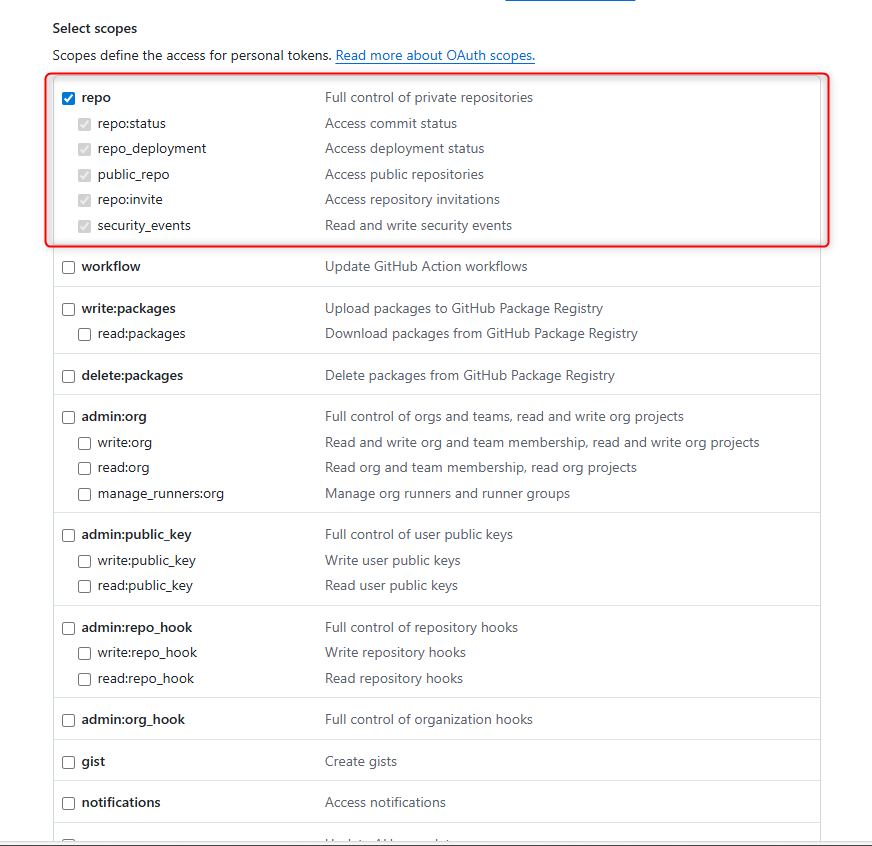
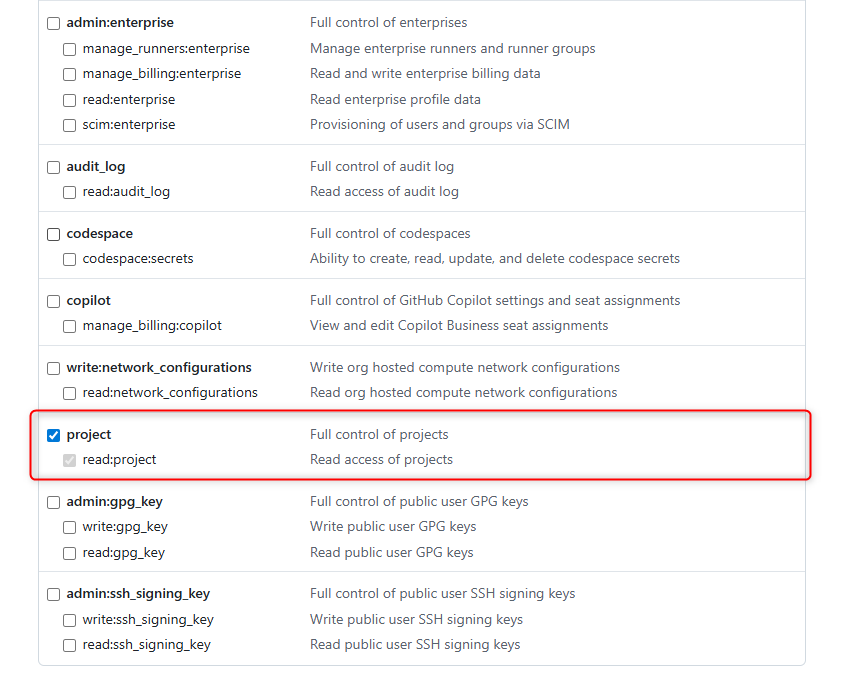
| GitHub API Key (Secret) | GitHub API authentication key |
Please make sure the [repo] and [project] scopes are checked for the key.
Jira
Uses the Jira API to create, update, search, comment on issues, and manage projects.
Provided Features
- Create Issue
- Update Issue
- Search Issue
- Add Comment to Issue
- Retrieve Project Information
- Search Projects
Configuration Parameters
| Item | Overview |
|---|---|
| Jira Instance URL | URL of the Jira instance |
| Deployment Type | Select the Jira deployment type (cloud: Cloud version, serverdc: Server/Datacenter version) |
| Authentication Type | Select the authentication method (basic: Basic authentication, bearer: Bearer authentication (PAT)) |
| API Version Setting | API version setting for Cloud (v2: Use v2, v3: Use v3). Server/DC always uses v2. |
| Jira User Email / Username | Username used for Jira API authentication (email address for Cloud, username for Server/DC) |
| Jira Password / API Token (Secret) | Password or API token for Jira API authentication (used for Basic authentication. Set an API token for Cloud, and a password for Server/DC) |
| Personal Access Token (Secret) | Personal Access Token (used only for Bearer authentication) |
| System Fields | Enter the keys (English names) of the system fields configured in your Jira environment, separated by commas. The specified fields can be used in AI queries. You can specify "description" (description), "priority" (priority), "duedate" (due date), and "labels" (labels). |
[System Fields] can be used only when "description" (description), "priority" (priority), "duedate" (due date), and "labels" (labels) are used as system fields in Jira. By entering the field keys separated by commas, the specified fields can be used in AI queries.
Document Management
Confluence
Uses the Confluence API to create, update, search, and manage pages and spaces.
Provided Features
- Create Page
- Update Page
- Search Page
- Retrieve Page
- Add Label to Page
- Remove Label from Page
- Add Page Content
- Retrieve List of Accessible Spaces
Configuration Parameters
| Item | Overview |
|---|---|
| Confluence Instance URL | Base URL of Confluence |
| Instance Type | Select the type of Confluence instance |
| Authentication Method | Select the authentication method |
| Confluence User Email / Username | Username used for Confluence API authentication (email address for Cloud, username for Server/DC) |
| Confluence Password / API Token (Secret) | Password or API token for Confluence API authentication (used for Basic authentication. Set an API token for Cloud, and a password for Server/DC) |
| Personal Access Token (Secret) | Personal Access Token (used only for Personal Access Token authentication) |
System
Execute Command
Executes only commands permitted by the settings within the specified working directory. Execution outside the working directory is not possible.
Provided Functions
- Check Execution Settings
- Execute Command
Configuration Parameters
| Item | Overview |
|---|---|
| Working Directory | All commands are executed within this directory. Execution is not possible in any other path. |
| Allowed Commands | Specify the commands that are allowed to be executed, separated by commas. Each command is as follows: - "command": No restrictions, - "command:sub1|sub2": Allows only the specified subcommands - "command:!sub1|sub2": Prohibits only the specified subcommands Example: npx, dotnet:build|test|restore, npm:install|test|build, git:!push|force |
| Prohibited Words | Specify words separated by commas that are prohibited from execution if they are included as arguments, even among the allowed commands. Example: del, rmdir, push |
| Default Timeout | Execution will be interrupted if it exceeds this number of seconds. |
File Access
Manipulates files and directories in the local file system.
Provided Functions
- File Creation/Update
- File Append
- File Content Retrieval
- Structured Document Retrieval
- RAG Chunk Retrieval
- Outline Retrieval
- Outline Section Retrieval
- Section Content Retrieval
- Partial Replacement
- Multiple Edits
- File List Retrieval
- Directory List Retrieval
- Content Search
- File Name Search
- Create Directory
- Move/Rename File or Folder
Configuration Parameters
| Item | Overview |
|---|---|
| Base Directory | The base directory used to restrict operations. |
"Tips - Read and Write Files with the File Access Tool" introduces concrete ways to use File Access.
Clipboard Operations
Retrieves and writes text from the clipboard.
Provided Functions
- Retrieve Clipboard
- Write Clipboard
Configuration Parameters
- None
MCP (Model Context Protocol)
MCP Tool
Configures and uses MCP servers.
Provided Functions
- Use the functions provided by the MCP server you configure.
Configuration Parameters
- MCP Server Settings
- For details on the settings, please refer to User Guide - Integrating with External Tools.