Change Display Settings
Change the Theme
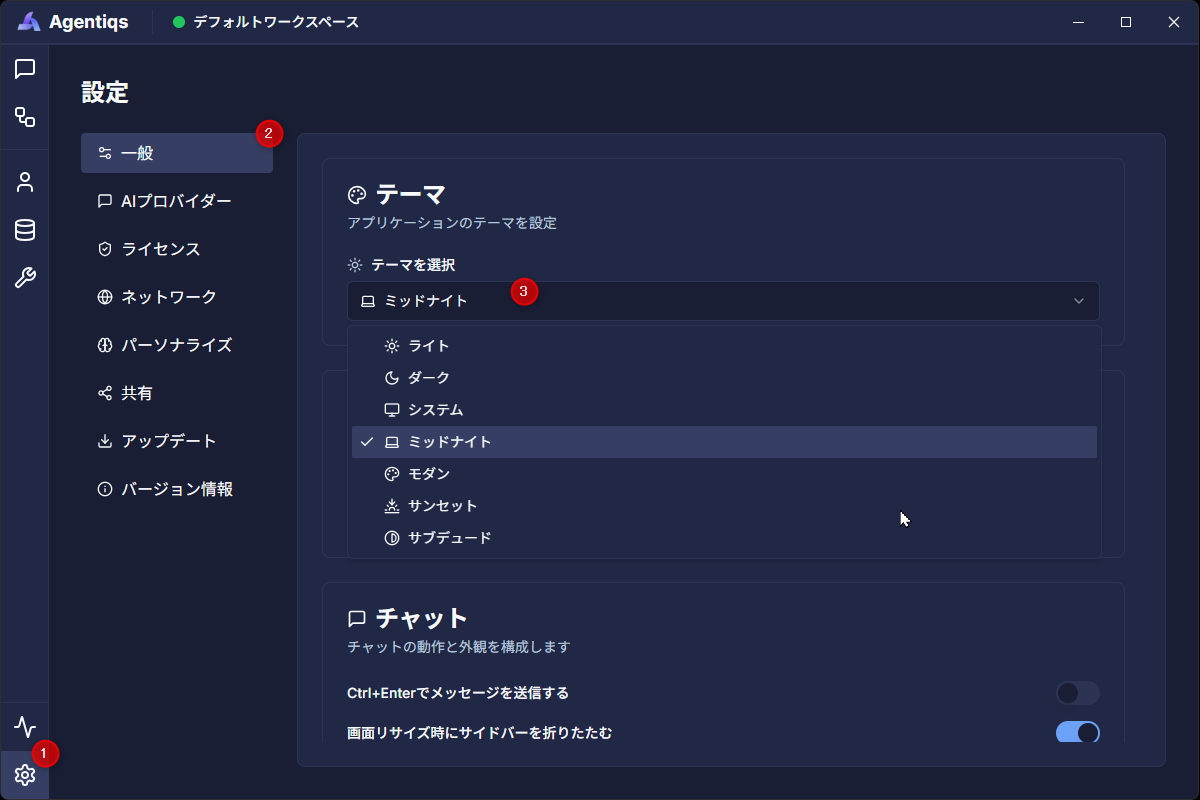
This section explains how to change the display theme (color scheme) in Agentiqs.
Procedure
- Click [Settings] > [General]. (① → ②)
- The settings screen appears.
- Select a theme from the [Theme] > [Select Theme] dropdown (③).
- The on-screen color scheme is updated immediately to match the selected theme.
Available Themes
| Name | Description |
|---|---|
| Light | A standard theme with a bright background and dark text. Suitable for daytime viewing. |
| Dark | A dark background with light text. Improves visibility in low-light environments and at night. |
| System | Automatically synchronizes with the OS theme setting (light/dark). |
| Midnight | A dark theme with higher contrast. Designed for situations where visibility is important. |
| Modern | A theme with strong accent colors and a contemporary color palette. |
| Sunset | A soft-tone theme with warm accent colors. |
| Subdued | A calm, low-key theme suited to long periods of use. |
Change the Language
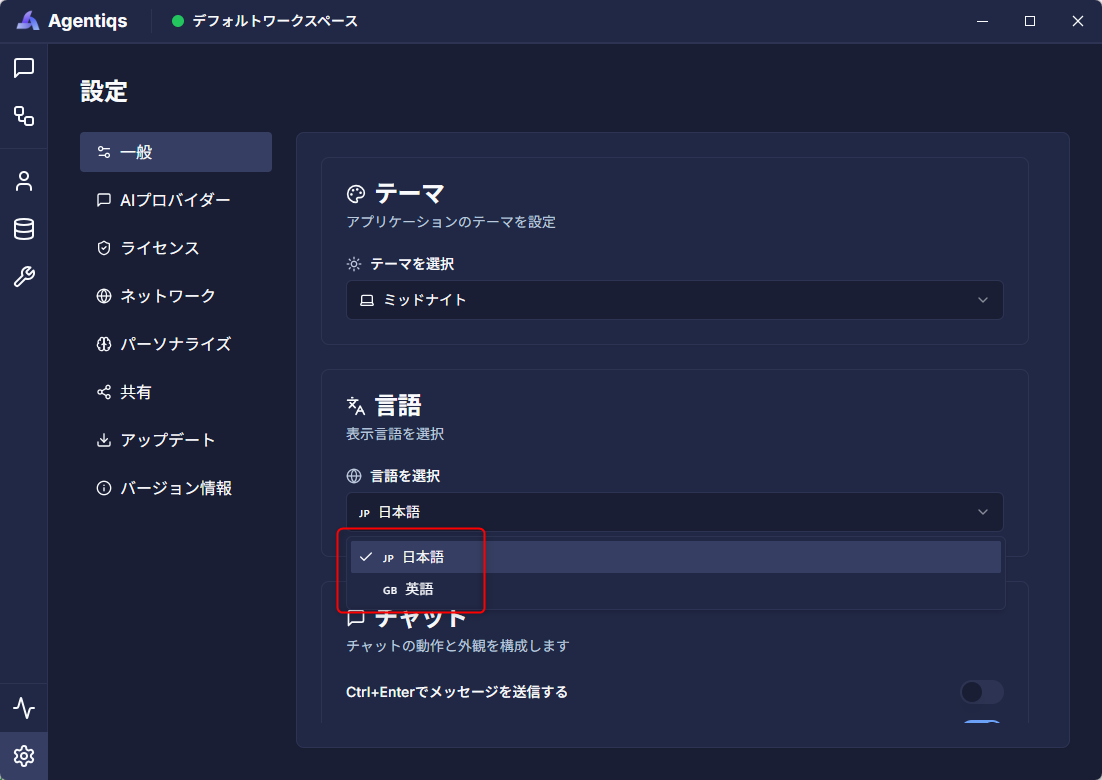
In Agentiqs, you can choose from the following two display languages:
- Japanese
- English
Procedure
- Click [Settings] > [General].
- The settings screen appears.
- Select a language from [Language].
tip
Language settings apply only to what is displayed on screen. They do not affect features or processing behavior.
Organize Agent and Other Lists
In the lists for agents, knowledge, tools, and workflows, you can switch display modes, group items by category, and pin items.
Even if the number of items increases, organizing them by purpose or team makes it easier to find what you need.
| Display Mode | Use |
|---|---|
| Flat View | Displays all items in a single list. |
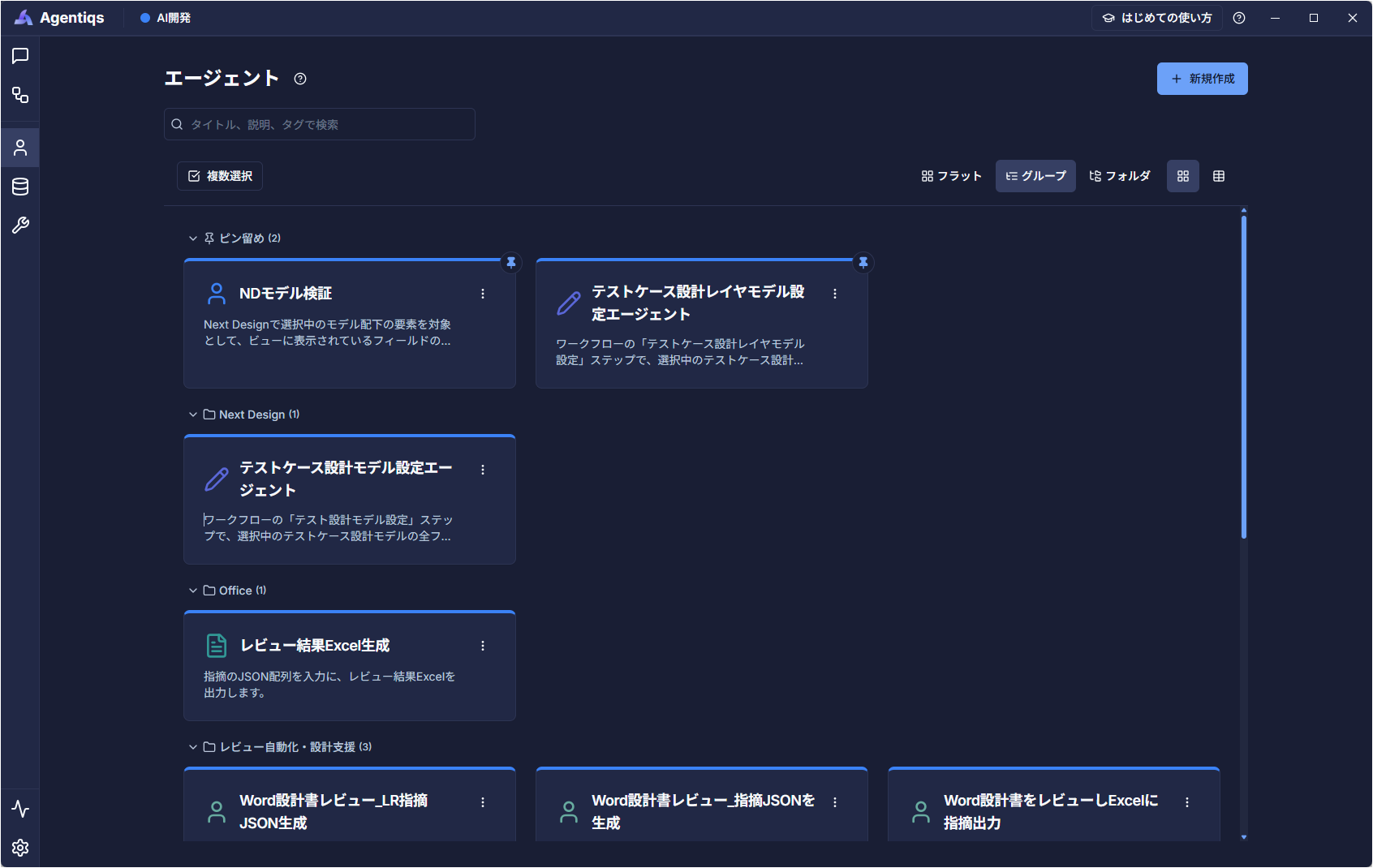
| Group View | Uses category names as headings and displays items by category. |
| Folder View | Displays categories as folders so you can open the needed category and check its contents. |
Example of Group View:
Procedure
- Open the list of agents, knowledge, tools, or workflows.
- From the display toggle button on the list screen, select [Flat], [Group], or [Folder].
- Drag and drop cards into the desired category to organize them.
- Pin frequently used items to keep them at the top of the list.