Use Skills
This page explains how to use Agentiqs Skills to make business rules and specialized knowledge reusable in agents.
What are Skills?
Skills package specific work rules and expert knowledge so that they can be reused in AI conversations.
SkillsBy placing skill definitions (SKILL.md), agent settings, scripts, reference materials, and other resources together in one folder, you enable agents to use them during AI conversations.
You can also use existing skills or publicly available skills as-is.
Skills automatically detect and load the skill definitions placed in a workspace so that they can be used in AI conversations.
- As long as the workspace is open, skills in the designated folders are automatically enabled.
- Skills are loaded each time AI conversation runs, so additions or changes are automatically reflected from the next conversation onward.
- On the AI agent [Skills] tab, you can review and configure the skills used by each agent.
Skills you create are automatically referenced during AI conversations.
Prepare skills
Before using Skills, prepare the skill folder.
Structure of a single skill
Each skill should be created in the following structure:
skill-name/
├── SKILL.md          # Skill definition and description
├── agents/           # Agent settings
│   └── openai.yaml
├── scripts/          # Scripts
├── references/       # Reference materials
└── assets/           # Other resources
If a placed skill is not loaded, check whether the folder hierarchy is too deep.
Example: skillroot/scripts/python/calc.py
Where to place skill folders
Place skills using one of the following methods:
- Put them in the designated path within the workspace
- Specify a reference directory for each AI agent
Put them in the designated path within the workspace
Create the skill folders under one of the following paths directly below the workspace root, and place the skills inside them.
| Path | Description |
|---|---|
<workspace>/.agentiqs/skills | Agentiqs-specific settings area |
<workspace>/.github/skills | GitHub-oriented settings area |
<workspace>/.agents/skills | General settings area for agents |
<workspace>/.claude/skills | Claude-oriented settings area |
- Only one folder is enough.
- If none of these folders exist, the Skills feature remains disabled and AI conversations work as usual.
For example, if you place two skills in .agentiqs/skills, the overall structure looks like this:
<workspace>/
└── .agentiqs/
    └── skills/
        ├── my-skill-a/
        │   ├── SKILL.md
        │   ├── agents/
        │   └── ...
        └── my-skill-b/
            ├── SKILL.md
            ├── agents/
            └── ...
Specify reference directories
Use the following approach if you want to:
- Use skill assets that are outside the workspace
- Reference skills stored in multiple locations from a single place
- Open the target AI agent.
- Select [Skills] from the left menu.
- In [Add reference folder], enter the path of the folder you want to reference.
- If you specify multiple directories, separate them with semicolons or commas.
Example:C:\work\skills, D:\shared\skills - Place the skill package folders, including
SKILL.md, directly under the specified folder.
- If you specify multiple directories, separate them with semicolons or commas.
You can also use this approach to:
- Place team-managed skill assets outside the workspace
- Reference personal skills and team-shared skills from the same agent
- Separate skill management locations by project
Add or change skills
If you add, edit, or delete files in a skill folder, the changes are automatically reflected the next time AI conversation runs.
Enable Skills in an AI agent
Skills are enabled by default for both newly created and existing AI agents.
On the [Skills] tab, you can configure the skills and reference directories used by each agent.
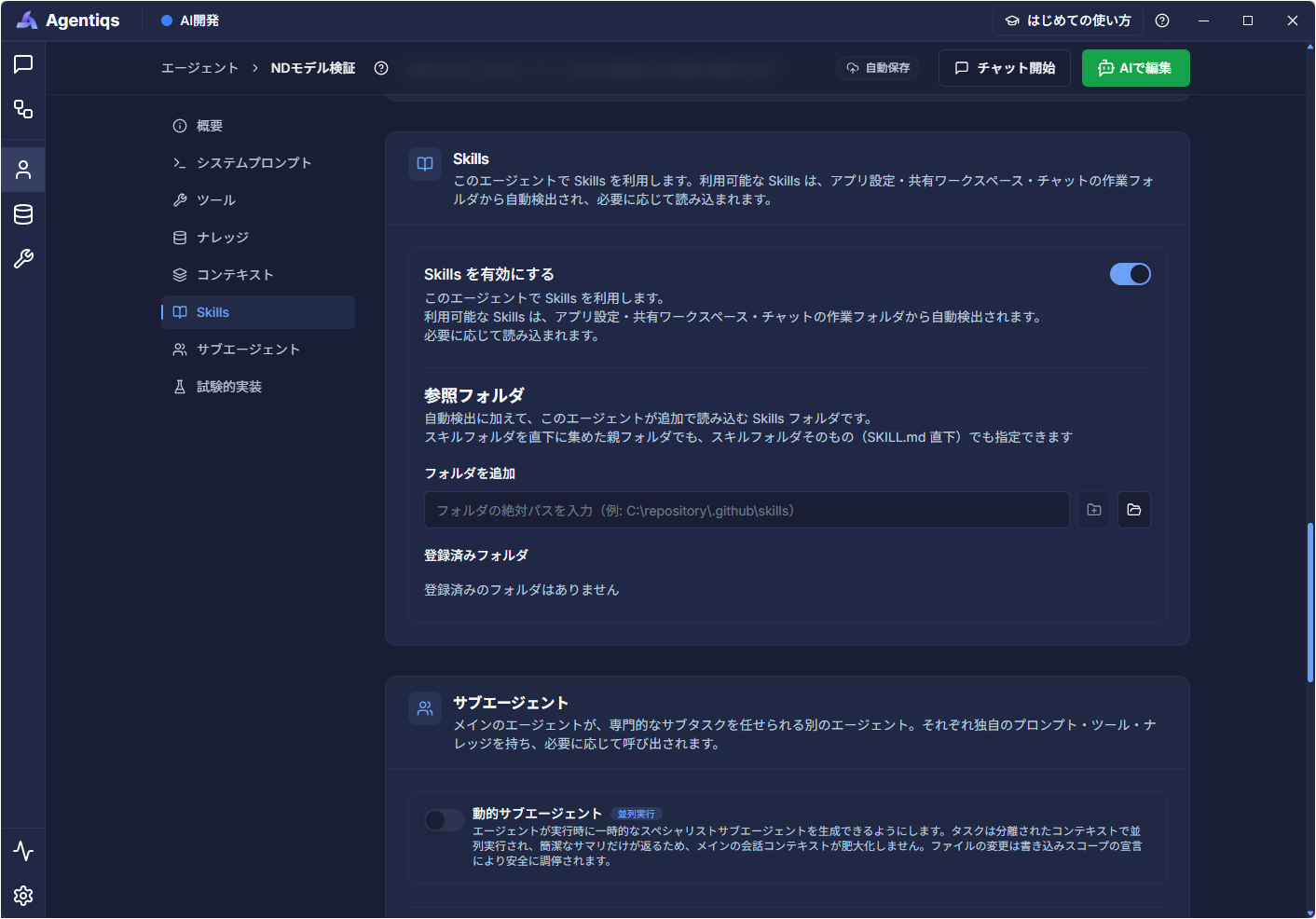
- Open the target AI agent.
- Select [Skills] from the left menu.
- If the Skills feature is disabled, turn on [Use Skills].
- Confirm the skills and reference directories in use, then save the settings.
- The configured skills will be automatically detected and loaded from the next AI conversation onward.
In a chat with the target AI agent, verify that the response follows the role and behavior defined by the skill.
Set a global skills folder
If you want to use the same skills across multiple workspaces or AI agents, configure a global skills folder.
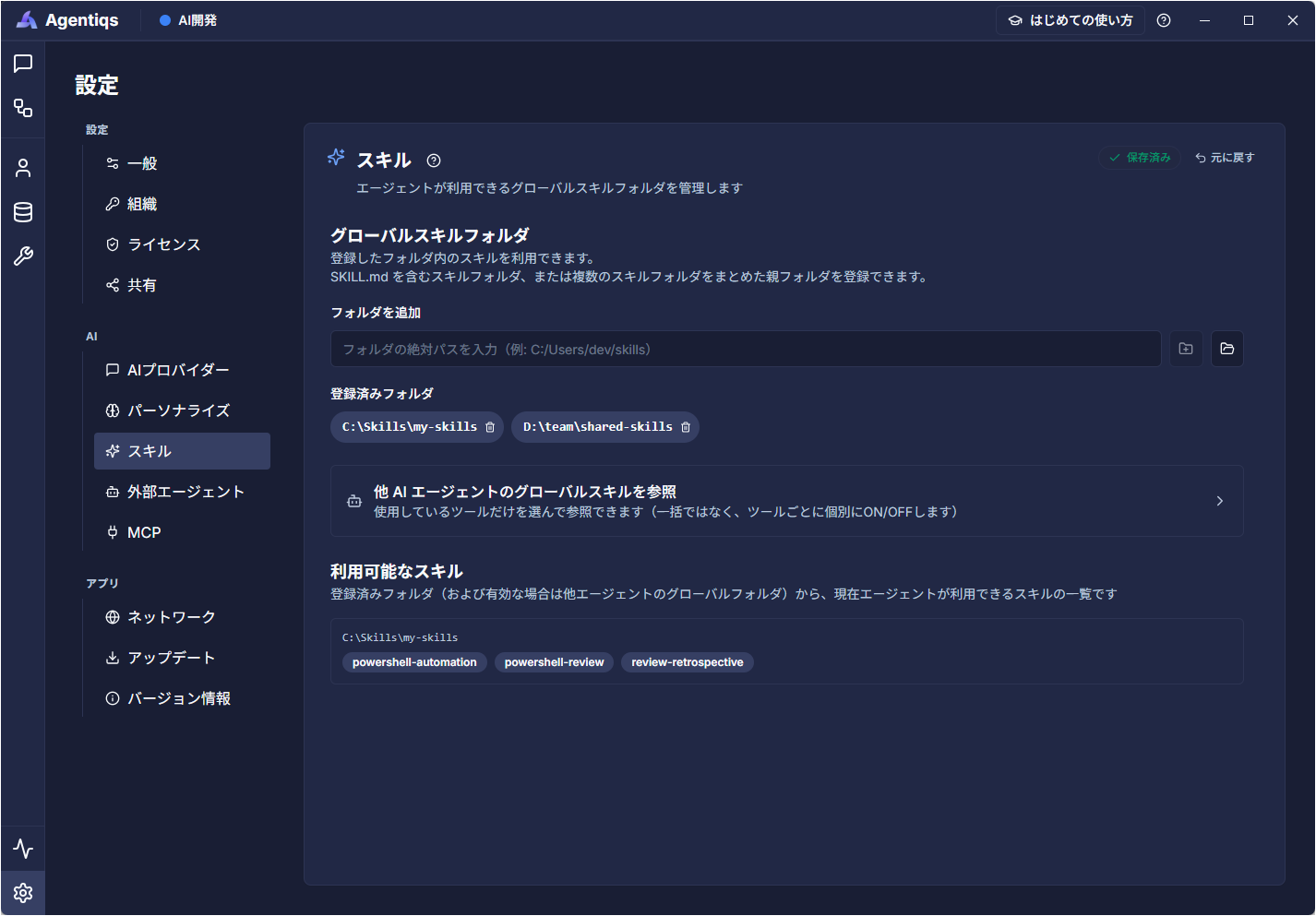
- Open [Settings] > [AI] > [Skills].
- In [Global skills folder], add the location where shared skills are stored.
- You can also use the folder selection dialog.
- Turn on [Reference global skills from other AI agents] for the tools you want to use.
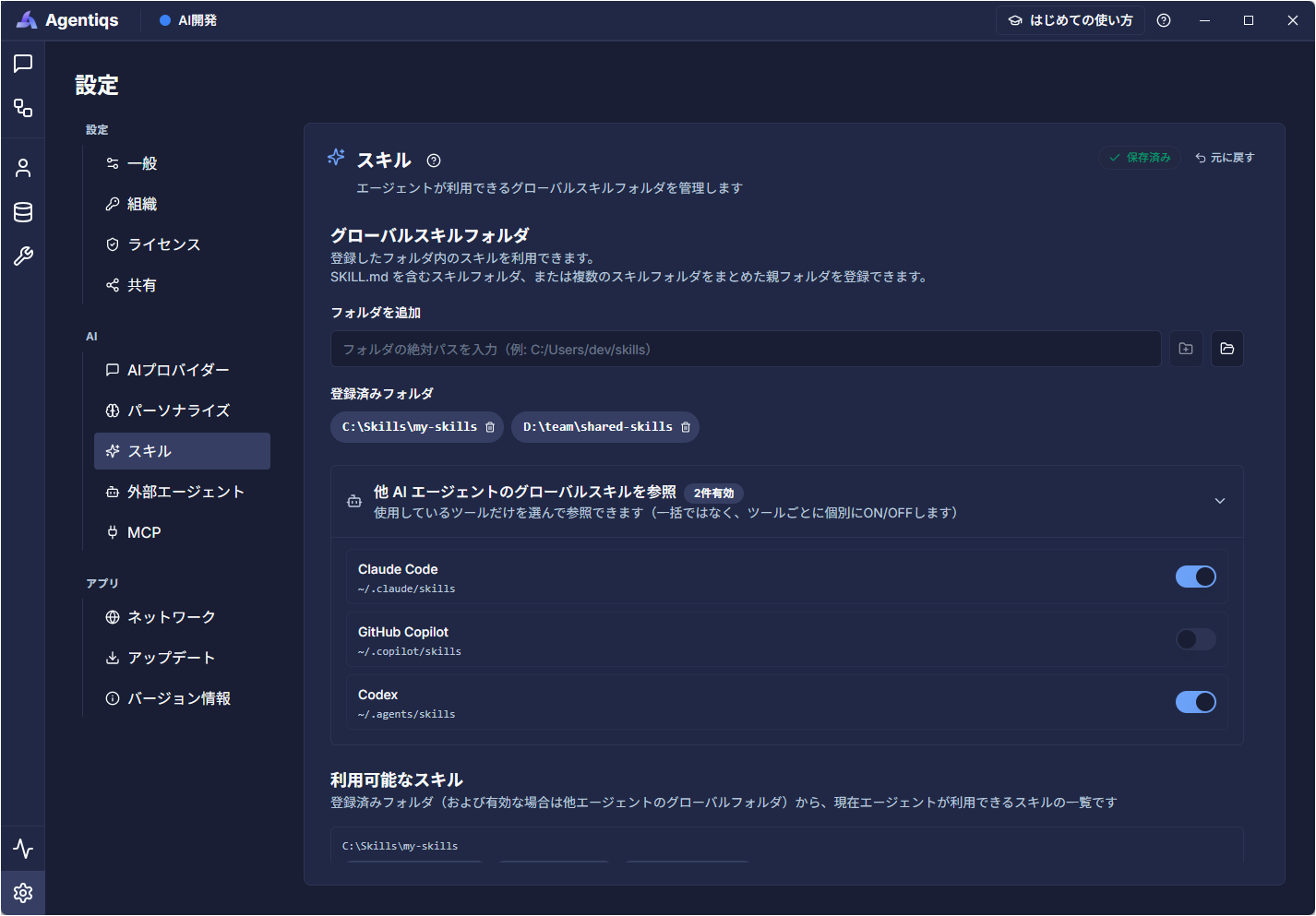
- Confirm that the detected skills are shown under [Available skills].
- When you add or change the global skills folder, available skills are re-detected and the settings are saved automatically.
- Skills placed in the chat working folder, Git repository, or shared workspace are also detected and used automatically.
- If
SKILL.mdexists directly under the specified folder, that folder is detected as one skill. - If
SKILL.mdexists directly under a child folder of the specified folder, each child folder is detected as a separate skill.