Creating a Workflow for Comprehensive Review
This page explains how to create a workflow for comprehensive and stable review of multiple documents.
Purpose of Using a Workflow
Reviewing with a single AI agent presents the following challenges:
- Inability to process a large number of documents at once
- Missing or omissions in review points
- Reduced stability of responses
By utilizing a workflow, these challenges can be solved, and the review process can be divided and automated.
Goal
We will build a workflow that automatically performs reviews by an AI agent, dividing documents under a specified folder into chapters.
Workflow Processing Flow
This workflow performs the following processes:
- Obtain a list of target folders
- Obtain a list of files within the folders
- Structure the document
- Divide into chapters
- Perform a review for each chapter
By dividing the process in this way, stable review becomes possible even for large documents.
Preparation
Please prepare a folder containing the documents to be reviewed.
For instructions on downloading and storing the data, please refer to "Sample Data Environment Setup Method".
1. Create a Workflow
-
Create a new workflow editing screen.
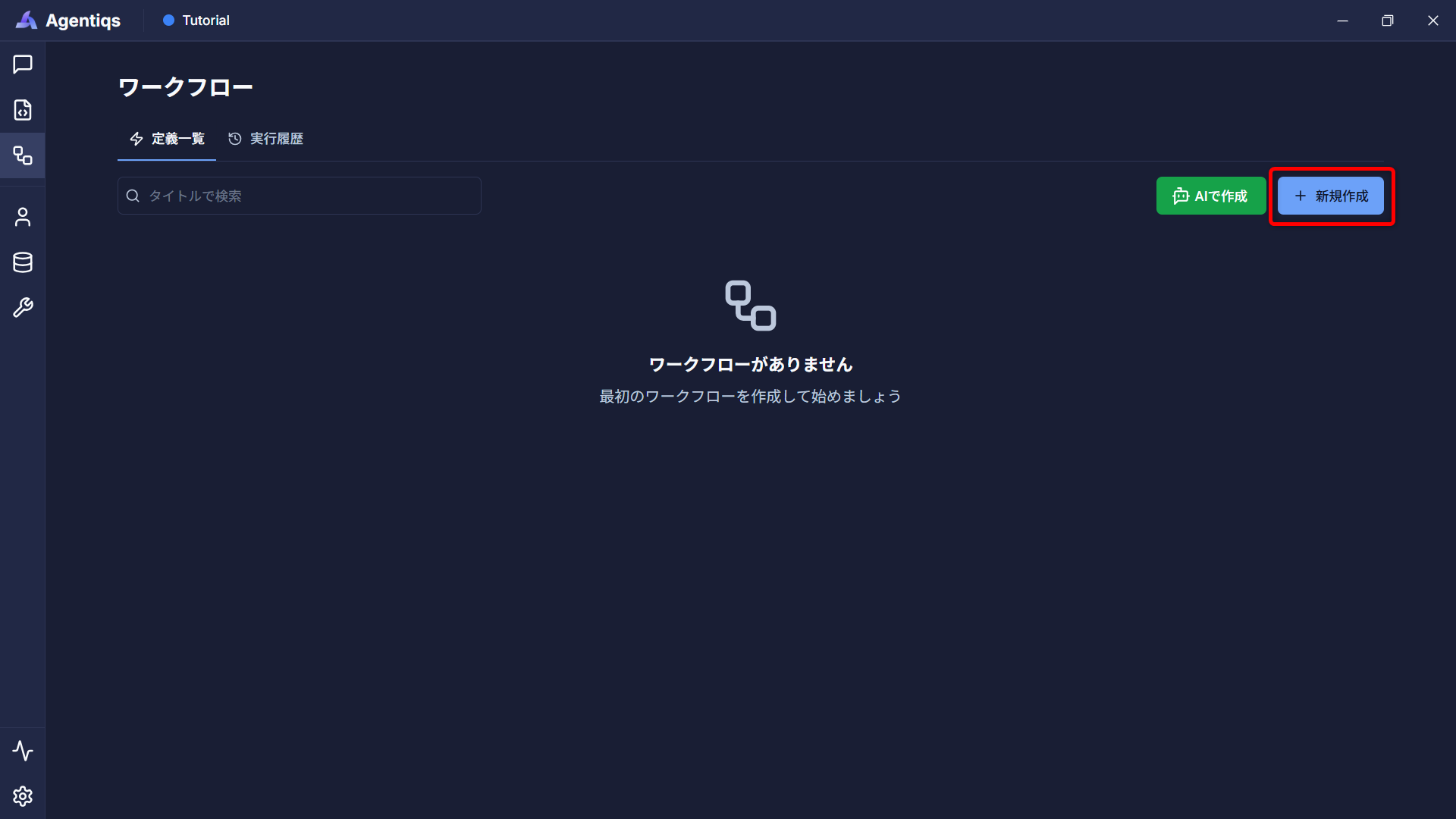
-
Set the parent folder to be reviewed as a variable.
From [Workflow Settings] - [Input/Output Parameters] - [Input Parameters] next to the workflow title, register the parent folder to be reviewed that will be used in the workflow.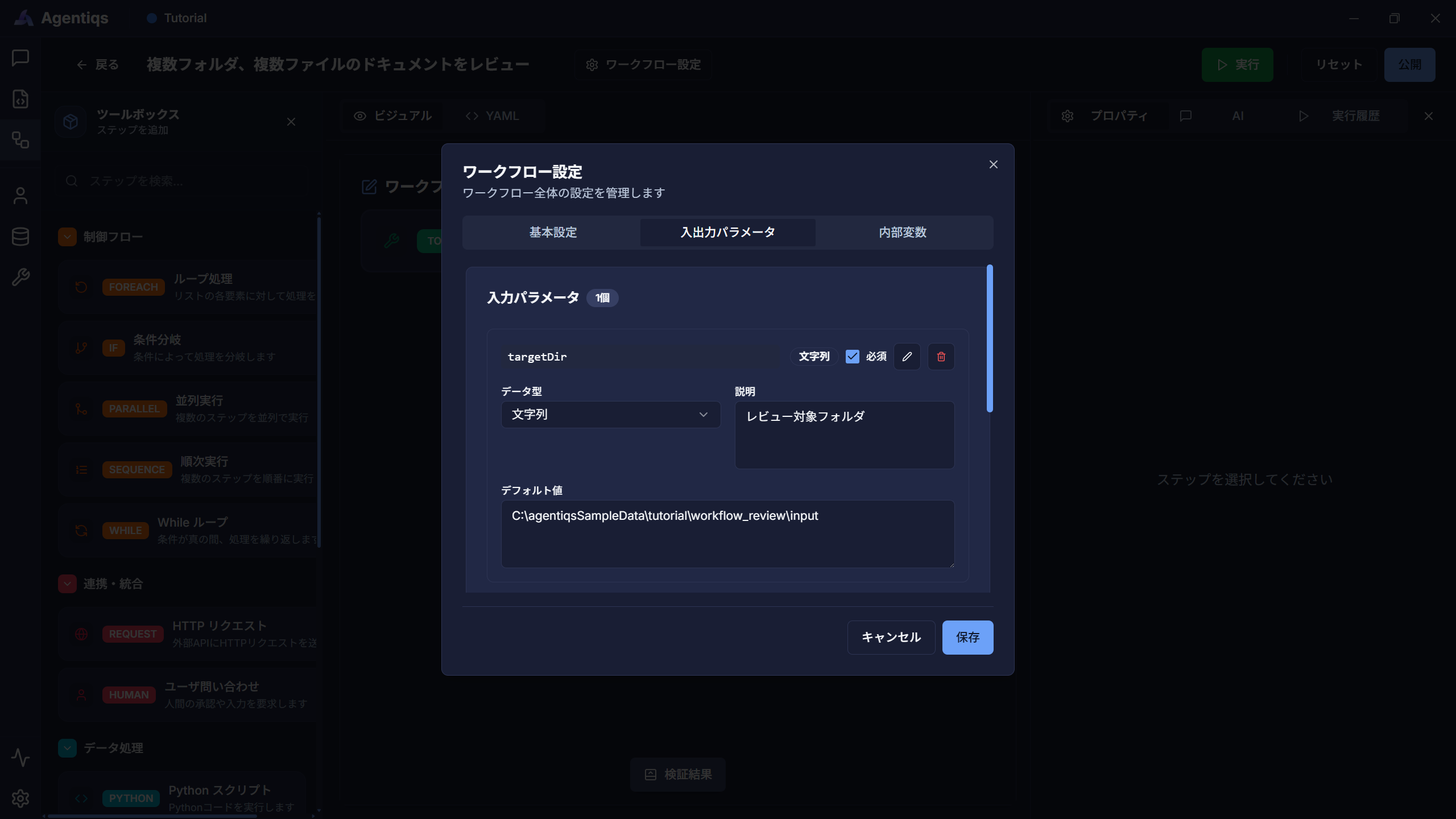 You will be able to retrieve all folders containing the files to be reviewed.
 -
Create the tool to be used.
From the Tools tab, select [New] - [FileAccess].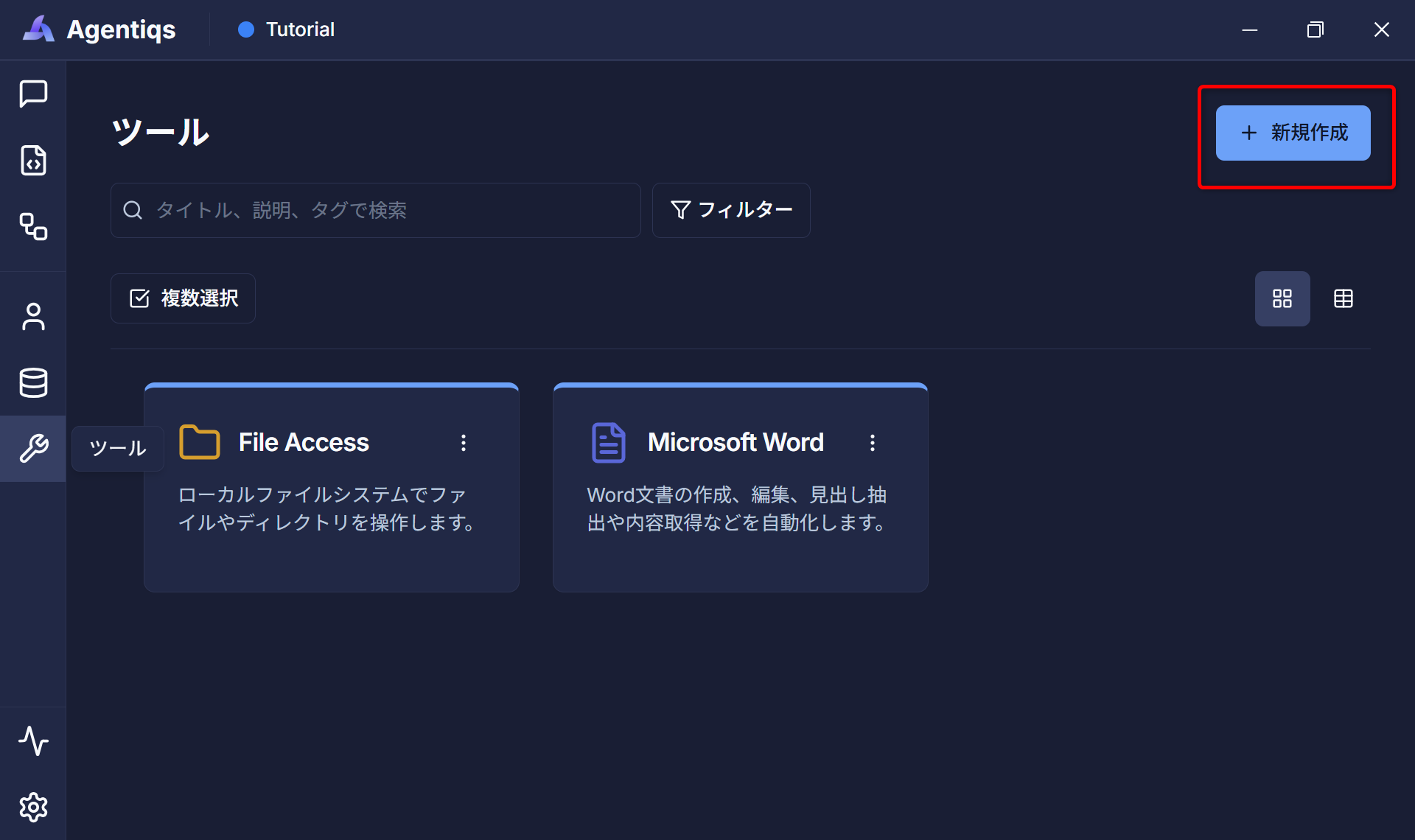
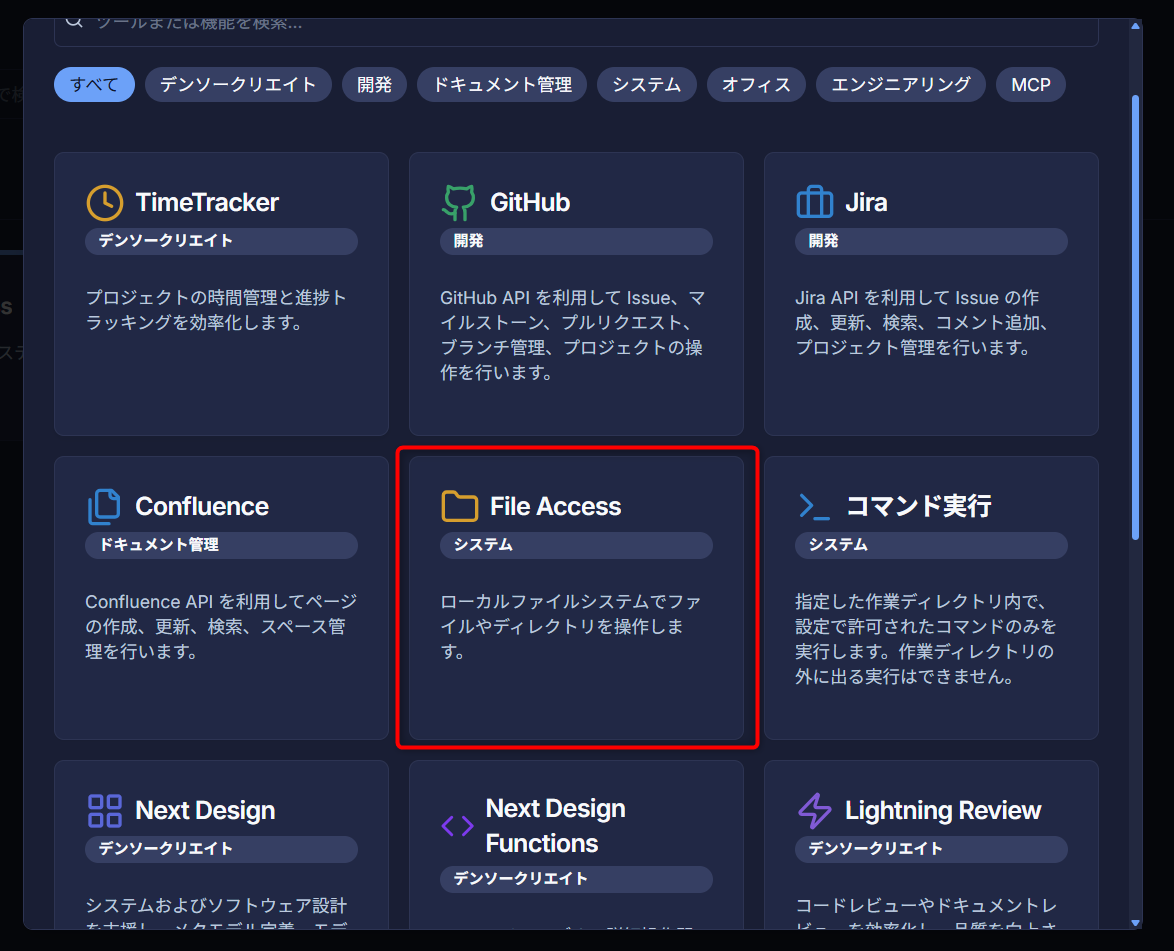 info
infoEven if you have created "FileAccess" for other purposes, please create a new one if the specified base directory is different.
-
Set the directory path in FileAccess's [Settings] - [Base Directory].
Specify the directory to operate on using this tool.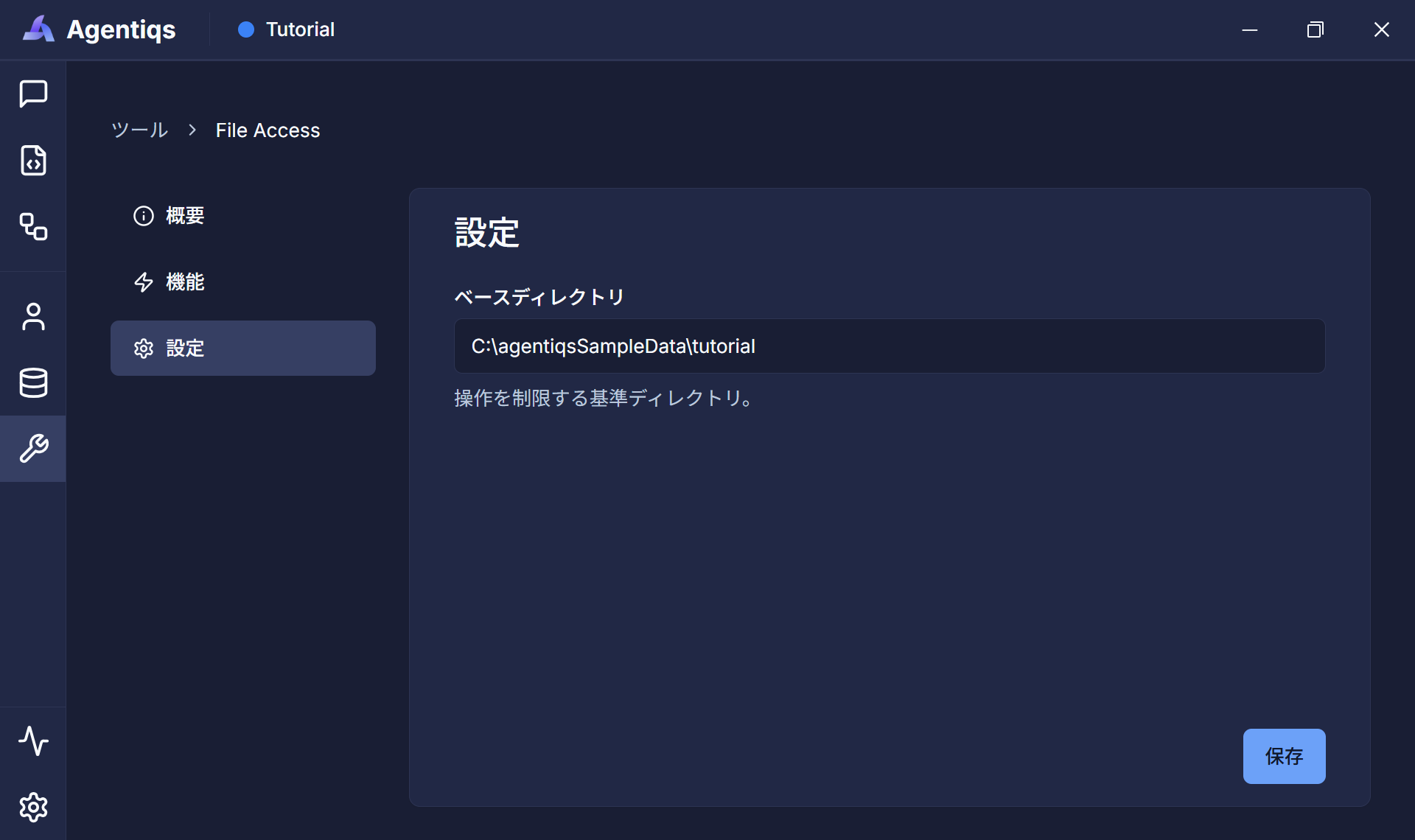
-
Set up the process for loading the file.
Return to the workflow screen and drag and drop "Run Tool" from the left-hand toolbox to set it as the first step.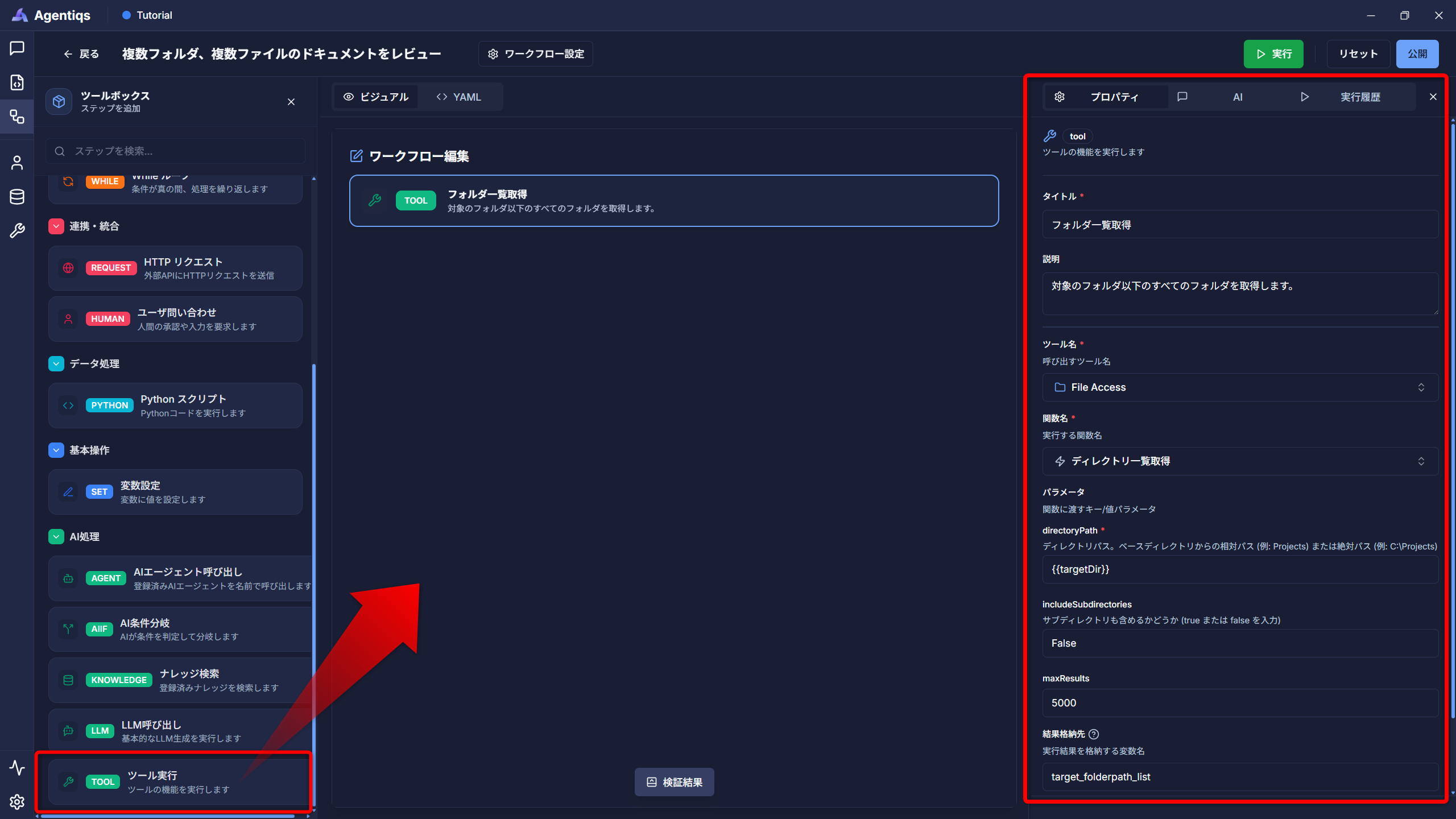
Enter the process to be executed in the step in the red box (properties) on the right side of the screen.
Property settings
This function retrieves a list of folders under the specified folder and stores them in "target_folderpath_list".
Property Required Settings Detailed explanation Title Title Please use a clear and easy-to-understand name that can be identified later. Description What is done in this step Tool name 〇 Tool created in step 3 Function name 〇 "Get directory list" This node is used to get a list of folders. directoryPath 〇 Path registered in step 4 Select and register from variable{x}. includeSubdirectories 〇 False Specify whether to include subfolders. We will not include them this time. Result storage location 〇 target_folderpath_listStores the execution result in a variable. This operation allows you to obtain a list of folders.
-
Set up loop processing for files stored in the target folder.
Drag and drop the "Loop Processing" element and set its properties.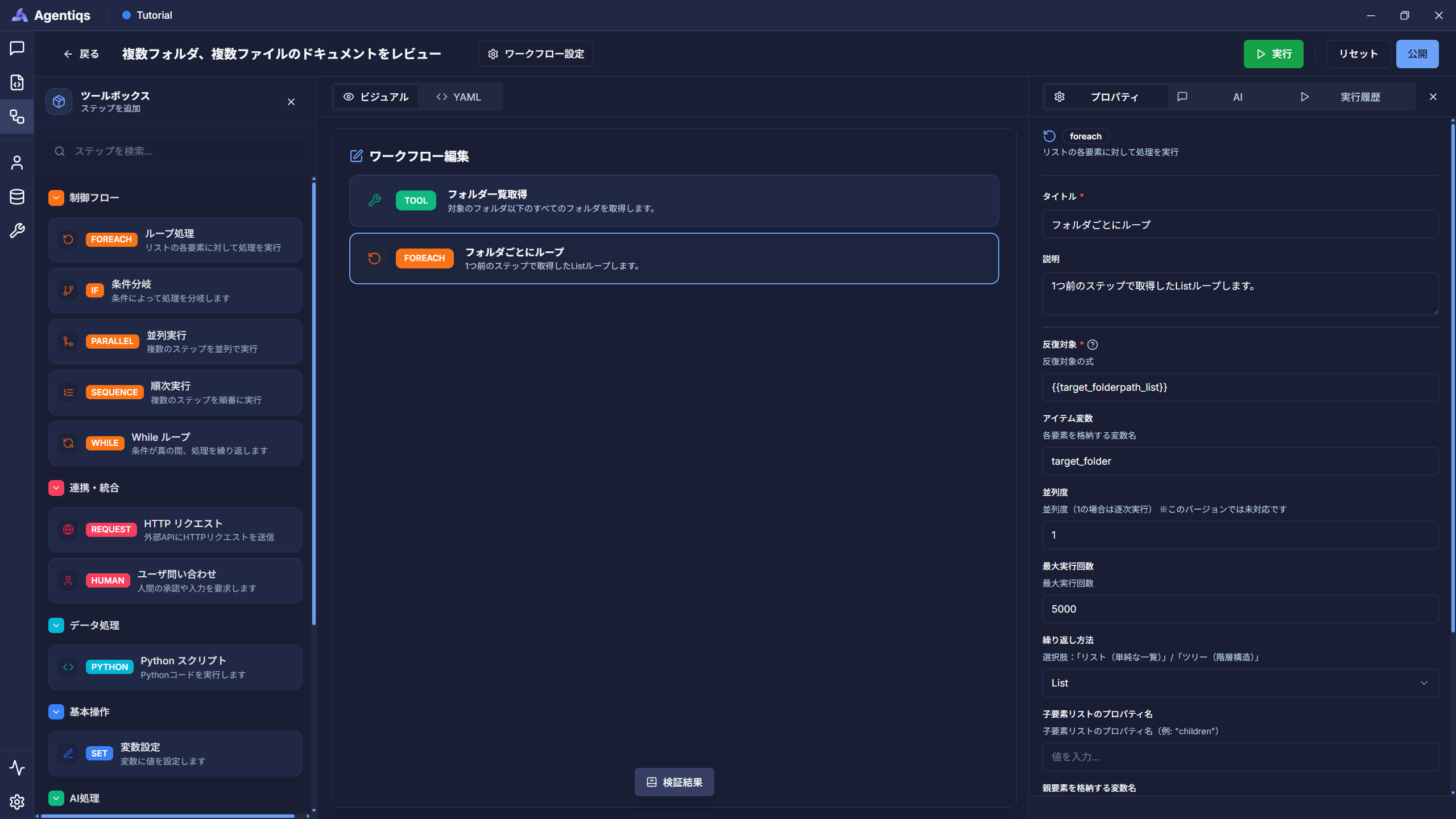
Property settings
From the folder list (target_folderpath_list) obtained in the previous step, select one folder.
(Retrieve one folder at a time and repeat the process in the following steps.)Property Required Settings Detailed explanation Title Title Please use a clear and easy-to-understand name that can be identified later. Description Content to be performed in the step Iteration target 〇 {{target_folderpath_list}}Pass the list data to be looped. (Output of Step 5) Item Variable 〇 target_folderName used in the process executed in the loop (used in the next step) Maximum Number of Executions 〇 Example: 5000 Since a large number of executions will take time, specify 2-5 times during debugging. -
Obtain a list of files stored in the folder and its subfolders.
Drag and drop "Run Tool" as a child element of the loop and set its properties.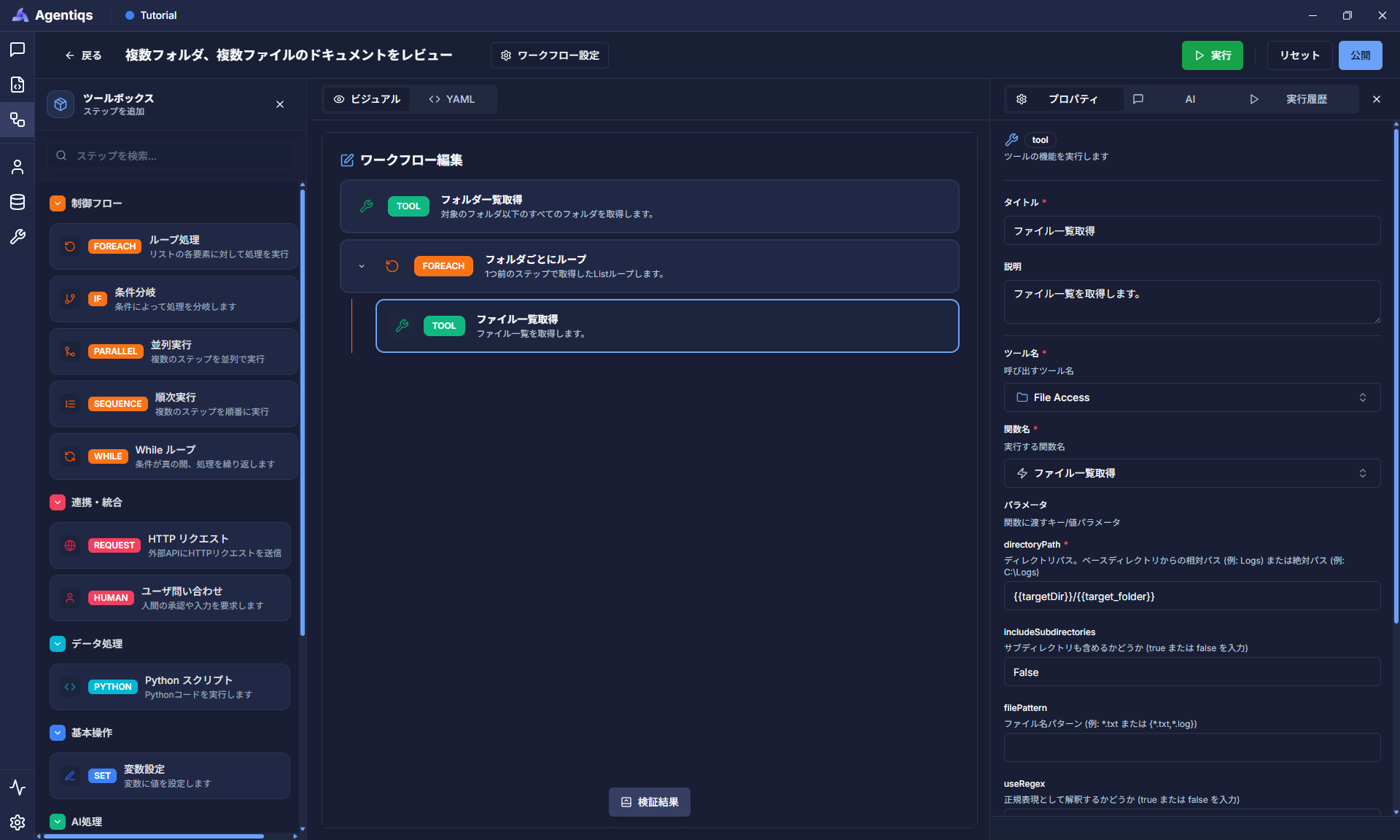
Property settings
Files with the extension ".docx" within the folder will be stored in "target_file_list".
Property Required Settings Detailed explanation Title Title Please use a clear and easy-to-understand name that can be identified later. Description What to do in the step Tool name 〇 Tool created in step 3 Function name 〇 "Get file list" This node retrieves a list of files. directoryPath 〇 {{targetDir}}/{{target_folder}}Select the path registered in step 6. includeSubdirectories 〇 False Specify whether to include subfolders. We will not include them this time. filePattern Example: *.docx Specifies the file extension to retrieve. Result Storage Location 〇 target_file_listStores the execution result in a variable. -
Set up loop processing for files stored in the target folder.
Drag and drop "Loop Processing" and set its properties.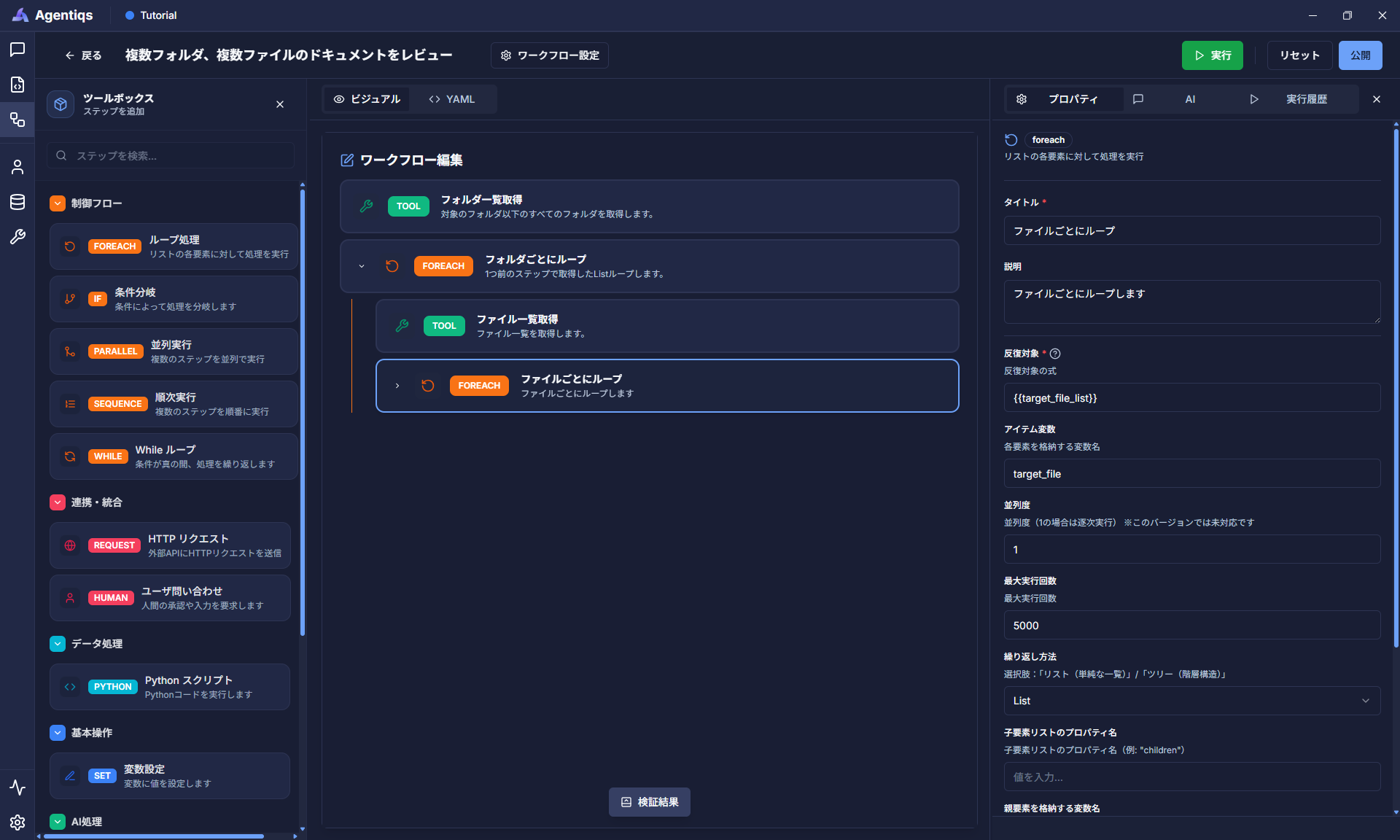
Property settings
Retrieve one file from the file list (target_file_list) obtained in the previous step.
(Retrieve one file at a time and repeat the process in the following steps.)Property Required Settings Detailed explanation Title Title Please use a clear and easy-to-understand name that can be identified later. Description What to do in this step Iteration target 〇 {{target_file_list}}Pass the list data to be looped. (Output of step 7) Item variable 〇 target_fileThe name used in the process executed in the loop (used in the next step) Maximum number of executions 〇 Example: 5000 Since a large number of executions will take time, specify 2 to 5 times during debugging. -
Obtain the file documentation.
Drag and drop "Run Tool" as a child element of the loop and set its properties.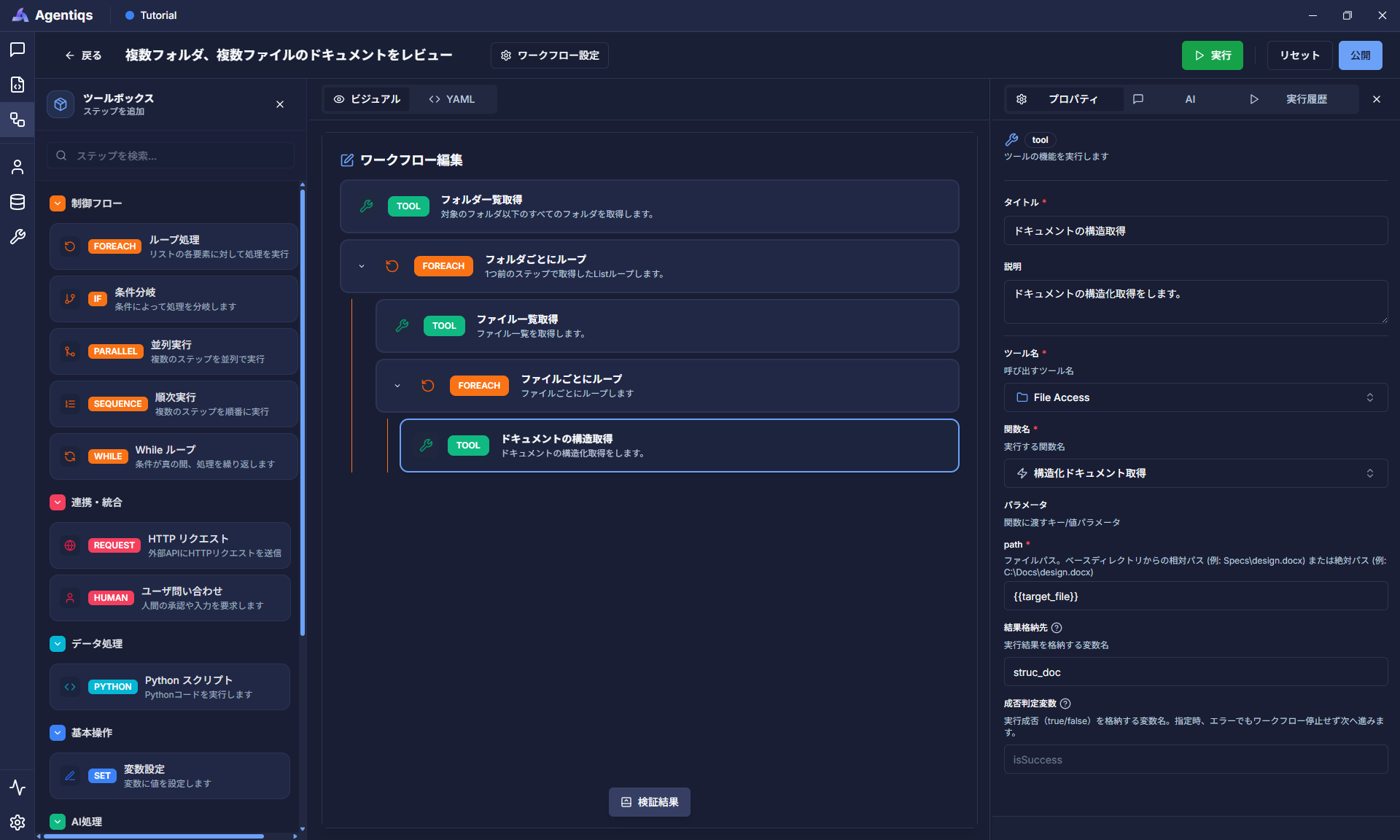
Property settings
This retrieves the chapter structure of the target file.
Property Required Settings Detailed explanation Title Title Please use a clear and easy-to-understand name that can be identified later. Description What to do in the step Tool name 〇 Tool created in step 3 Function name 〇 "Get Structured Document" (*) This node retrieves the document. Path 〇 {{target_file}}Select the path registered in step 8. Result storage location 〇 struc_docStores the execution result in a variable. * Although there is also "Get File Contents," we will use "Get Structured Document" this time because we will be reviewing chapter by chapter.
-
Deconstruct the structured document and format it so that it can be reviewed chapter by chapter.
Drag and drop the "Pyrhon script" as a child element of the loop and set its properties.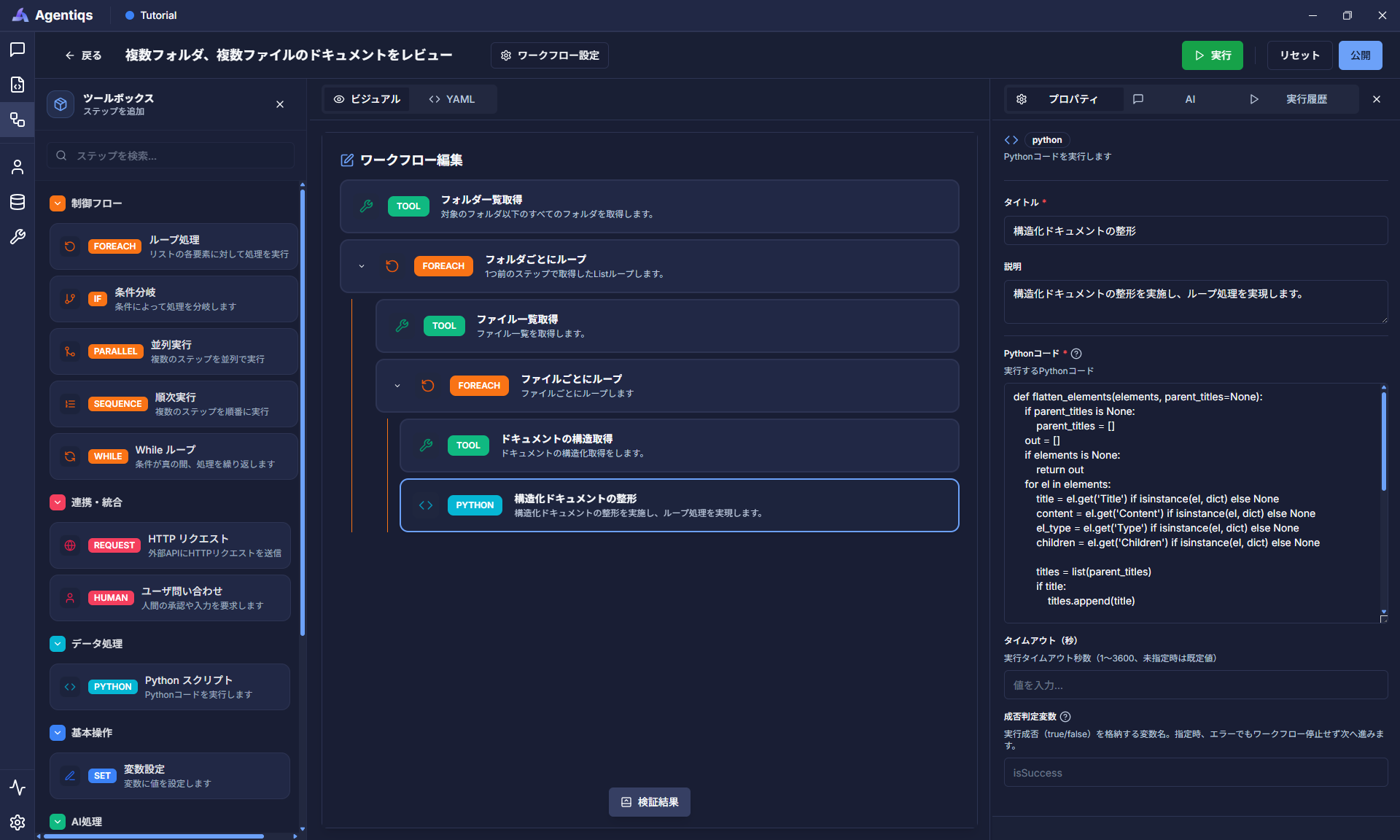
Property settings
In the previous step, we will run a Python program that converts the document's chapter list (hierarchical structure) into a list format.
Property Required Settings Detailed explanation Title Title Please use a clear name that can be easily identified later. Explanation What to do in each step Python code 〇 Paste the following code def flatten_elements(elements, parent_titles=None):if parent_titles is None:parent_titles = []out = []if elements is None:return outfor el in elements:title = el.get('Title') if isinstance(el, dict) else Nonecontent = el.get('Content') if isinstance(el, dict) else Noneel_type = el.get('Type') if isinstance(el, dict) else Nonechildren = el.get('Children') if isinstance(el, dict) else Nonetitles = list(parent_titles)if title:titles.append(title)out.append({'chapterPath': '/'.join(titles) if titles else '(no title)','title': title or '(no title)','type': el_type or '','content': content or ''})if children:out.extend(flatten_elements(children, titles))return outsd = vars.struc_docelements = Noneif isinstance(sd, dict):elements = sd.get('Elements')chapters = flatten_elements(elements)vars.chapters = chapters -
Loop through the structured document chapter by chapter.
Drag and drop "Loop Processing" as a child element of the loop and set its properties.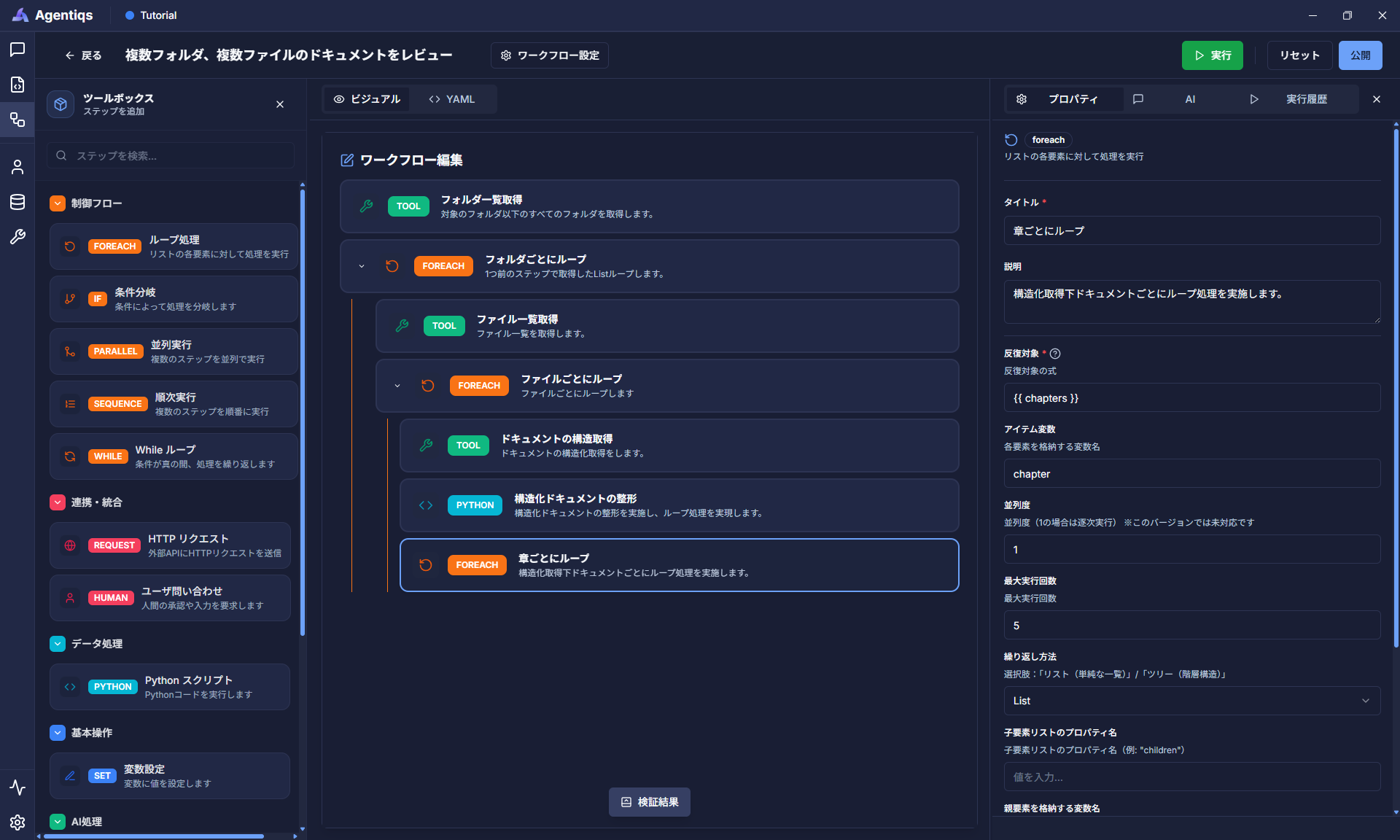
Property settings
Retrieve one chapter from the list of chapters obtained in the previous step.
(Retrieve one chapter at a time and repeat the process in the following steps.)Property Required Settings Detailed explanation Title Title Please use a clear and easy-to-understand name that can be identified later. Description Content to be performed in the step Iteration target 〇 {{ chapters }}Pass the list data to be looped. (Output of step 10) Item variable 〇 chapterName used in the process executed in the loop (used in the next step) Maximum number of executions 〇 Example: 5000 Since a large number of executions will take time, specify 2 to 5 times during debugging. -
Next, we will call the review agent for each chapter and output the results.
First, we will create a specialized AI agent to perform the review.This is a sample, so we will use the following process:- To output the review results in various formats such as Excel and MD, we will output them in JSON format.
- Define the review perspectives using the system prompt.
→ If you want to perform a more comprehensive review, define further loops for each review perspective.
From the [Agents] tab - [Create New], select an empty AI agent and set the various settings.
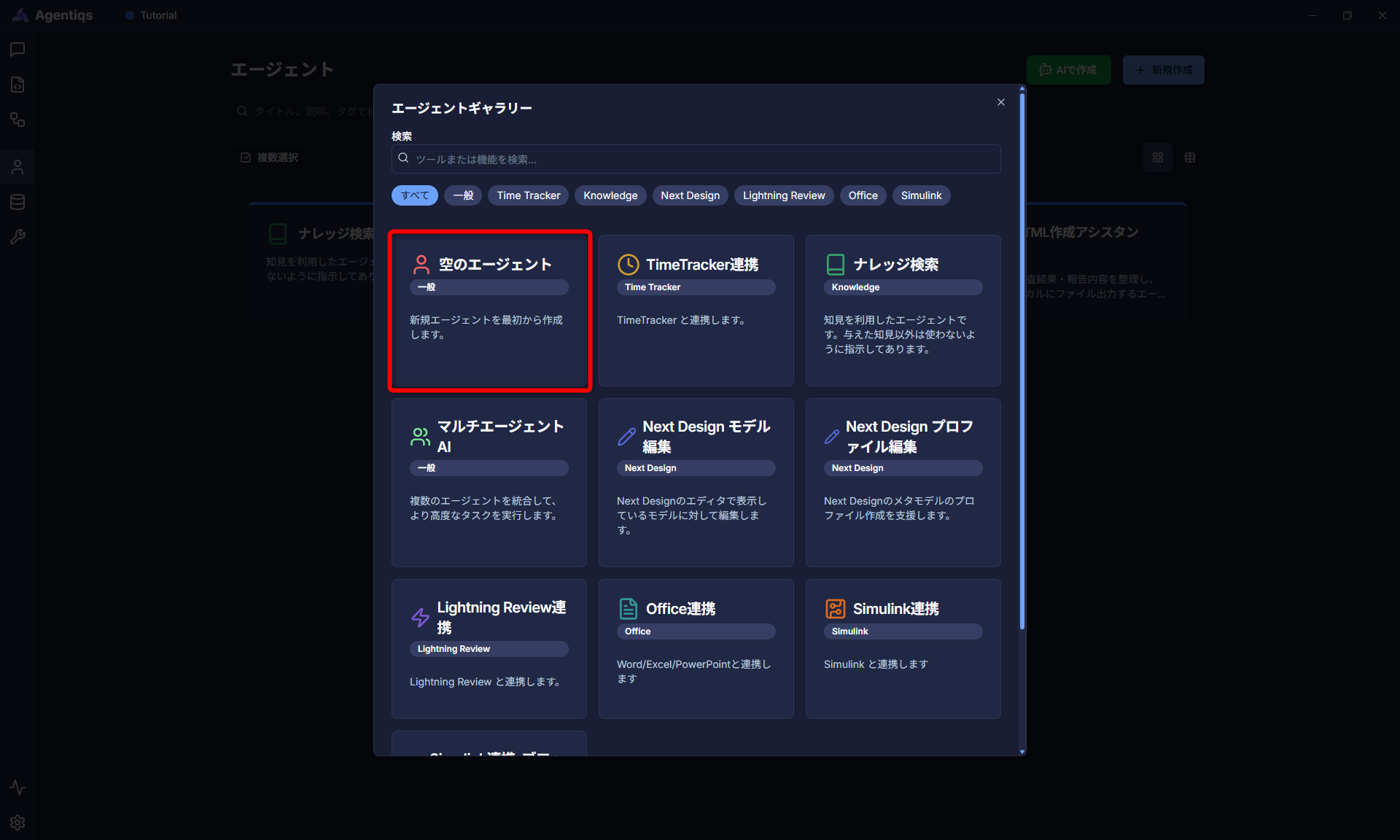
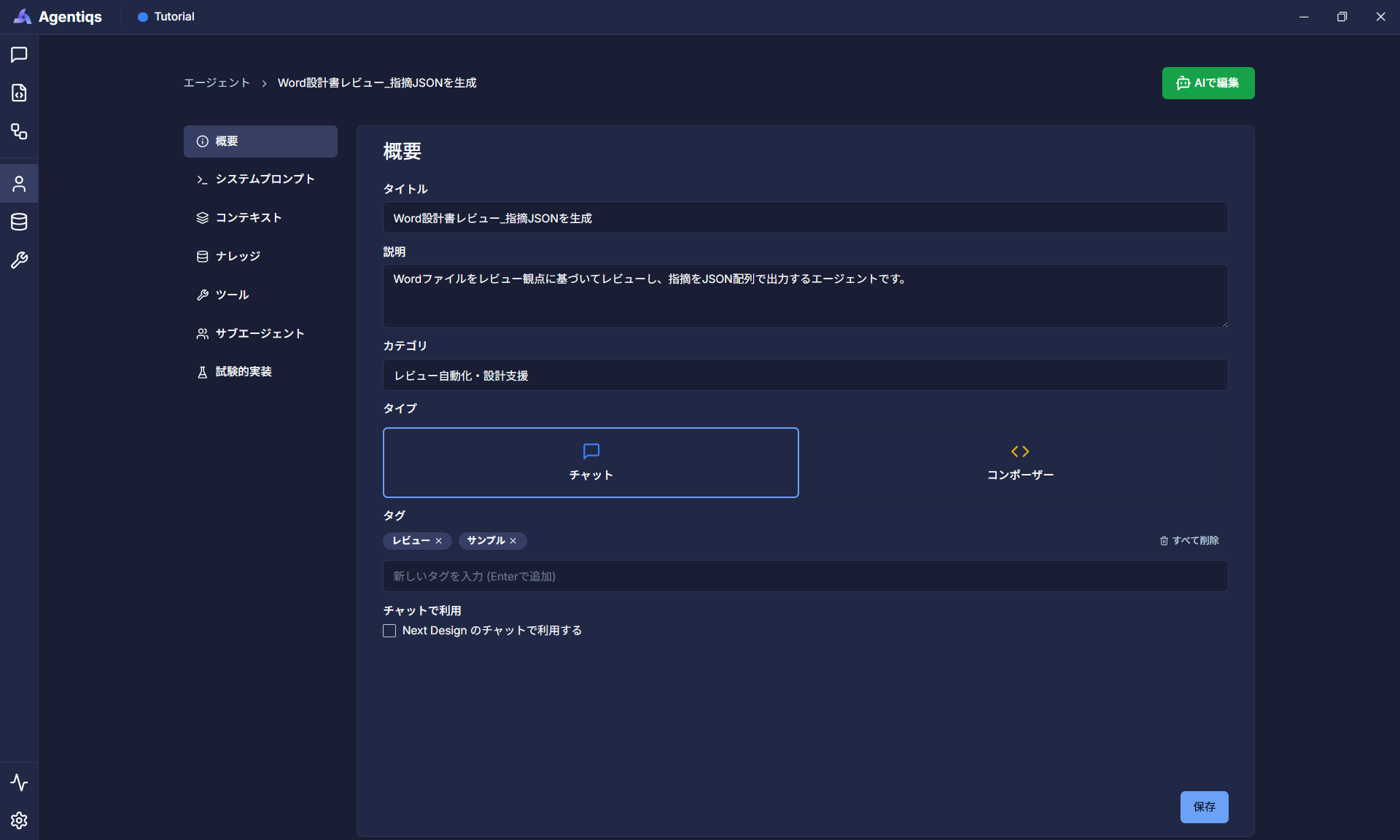
Agent Properties
Properties Required Settings Detailed Description Title 〇 "Generate Word Design Document Review_Pointing Out JSON" Please use a clear and easy-to-understand name that can be identified later. Description Agent Description System Prompt 〇 Paste the following code You are a dedicated agent for design document review. Perform a review on the input "content of one chapter of the design document" and "a single review perspective," and output the results as a JSON array only.[Work Steps]1. Understand the content of the input document.2. Perform a review for each review perspective and consider the findings.3. Output the findings from step 2 in JSON format according to the following # Output Rules.# Output Rules・Output should be a JSON array only; no other strings should be output.・Each element must include the following keys:- "location": Specify the relevant section. Include identifiable areas such as chapters, sections, subsections, figures, tables, and pages.- "description": Describe the findings. Clearly state what is missing, inconsistent, or unclear. Use polite language and line breaks for readability. If there are no findings, write "<No findings> Confirmed/No problems."- "viewPoint": Set the Title of the input review_point.- "priority": Only "High"/"Medium"/"Low".- "status": "Open" if there are issues, "Closed" if there are no issues.- Key names are fixed, and all values are strings.- Judgment is based solely on review_point; no issues are raised from other perspectives.- Judgment is based only on the facts described in chapter_info; no inferences are made.- Even if the relevant section is not found, the result is output based on that fact.[Judgment Rules]- If insufficient description, contradictions, inconsistencies, ambiguities, or deficiencies are found in relation to review_point, it is marked as having issues.- If no problems are found in relation to review_point, "<No Issues>" is output.- If the necessary information for judgment is insufficient, it is marked as having issues, and the missing information is specifically described in the description.[Number of Output Items]- If there are multiple independent issues with respect to review_point, multiple items will be output.- Even if there are no problems, output "<No Issues>" once.[Input]- chapter_info: Content of the chapter to be reviewed[Review Perspective]: review_pointID1: [Abnormal Handling] Content: Confirm whether the system response policy, including invalidity detection methods, retention/ignoring/transition to safe default values, handling of control states/outputs, and error handling procedures, is specifically defined in the specifications and design when external/internal input data or received data becomes invalid (including interruptions, malfunctions, chattering, etc.).ID2: [Fail-Safe/Safety] Content: Confirm whether the fail-safe policy (safety-side control, whether function can be continued, and approach to limiting operation) to ensure safety is clearly stated in the specifications when input abnormalities, including signal malfunctions, occur.ID3: [Initial Value, Retention, Reset] Content: Verify that the initialization process performed when the system/component starts and the initial values of each item are clearly described, and that items that should be initialized at startup and items that should be retained/persisted as the previous value after a restart are distinguished, and that their handling (initialization scope) is clearly defined in the specifications/design. -
Once the AI agent has been created, call the created AI agent in the workflow and set the user message.
Drag and drop the "AI Agent" and set its properties.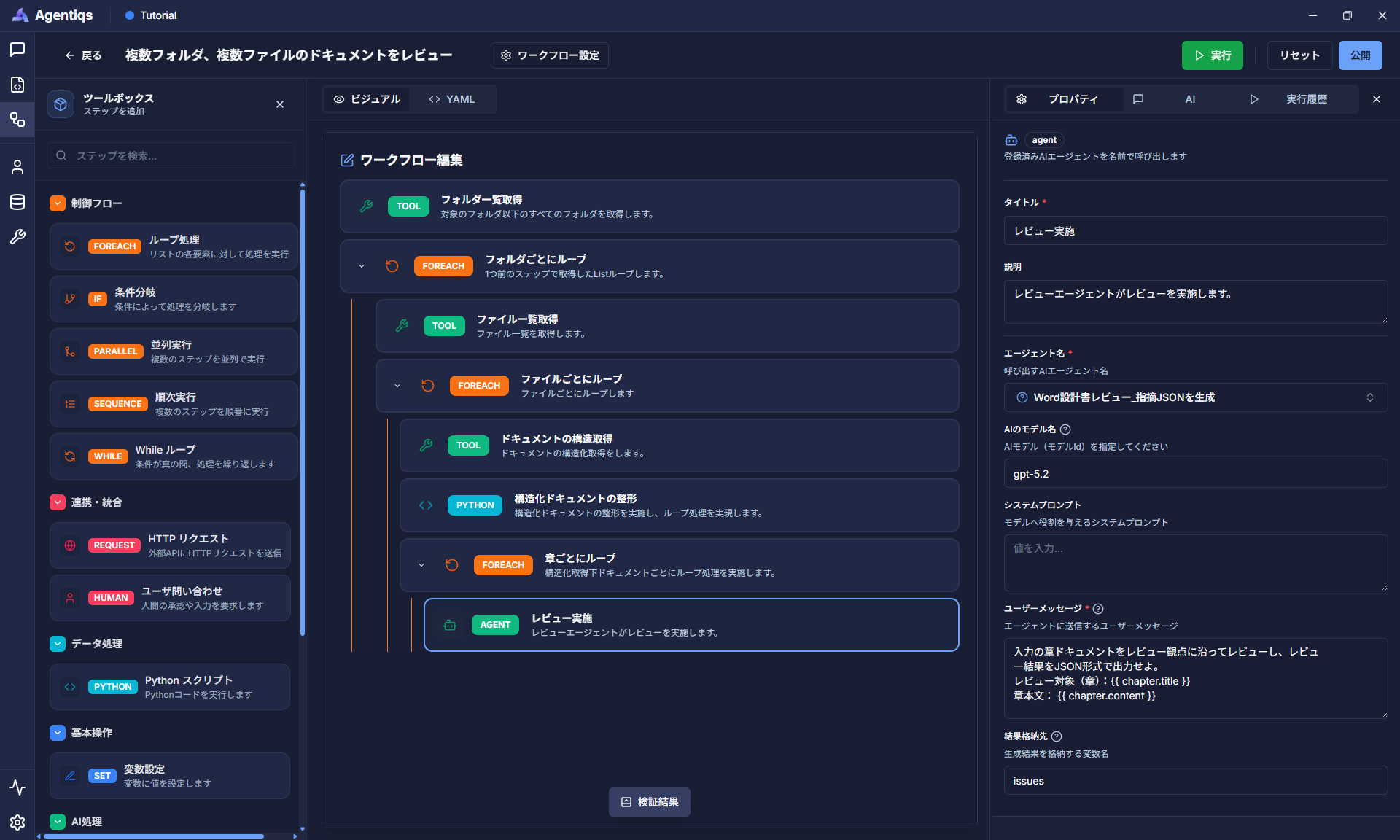
Property settings
Provide the "Word Design Document Review - Generate JSON of Issues" agent with input information (chapter to be reviewed, main text) and perform the review.
Property Required Settings Detailed explanation Title Title Please use a clear and easy-to-understand name that can be identified later. Description Contents to be performed in the step Agent name 〇 "Word design document review_generates JSON of comments" This is the AI agent name set in step 12. AI model name 〇 gpt-5.2 Specify the AI model to use. System prompt Not specified This is not necessary as it is defined on the AI agent creation screen. User Message 〇 Paste the following text Result Storage Location 〇 issuesUser Message Content:
Review the input chapter document according to the review criteria and output the review results in JSON format.Review Target (Chapter): {{ chapter.title }}Chapter Body: {{ chapter.content }} -
Store the review agent call results in a variable.
Set the internal variable to be stored first from [Workflow Settings] - [Internal Variables] as shown in the diagram.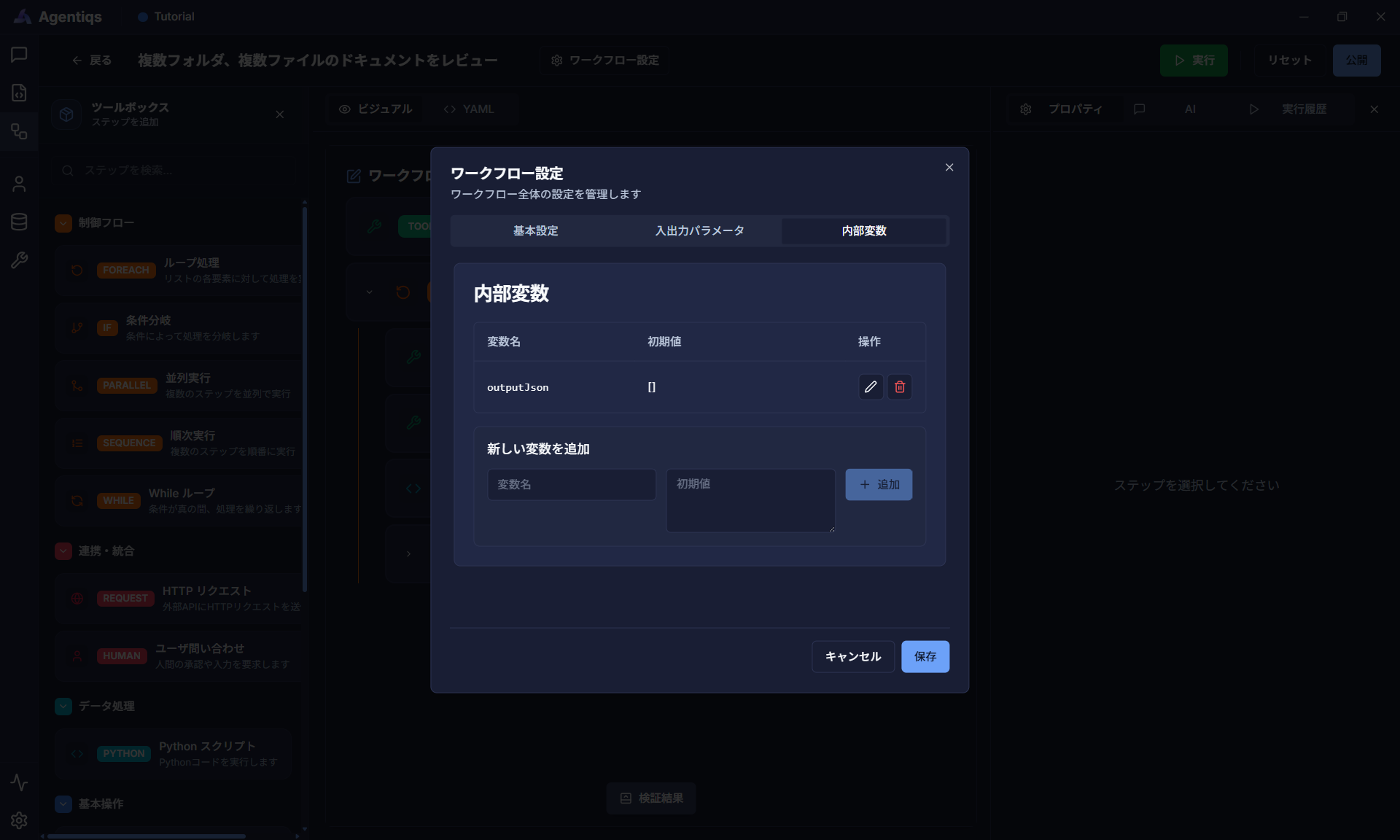
-
Drag and drop "Variable Settings" and set the properties as shown in the image.
noteFor "How to set variables," please specify Add.
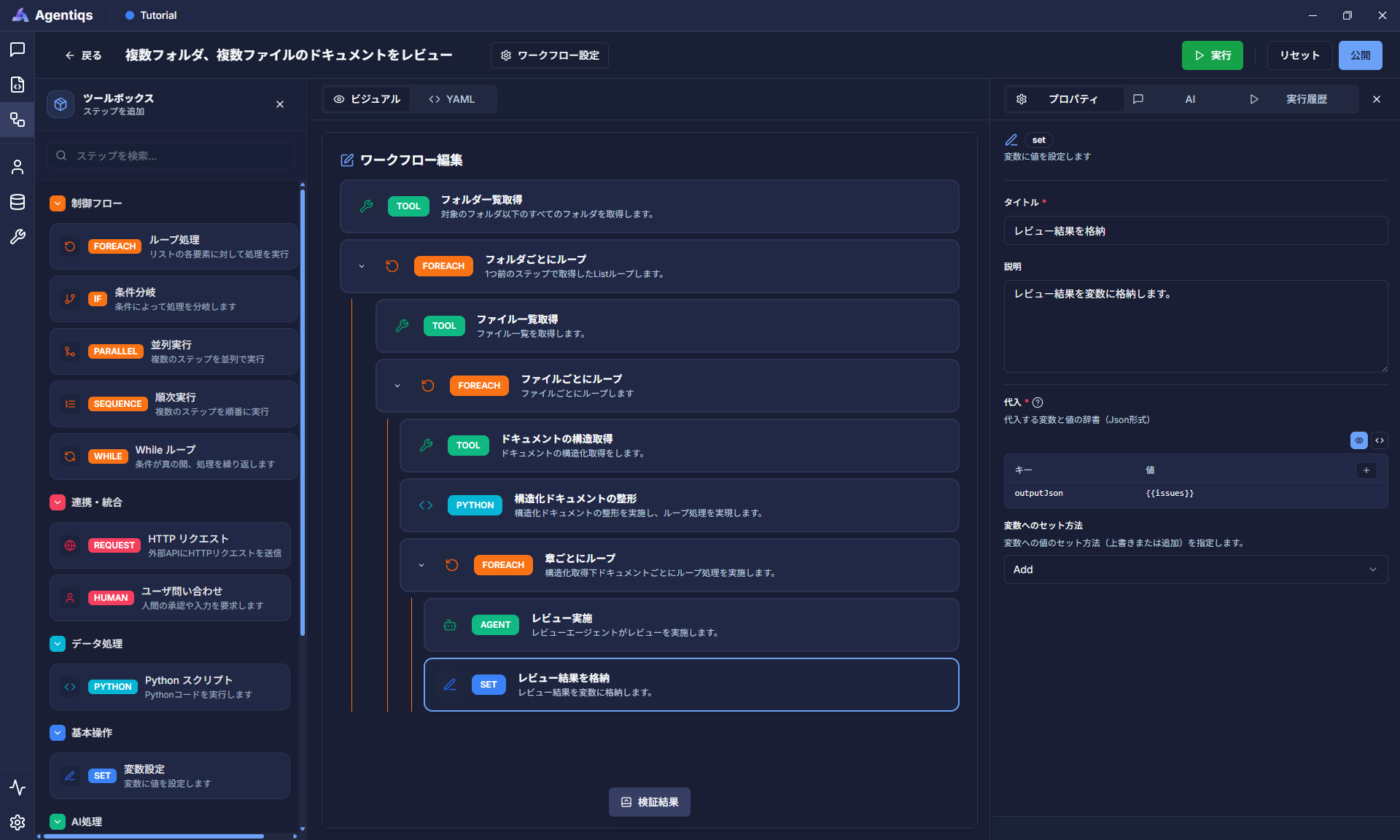
-
Finally, output the review results.
This time, as an example, we will output in two ways.
When using in a production environment, please output as desired by calling agents or tools according to your needs.-
Method 1: Outputting directly in JSON format
As shown in the image, place "Run Tool" and set the properties.
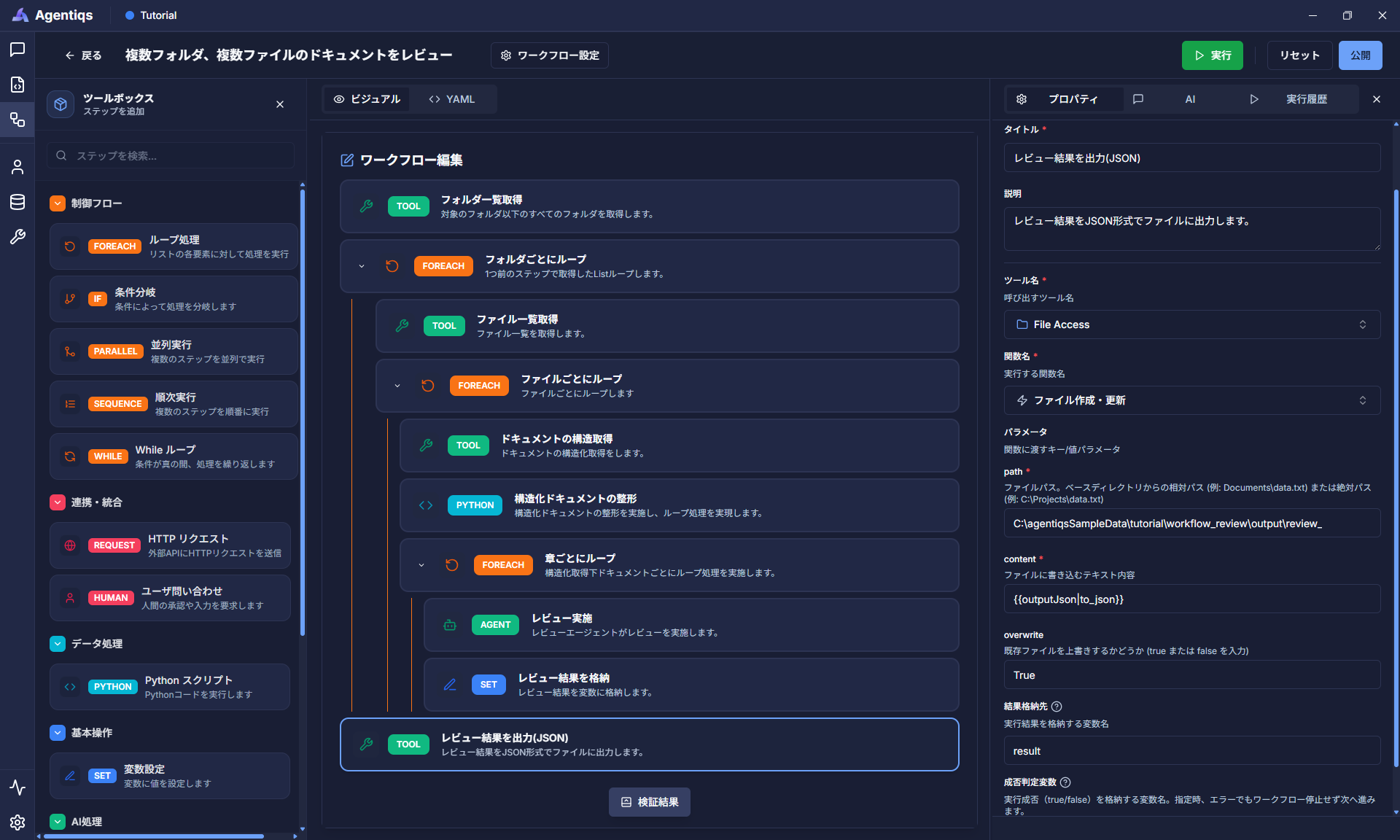
Property settings
The contents of the variables set in the previous step will be output to the file specified by "Path".
Property Required Settings Detailed explanation Title Please use a clear and easy-to-understand name that can be identified later. Description Contents to be performed in the step Tool name 〇 Tool created in step 3 Function name 〇 "File creation/update" Path 〇 Path of ※ Please set any location. content 〇 {{※ outputJson}}Define the text information to be output. * When outputting, type conversion is required, so please write
outputJson|to_jsoninstead ofoutputJson. -
Method 2: Outputting as a table in Excel
The following two steps will cause the AI agent to output JSON data to Excel.[Step 1] First, create an AI agent.
Set the system prompt and tool selection from [Agent] tab [New] - [Empty Agent].Agent Properties
We will create an agent that outputs the points raised in a table format to Excel.
Properties Required Setting Item Detailed Description Title 〇 "Review Results Excel Generation" Please use a clear and easy-to-understand name that can be identified later. Description Agent Description System Prompt 〇 Paste the code from *1 Tools 〇 Select Excel Tools Turn on the function you want to use as shown in the image from *2. *1 System Prompt
[Purpose]- To output review feedback information provided in JSON format to the active Excel file.- The output Excel file will provide detailed and visually easy-to-understand feedback.[Work Steps]1. Understand the feedback information2. Transfer the information from step 1 to Excel as a table[Input]- A JSON array with the following elements- Relevant section (chapter, section, figure/table, page information)- Feedback content (details of the problem)- Review perspective (review criteria)- Priority (high/medium/low)- Status (open/in progress/closed)[Output]- Output the content to the "Review Feedback" sheet in the active Excel file. Create the sheet if it does not exist.- Output the element names of the JSON array as a header row in the first row, and change the color to indicate it's a header row (other than gray).- Create a row for each issue.- Add borders to format it as a table.*2 Excel Tool Settings (To enlarge the image, right-click and open it in a new tab.)
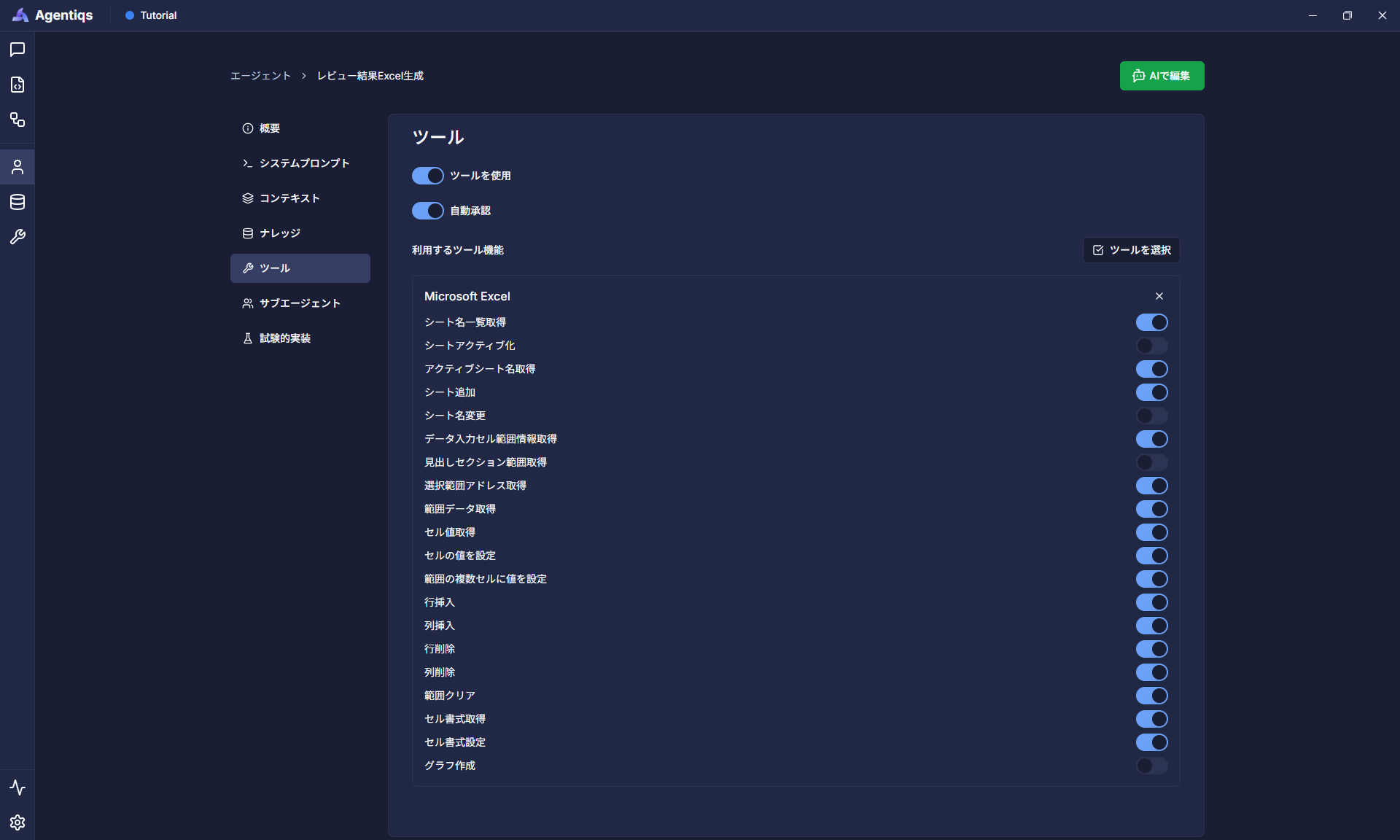
[Step 2] Call the created AI agent in the workflow and set the user message.
Place the "AI Agent" using drag and drop and set its properties.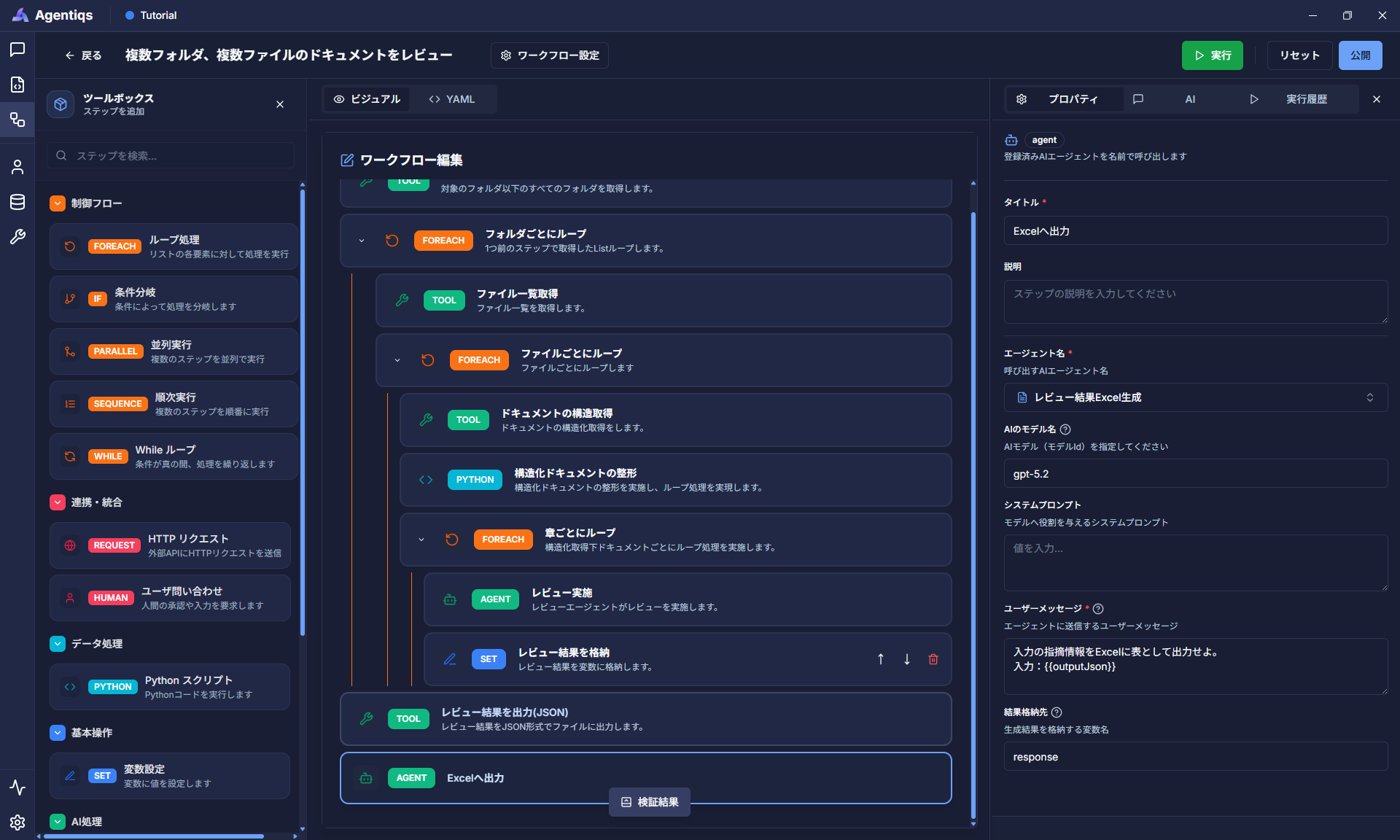
Property settings
We will now call the AI agent created in [Step 1] and output the results to a file.
Property Required Settings Detailed explanation Title Title Please use a clear and easy-to-understand name that can be identified later. Description Contents to be performed in the step Agent name 〇 "Review result Excel generation" This is the AI agent name set in Step 1. AI model name 〇 gpt-5.2 Specify the AI model to use. System prompt Not specified This is not necessary as it is defined on the AI agent creation screen. User Message 〇 Paste the following text User Message Content:
Output the input feedback information as a table in Excel.Input: {{outputJson}}
-
2. Run the Workflow
Run the completed workflow.
If you selected Excel as the output destination in step 16, please start Excel before running the workflow.
Click the "Run" button in the upper right corner of the workflow.
Common Troubleshooting
JSON Conversion Error
With JSON format output by the AI agent, errors may occur, such as outputting JSON in md format.
If an error occurs during JSON format conversion, a fail-safe script will be implemented to handle it even with strings.
This can be suppressed by adding the following Python script between the review agents, as shown in the image.
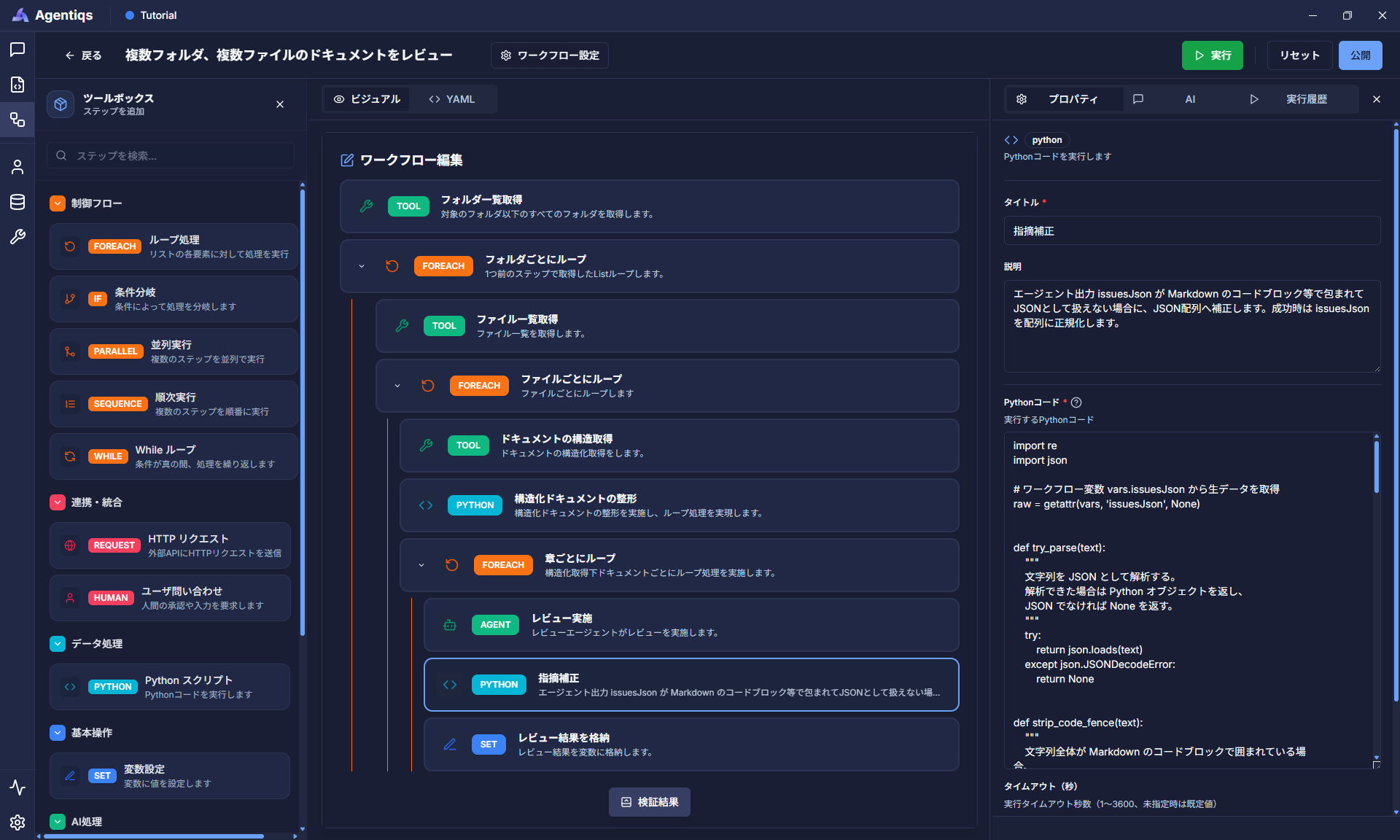
Property settings
This function converts strings returned from AI or previous workflow processes into JSON arrays.
(This is because some formats may be corrupted.)
| Property | Required | Settings | Detailed explanation |
|---|---|---|---|
| Title | Title | Please use a clear and easy-to-understand name that can be identified later. | |
| Explanation | What to do in this step | ||
| Python Code | 〇 | Paste the following code |
import re
import json

# Get raw data from workflow variable vars.issues
raw = getattr(vars, 'issues', None)

def try_parse(text):
    """
    Parses the string as JSON.
    Returns a Python object if parsed successfully,
    and None if not JSON.
    """
    try:
        return json.loads(text)
    except ValueError:
        return None

def strip_code_fence(text):
    """
    If the entire string is enclosed in Markdown code blocks,
    remove the ```json/``` at the beginning and ``` at the end.
    """
    if text is None:
        return text

    text = text.strip()

    # Remove only if the entire string is enclosed in a code fence
    fence = re.compile(
        r'^\s*```(?:json)?\s*([\s\S]*?)\s*```\s*$',
        re.IGNORECASE
    )
    m = fence.match(text)
    return m.group(1).strip() if m else text

def strip_wrapping_quotes(text, max_times=2):
    """
    Removes extra quotes surrounding the entire string.
    Example:
    '"[...]"' -> '[...]'
    "'[...]'" -> '[...]'

    Since there are cases where quotes are double-wrapped, it repeats up to max_times times.
    """
    s = text.strip()

    for _ in range(max_times):
        if len(s) >= 2 and (
            (s[0] == '"' and s[-1] == '"') or
            (s[0] == "'" and s[-1] == "'")
        ):
            s = s[1:-1].strip()
        else:
            break

    return s

# If it's already a Python list, use it as is
if isinstance(raw, list):
    vars.issues = raw

else:
    # If None, make it an empty string to unify subsequent processing
    s = '' if raw is None else str(raw)
    s = s.strip()

    # 1. Remove Markdown code blocks
    s = strip_code_fence(s)

    # 2. Remove extra quotes enclosing the entire string
    s = strip_wrapping_quotes(s)

    # 3. First, try parsing the JSON as is
    parsed = try_parse(s)

    # 4. If parsing fails,
    #    try to reconstruct it assuming an "escaped JSON string" containing \n and \"
    if parsed is None:
        try:
            # Example: recovery process to restore a string like "[{\"a\":1}]"
            s2 = bytes(s, 'utf-8').decode('unicode_escape')
        except UnicodeDecodeError:
            # If recovery fails, use the original string
            s2 = s

        s2 = strip_code_fence(s2)
        s2 = strip_wrapping_quotes(s2)

        parsed = try_parse(s2)
    else:
        s2 = s

    # 5. Last resort if parsing still fails:
    # Extract the first JSON array-like part from the text and try again
    if parsed is None:
        for candidate in (s2, s):
            start = candidate.find('[')
            end = candidate.rfind(']')

            if start != -1 and end != -1 and end > start:
                parsed = try_parse(candidate[start:end + 1])
                if parsed is not None:
                    break

    # 6. Error if it cannot be read as JSON in the end
    if parsed is None:
        raise Exception(
            'issues could not be parsed as JSON. Please check the output format.'
        )

    # 7. Confirm that it is a JSON array as expected
    if not isinstance(parsed, list):
        raise Exception('issues must be a JSON array.')

    # 8. Store the successfully parsed result in vars.issues
    vars.issues = parsed
FileAccess Error
The FileAccess tool used here has a base directory set in the tool's settings.
If the input/output folders or files are not under the base directory set in the FileAccess tool, an error will occur.
Please check the base directory setting again.
Key Points for Utilizing Workflows
Debugging
Checking Output Results During Execution
If you want to check the output results at any step during workflow execution, place a "HUMAN: User Inquiry" element.
The values of variables used in the workflow can be displayed in a dialog box for verification at each step.
Outputting Intermediate Execution Results Externally
The execution history does not accurately show the intermediate progress.
Use the FileAccess tool and file output to configure the system to output the processing details to a log file beforehand.