Creating an AI Agent Specialized for Reviews
This page explains how to create an AI agent specialized for reviews, using its use in the review process as an example.
Goal
Learn how to create an AI agent that performs reviews on documents based on specified criteria and outputs the results.
First, we will build an environment that enables document and source code reviews in a chat format.
Preparation
Please prepare the documents to be reviewed and the review criteria in advance.
For instructions on downloading and storing the data, please refer to "Sample Data Environment Setup Instructions".
1. Creating an AI Agent
-
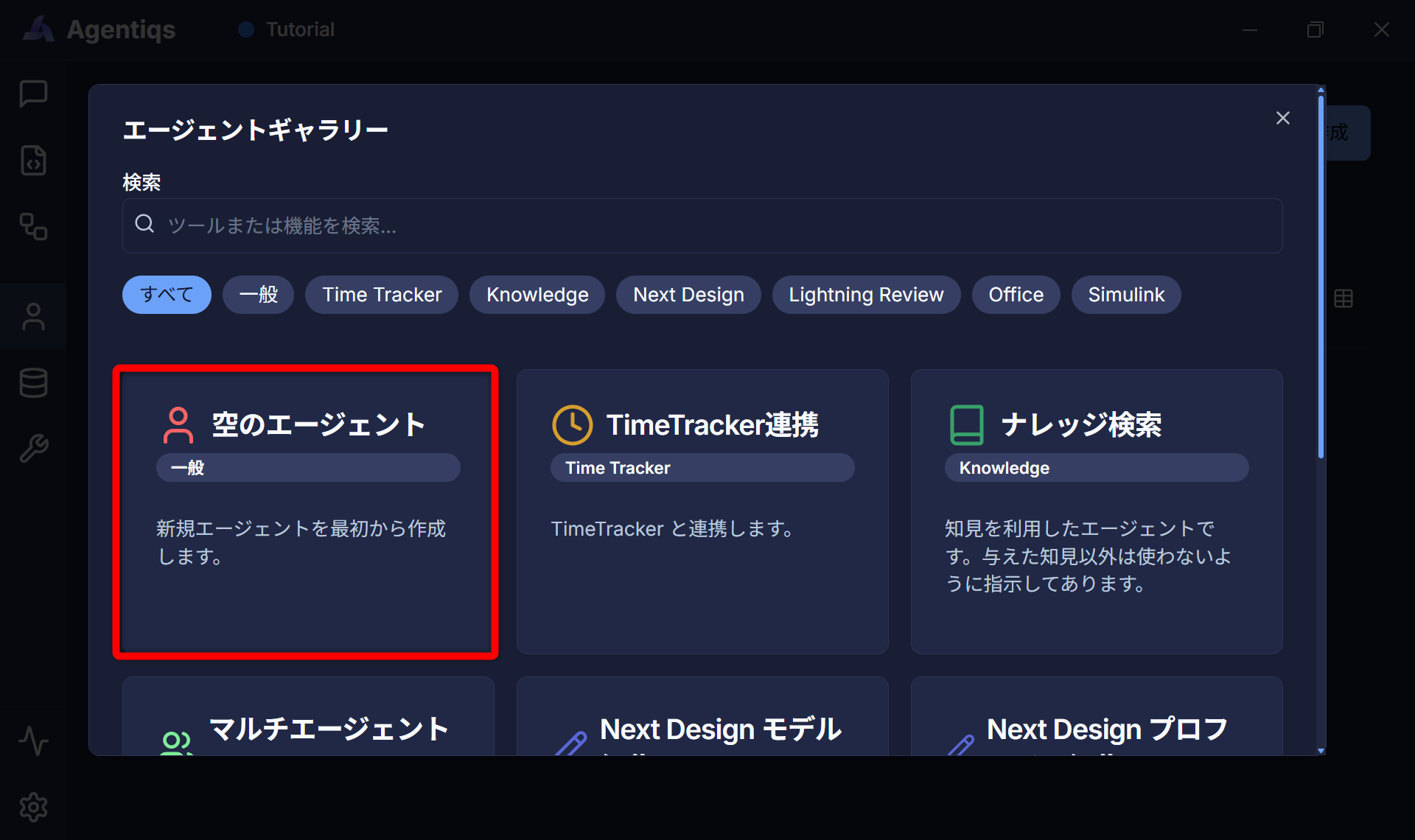
Select [Agent] - [New] to display the agent gallery and select [Empty Agent].
-
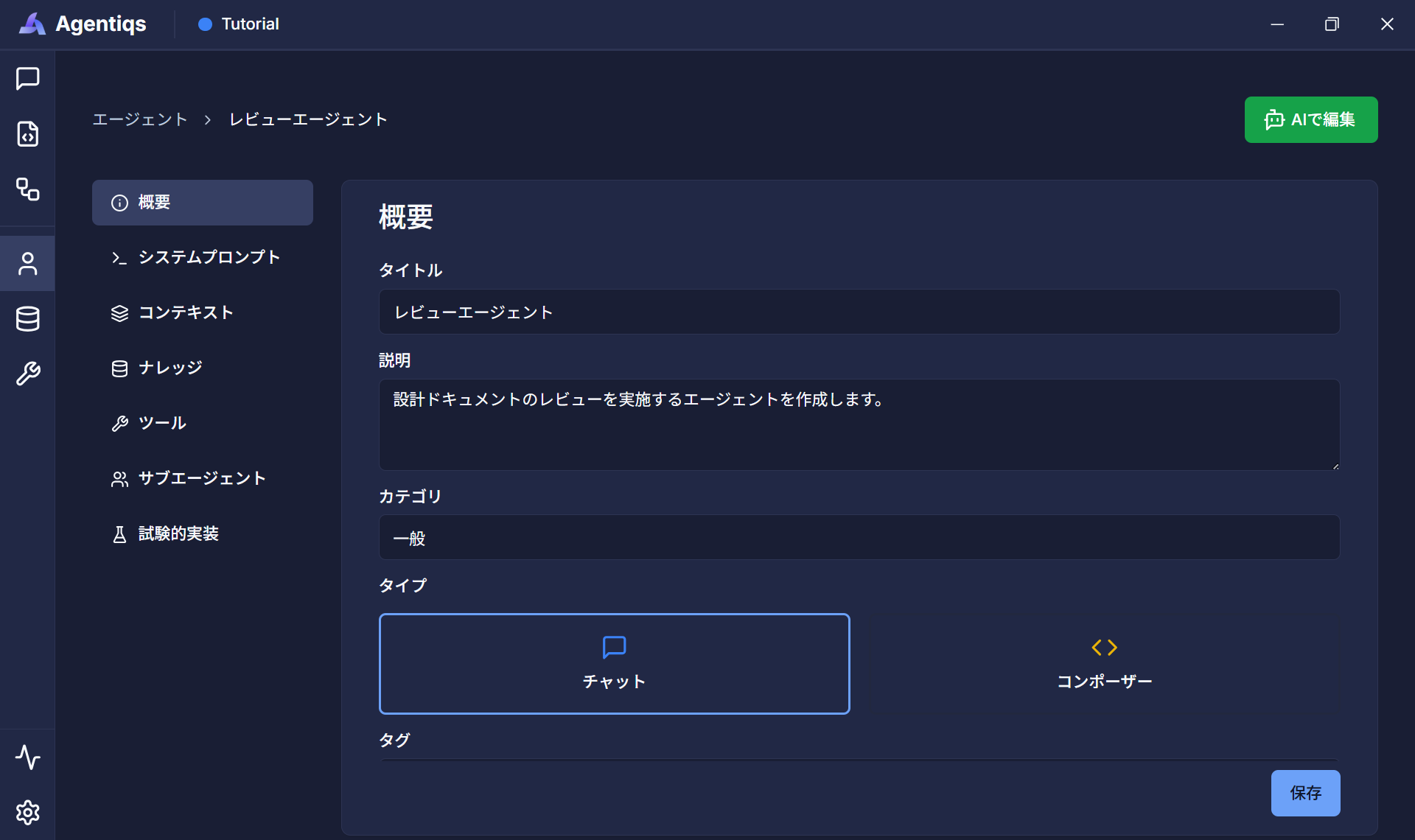
Enter any information in the [Overview] tab.
2. Setting System Prompts
System prompts define the role, purpose, and output format of the AI agent.
This setting significantly impacts the quality and consistency of the review.
-
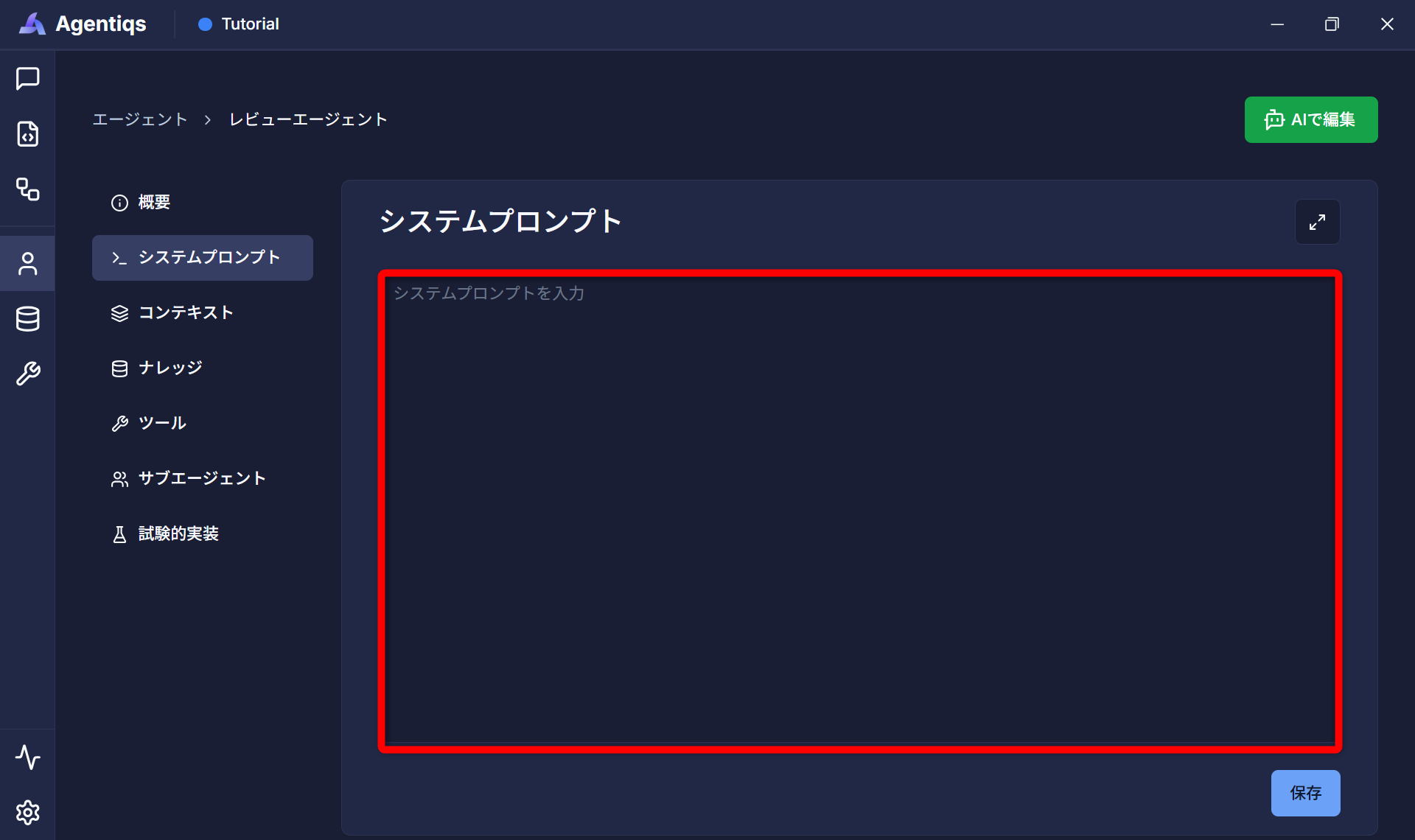
Open the [System Prompts] tab.
-
Paste the following system prompt example directly into the red-bordered area.
System Prompt Example (Click to expand and copy the text)
[Objective]To systematically identify inconsistencies, omissions, ambiguities, safety/reliability/maintainability weaknesses, and implementation/integration/testing difficulties in the ADAS/ACC cruise control AFW layer design documentation, and to clarify the specifications to a verifiable granularity.[Role]You are a Senior Architect and Reviewer of Automotive ECU Software. Your strengths include functional safety, real-time, state-machine, signals/units/boundaries, specification verifiability, and I/F alignment.The scope of review covers the ADAS/ACC AFW layer (PF layer I/F aggregation, state management, control request distribution, switch input interpretation, preceding vehicle detection, brake/engine request distribution, tables/maps, initial/previous value retention, time-conditional judgment).[Work Steps]Please conduct the review according to the following work steps:1. Understand the input documents to be reviewed.2. Conduct the review in the order of [Review Perspectives], and perform the review according to the following # Criteria for Judging Findings:# Criteria for Judging Findings・For each finding, break it down into "Where/Why is there a problem/Impact/Improvement proposal/Confirmation question," and consider and record the basis for the judgment and its content.・If a definitive conclusion cannot be reached, mark it as "Requires Confirmation" and be sure to include a question.3. Output the results of the review in step 2 according to the following # Output Format.# Output Format・Output in Markdown with the following structure.Review Summary: (Scope, Number of Issues, Critical/High/Medium/Low, Overall Findings (3-6 lines))Critical/High Issues: Table (Fixed Columns)Other Issues: Table (Fixed Columns)Table Columns: ID | Severity | Location | Issue Details | Rationale | Impact | Improvement Proposal | Confirmation Questions4. End[Review Perspectives]Consistency: Consistency of Names/Types/Units/Signs/Semantics, Inconsistencies in Notation Across Chapters, Matching of I/O and I/F/Internal DataTiming: Relationship between Period and Judgment Time, Feasibility of Event Specification Implementation (Edge Detection, Previous Value, Time Measurement, Handling of Missing Data)State Machine: Initial State, Transition Conditions, Input Events, Output Actions, Power ON/IG OFF/Return, Update Feasibility During OFFVerifiability: Objectively Testable Conditions, Expected Values, Boundary Values, Anomaly Cases. TBD presents "Matters to be decided + Provisional proposal + Additional proposal"Safety/Fail-safe: Safety measures for communication failure, sensor malfunction, out-of-range, diagnostic errors, and IG OFF; safety of braking requests; risk of units/signsNumerical/Table: Axis monotonicity, interpolation/extrapolation, out-of-range, rounding/saturation, description errors, inequality and sign conventions, conversion input rangeResponsibility division: AFW/PF responsibility validity, dependency direction, hidden coupling, IF granularity[Output destination]C:\DCAgentiqsSample\tutorial\chat_review\output\review_issue.md* If a comment already exists, add the comment instead of overwriting it.[Prohibited]Unfounded assertions, delving into implementation details based on specific OS/microcontrollers, and digressions into generalities outside the scope. If information is insufficient, mark it as "needs confirmation" and list the items that should be included in the text.noteIf you are not verifying with a sample, consider and write system prompts that are appropriate for your purpose using AI.
Clearly defining the following will help stabilize review quality.
- Specific instructions such as the AI agent's role, purpose, input/output format, and work steps.
3. Setting Knowledge
Set specifications and design documents as knowledge as needed.
Utilizing knowledge enables reviews that consider consistency with specifications.
-
Register RAGs as needed from the [Knowledge] tab.
For information on registering and referencing knowledge, please refer to Use Knowledge. -
When registering knowledge, clearly state in the system prompt when the knowledge should be referenced.
Example:~~~[Work Steps]3.xxxxxxxxxxxxxxxxxxxxxx* For API-related descriptions, refer to the API specification in the Knowledge Base and confirm consistency.4.yyyyyyyyyyyyyyyyyyyyyy~~~
It is not necessary to provide all information to Knowledge Base (RAG).
Distinguish this information from what you enter in the system prompt, depending on the purpose and use.
Examples of content to provide as Knowledge (RAG)
| Category | Content | Specific Examples | When to Use | Points to Note |
|---|---|---|---|---|
| Requirements/Specifications | Requirements Definition/API Specifications | Validation Conditions, Response Specifications | When Consistency with Specifications is Questionable | Managing the Latest Version is Important |
| Existing Implementations | Similar Code/Common Processing | ID Generation Logic, Common Functions | When Consistency Needs to Be Confirmed | Beware of Noise Inclusion |
| Design Documents | Architecture Design | Layer Configuration, Responsibility Decomposition | When Confirming Design Validity | Difficult to Use If Granularity is Inconsistent |
| Past Reviews | Criteria History/Bug Examples | Null Check Misses, Exception Handling Errors | When Checking for Recurrence Prevention | Low-Quality Data is Counterproductive |
| Non-Functional Requirements | Performance/Security Requirements | Response Time, Authentication Method | When Performance/Security Concerns Exist | Quantitative Information is Important |
Example of input as a system prompt or user message
| Category | Content | Specific Example | Why this method? | Points to note |
|---|---|---|---|---|
| Review Perspectives | Checklist/Perspectives | Readability, Maintainability, Security Perspectives | Essential every time - Missing points will cause quality inconsistencies | Too many points become redundant, so structuring is essential |
| Quality Standards | Coding Conventions/Design Principles | Naming Conventions, Layer Separation | Always necessary as it forms the basis of judgment | Too abstract and it won't work |
| Anti-Patterns | NG List | N+1 Queries, Tightly Coupled Design | Triggers detection | Requires periodic updates |
| Output Format | Review Result Format | Points raised + Reasons + Improvement Proposals | Ensure consistency | Too strict reduces flexibility |
4. Setting up the tool
Set the output destination and data acquisition method for the review results.
-
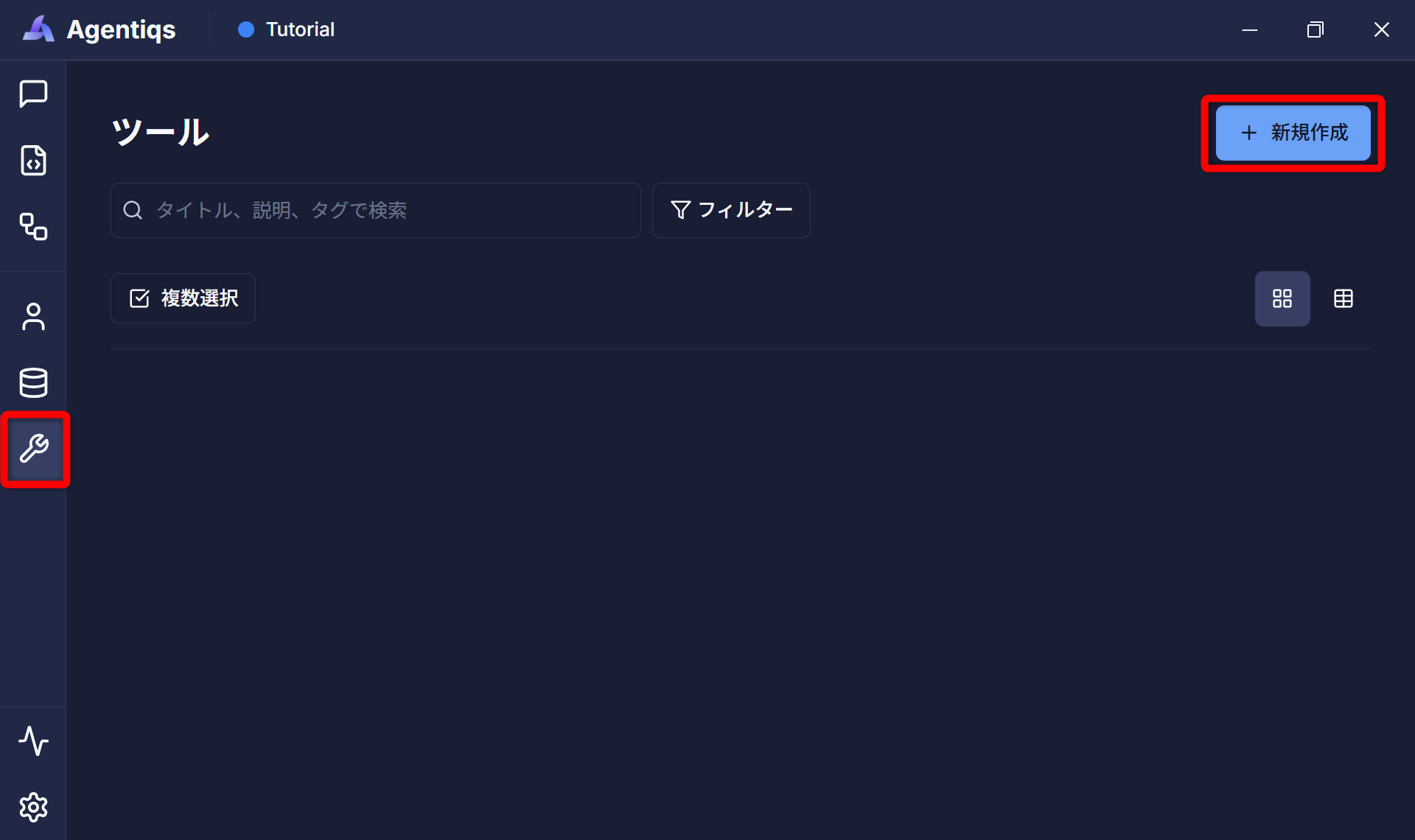
Create the necessary tool on the [Tools] settings screen.
-
Select "FileAccess".
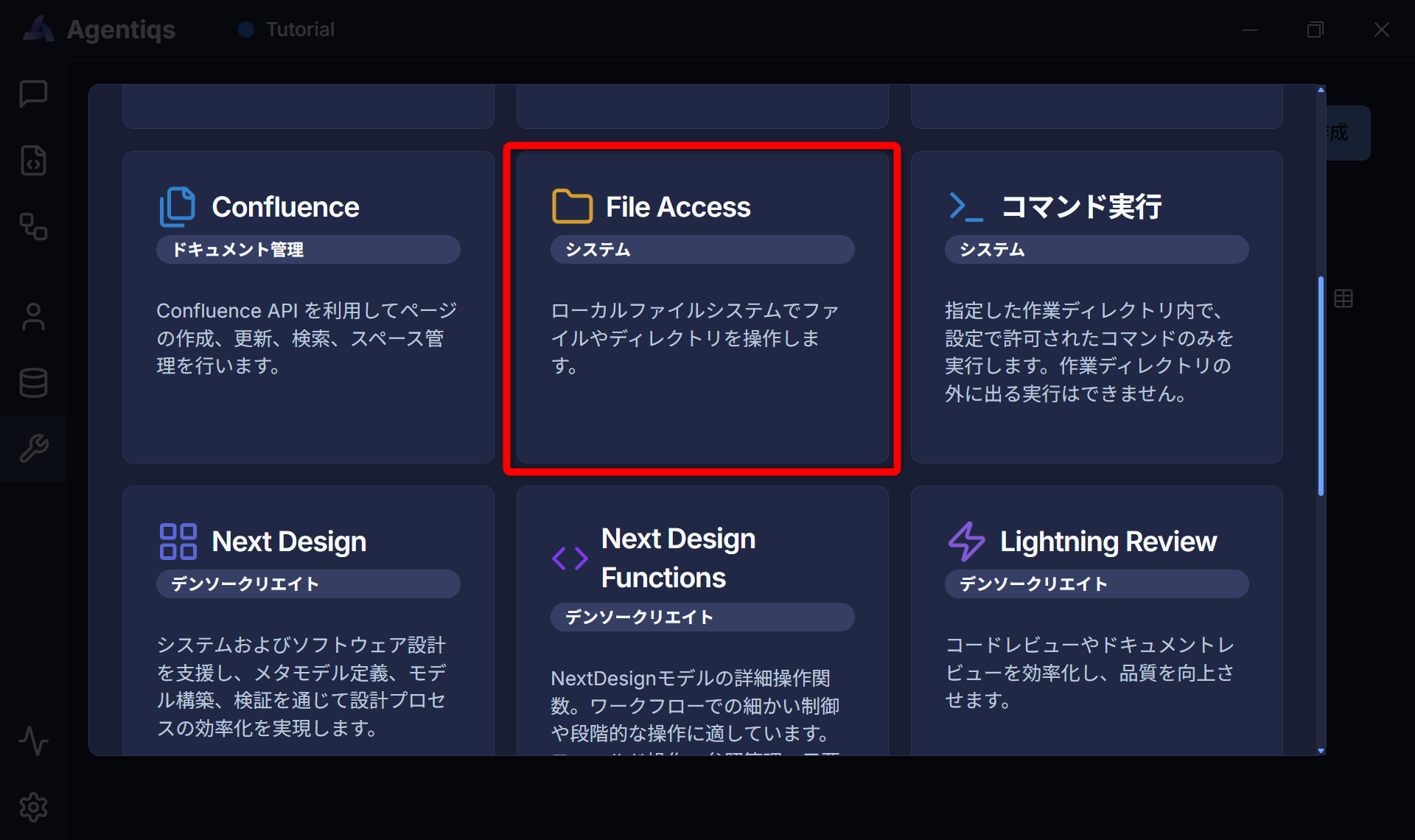 note
noteIn this case, we will use "FileAccess" to acquire the review target and output the review results to a text file.
- If you want to use Excel as the input/output file, select Excel.
- For details on compatible tools and functions, please refer to Tool List.
-
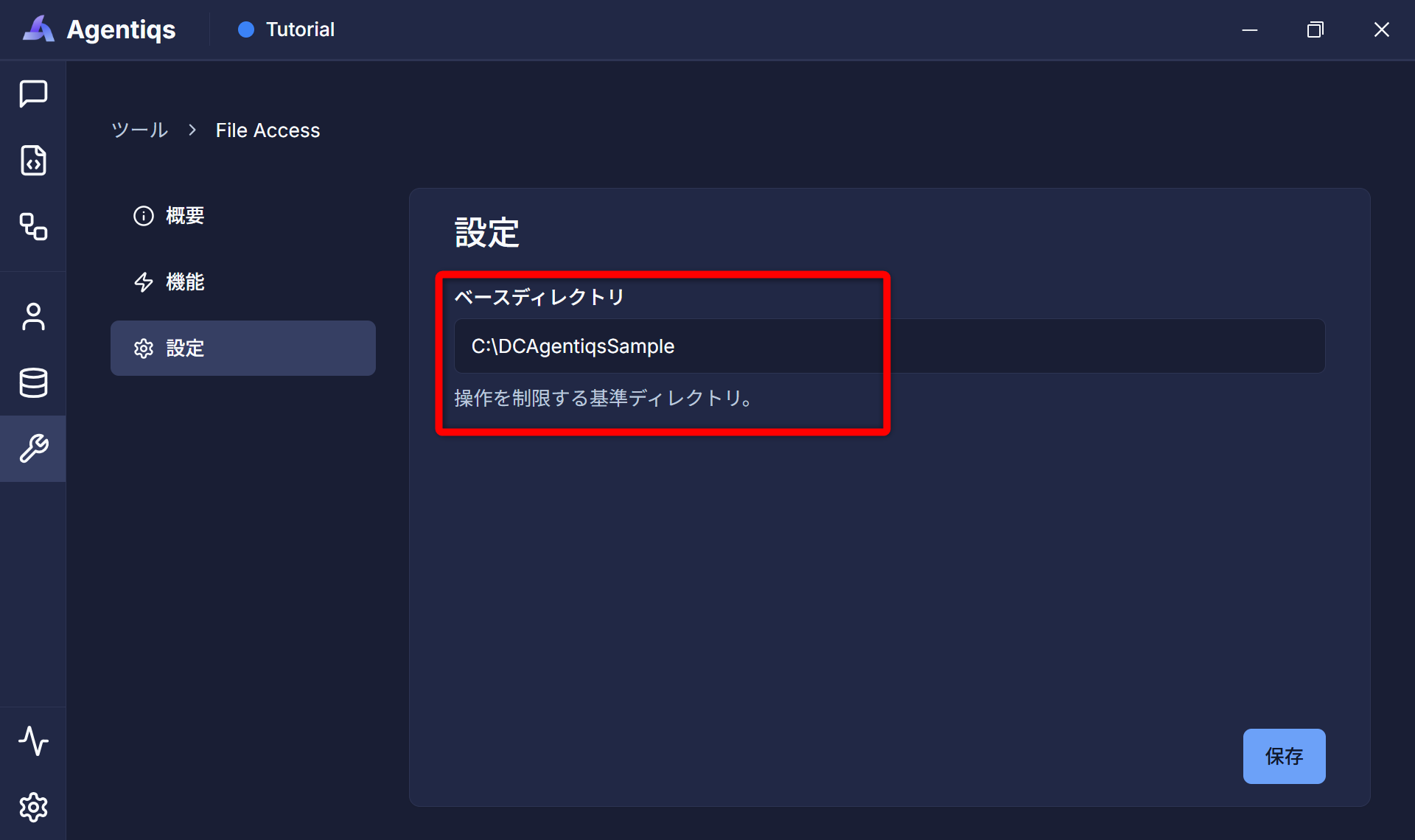
Configure the tool settings and name.
- Tool Name: Please use a name that is uniquely distinguishable.
- Base Directory: The folder where the input/output files are stored (root path if there are subdirectories)
-
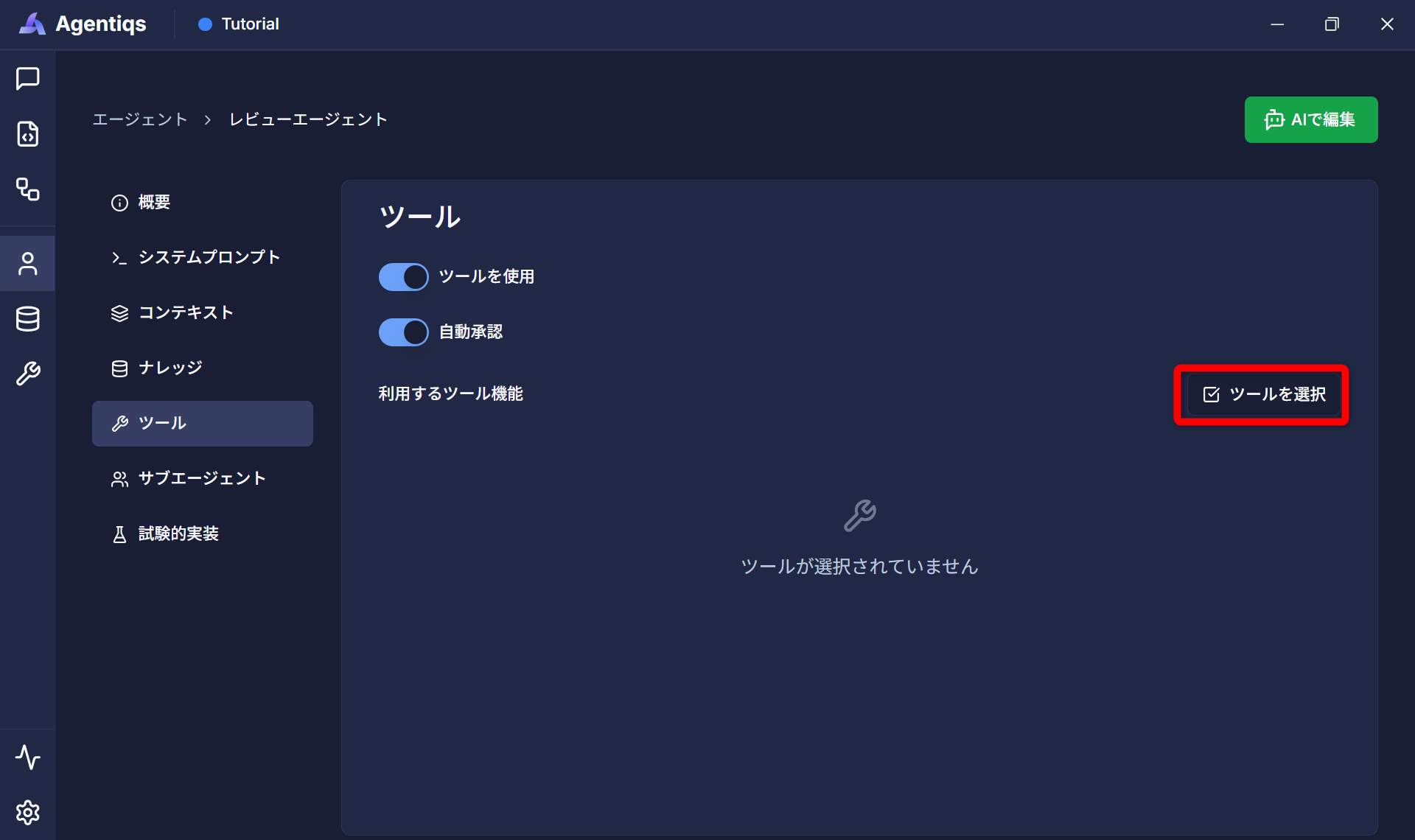
Return to the agent settings screen and select the tool to integrate from the [Tools] tab.
-
Select the tool configured in step 3.
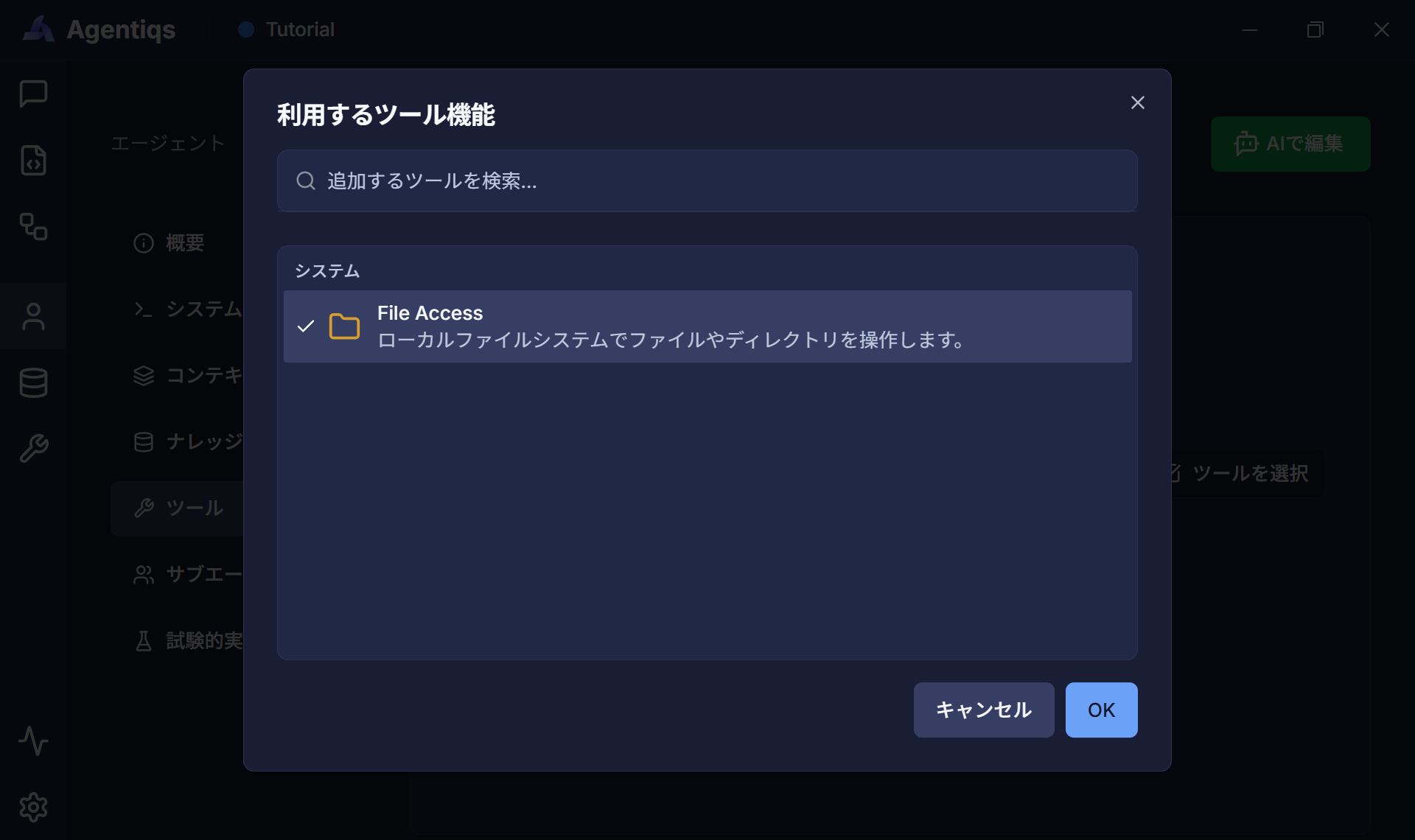 Settings cannot be configured if the tool has not been created.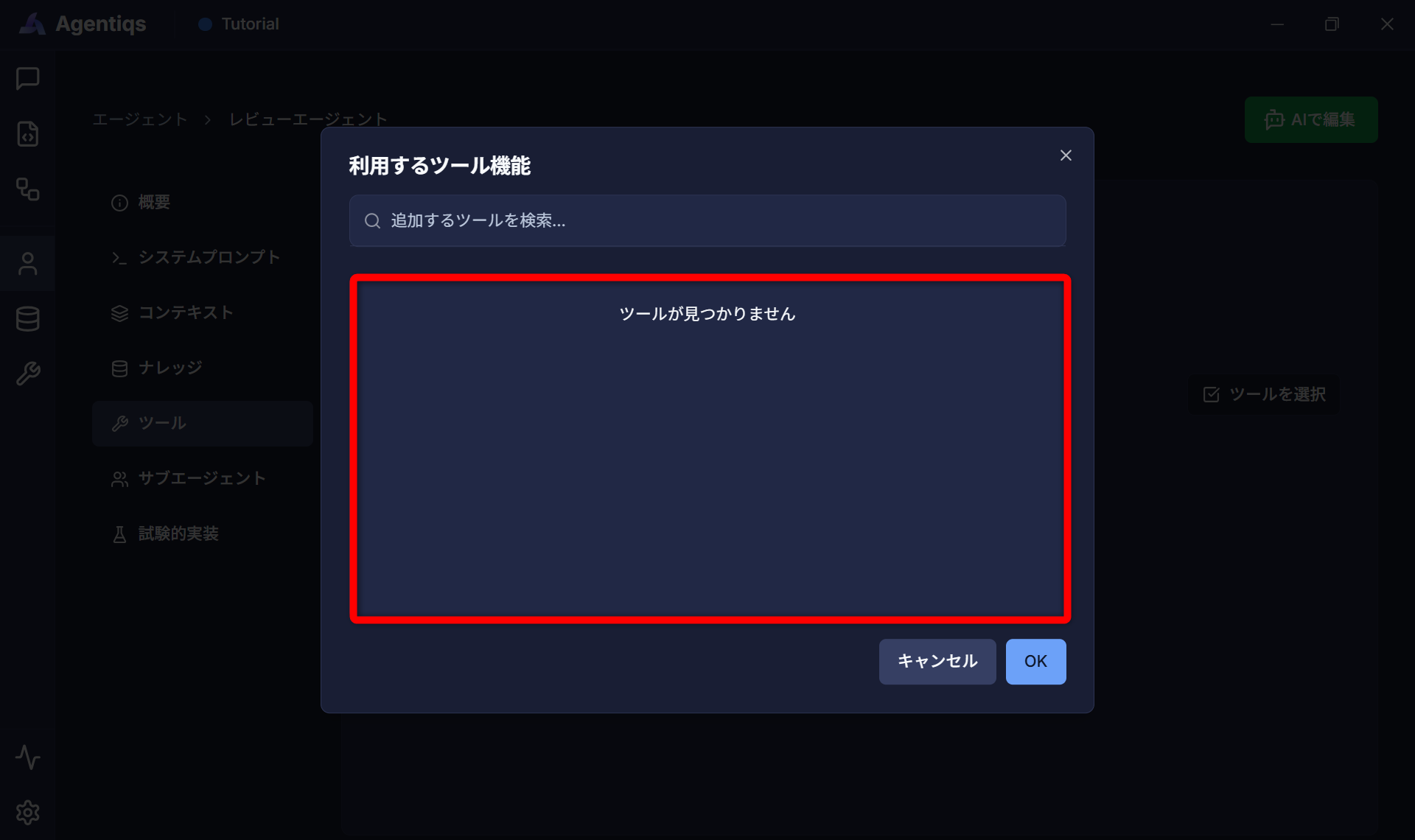
Please create the tool using step 1.
-
Turn on only the functions you want to use from the selected tool.
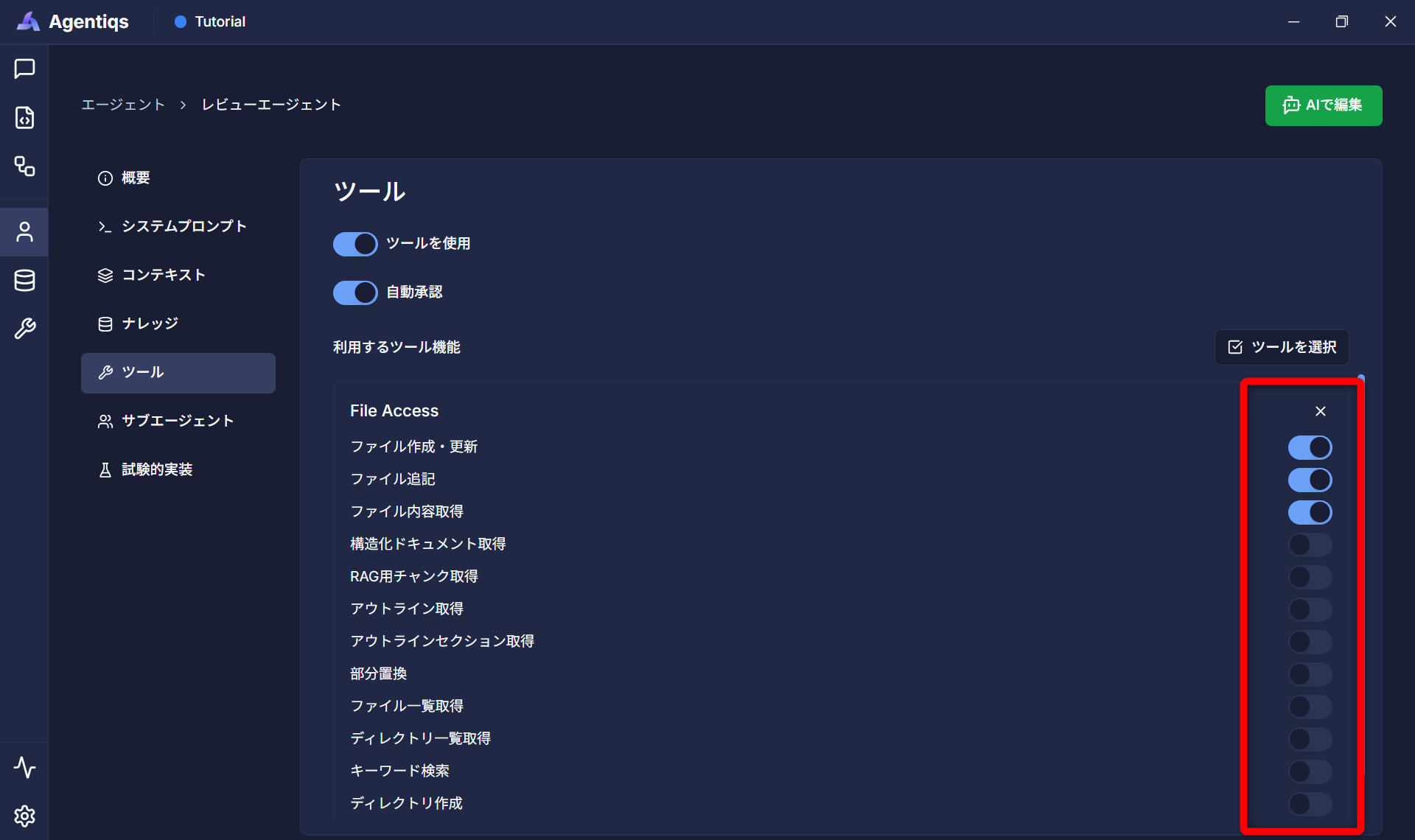 Tool Configuration Points
By limiting the functions used to a minimum, you can expect to reduce token consumption and improve accuracy.
5. Conducting a Review
-
Select the agent you created on the chat screen.
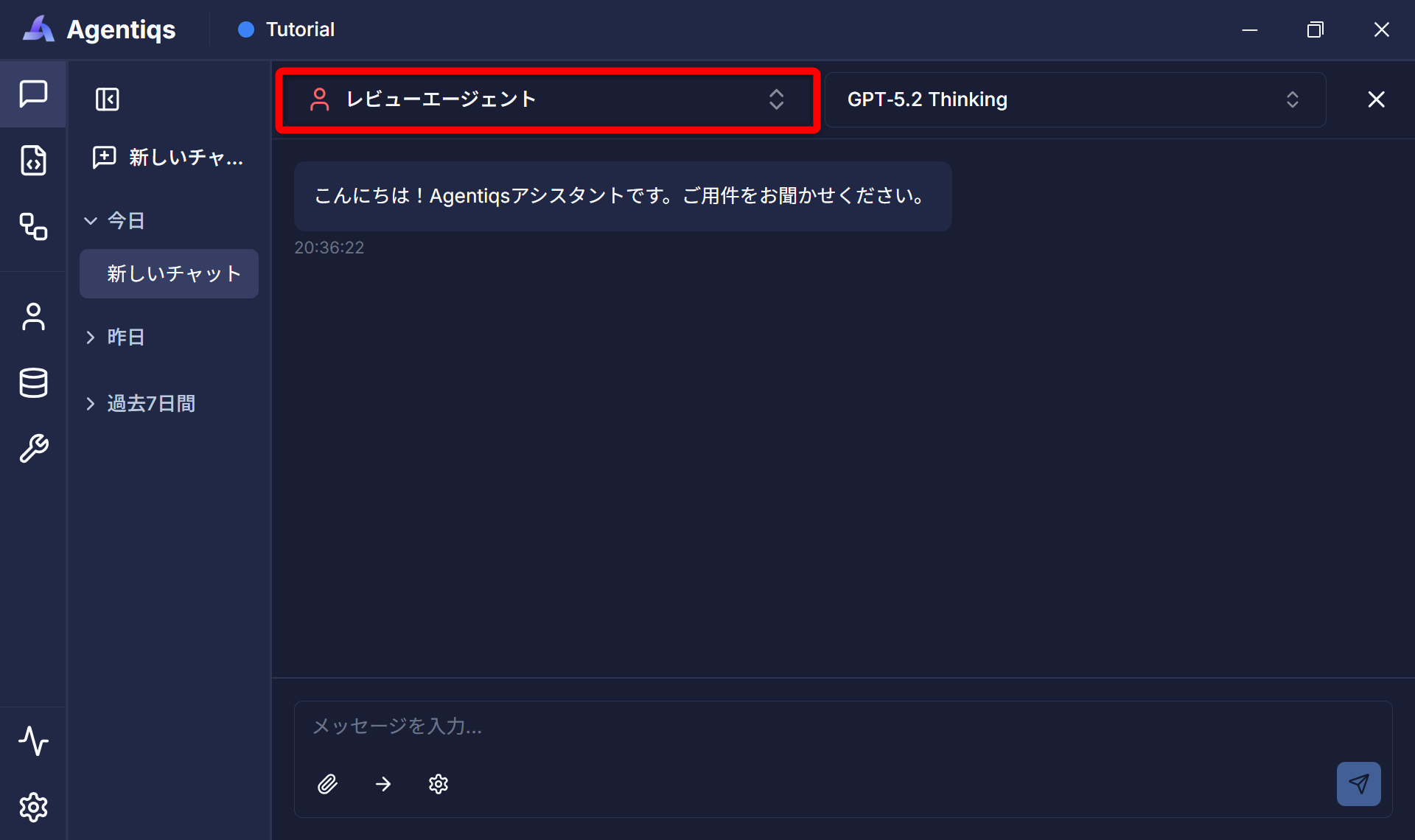
-
Drag and drop the document to be reviewed.
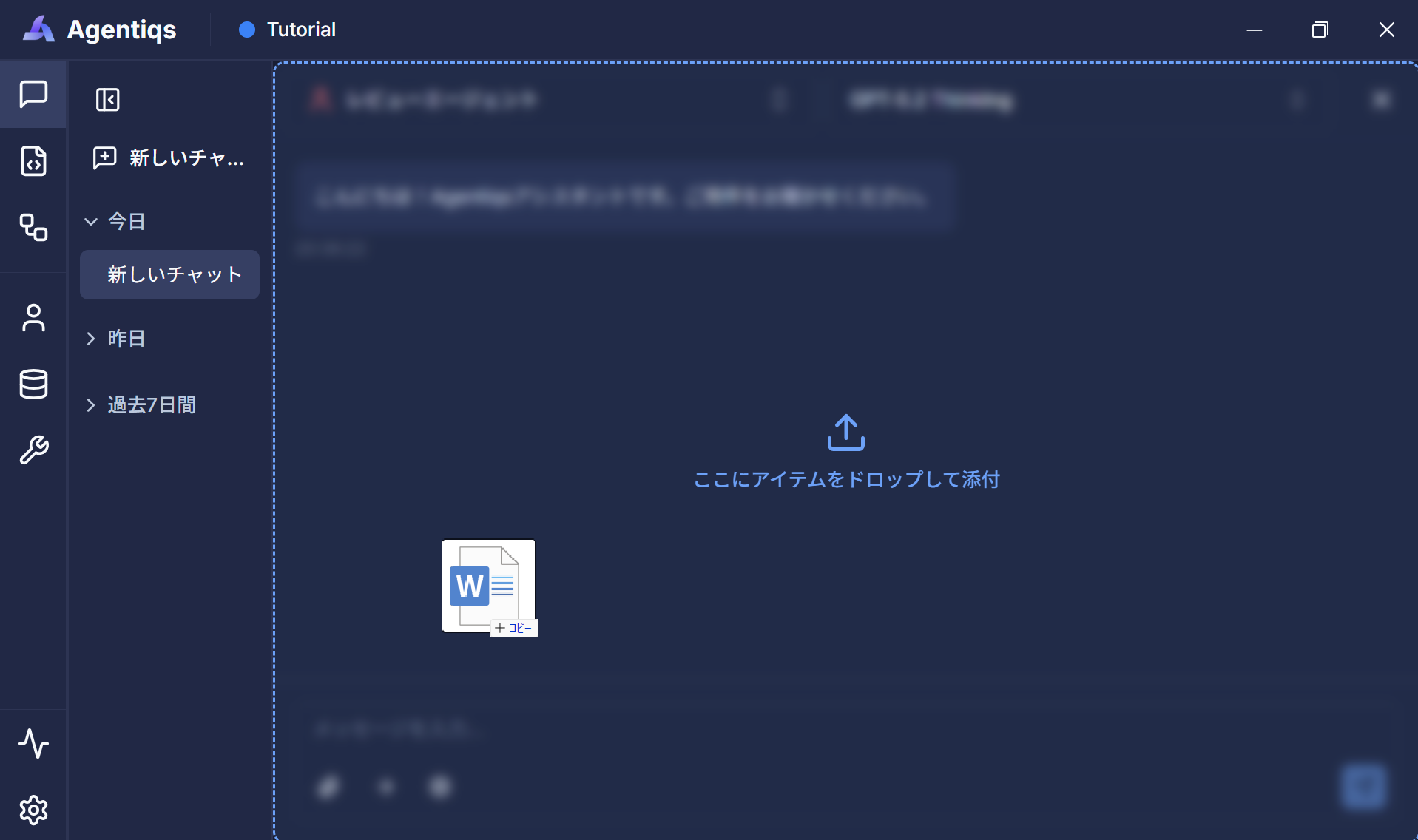 for Sample Users
Please use the file stored in
C:\DCAgentiqsSample\tutorial\chat_review\input\AFW.docx. -
Request a review via user message.
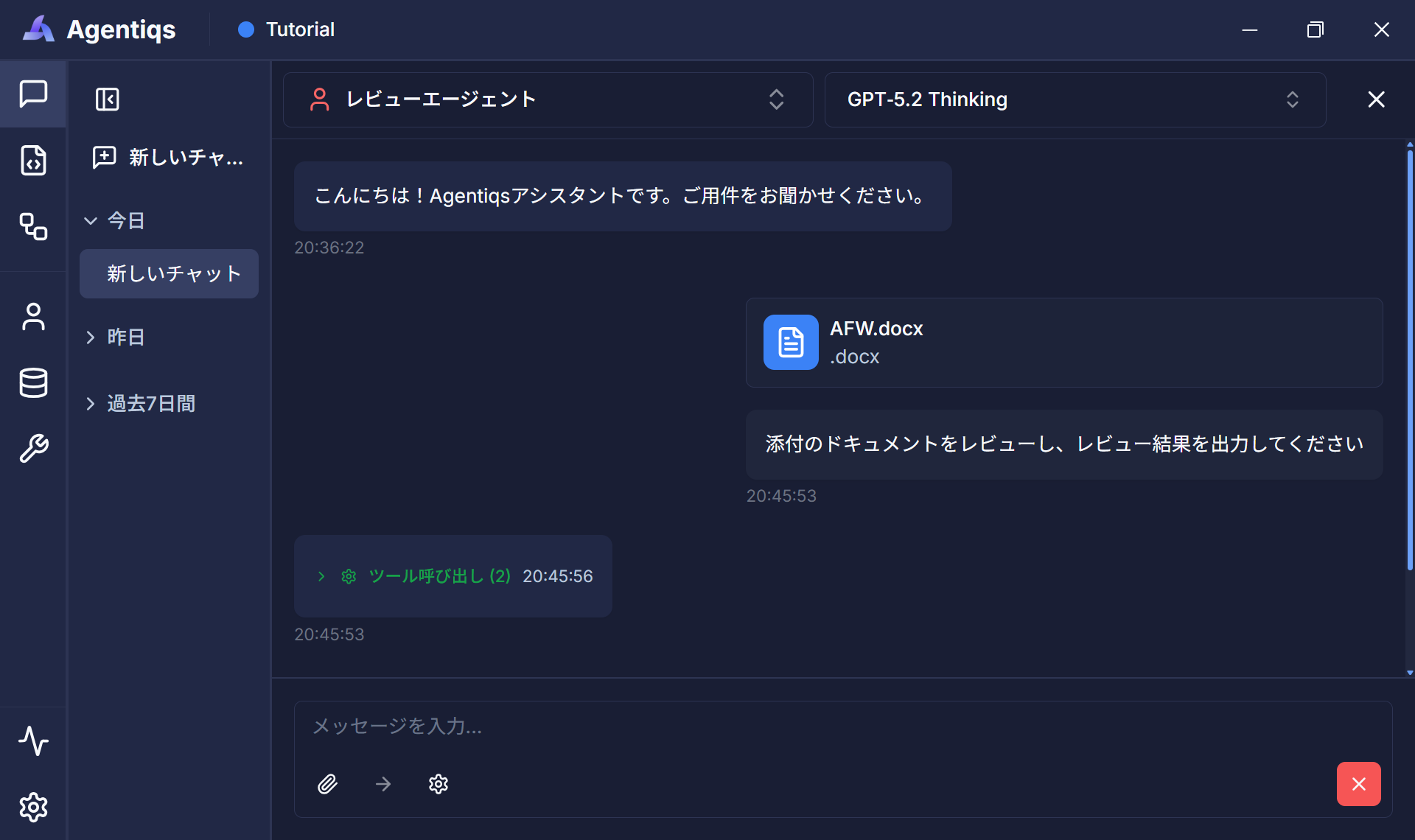
Wait for a chat response.
-
After the response is complete, check the review results.
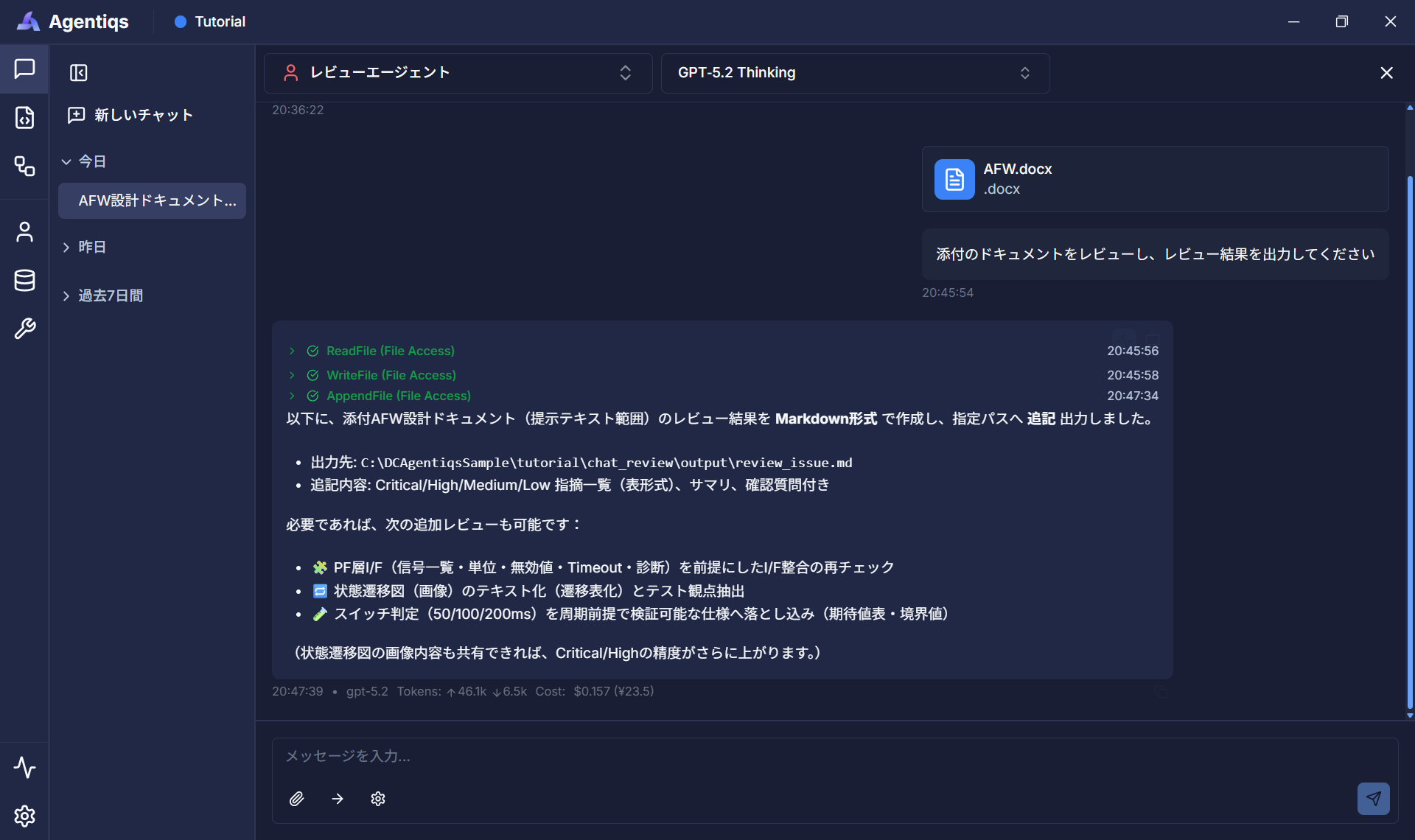
Review Results
In this sample, the output destination is defined in the system prompt as follows:
[Output destination] (excerpt)
C:\DCAgentiqsSample\tutorial\chat_review\output\review_issue.md
* If a finding already exists, add to it instead of overwriting it.
With this setting, the review results will be output not only to the chat response but also to the specified file.
The output destination and format are controlled by the system prompt, allowing for flexible changes depending on your needs.
Checking Output Results
After running the review, you can check the specified folder to confirm that the review results file has been generated.
Outputting as a file eliminates the need to manually copy the chat output.
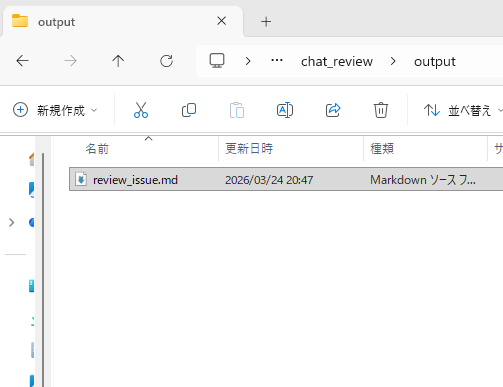
The following is an example of the outputted review results.
- Summary of Review Results
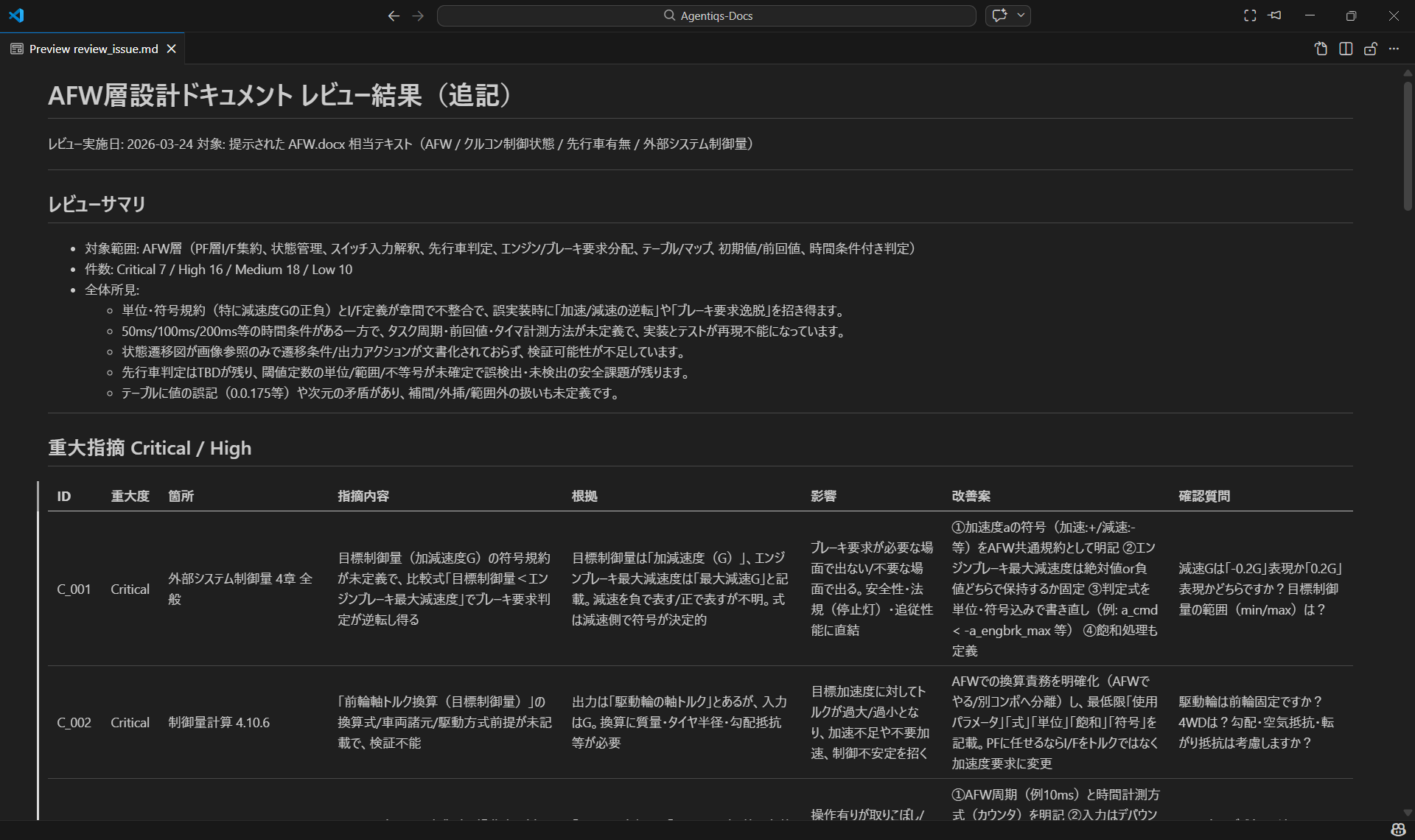
- Specific Review Points
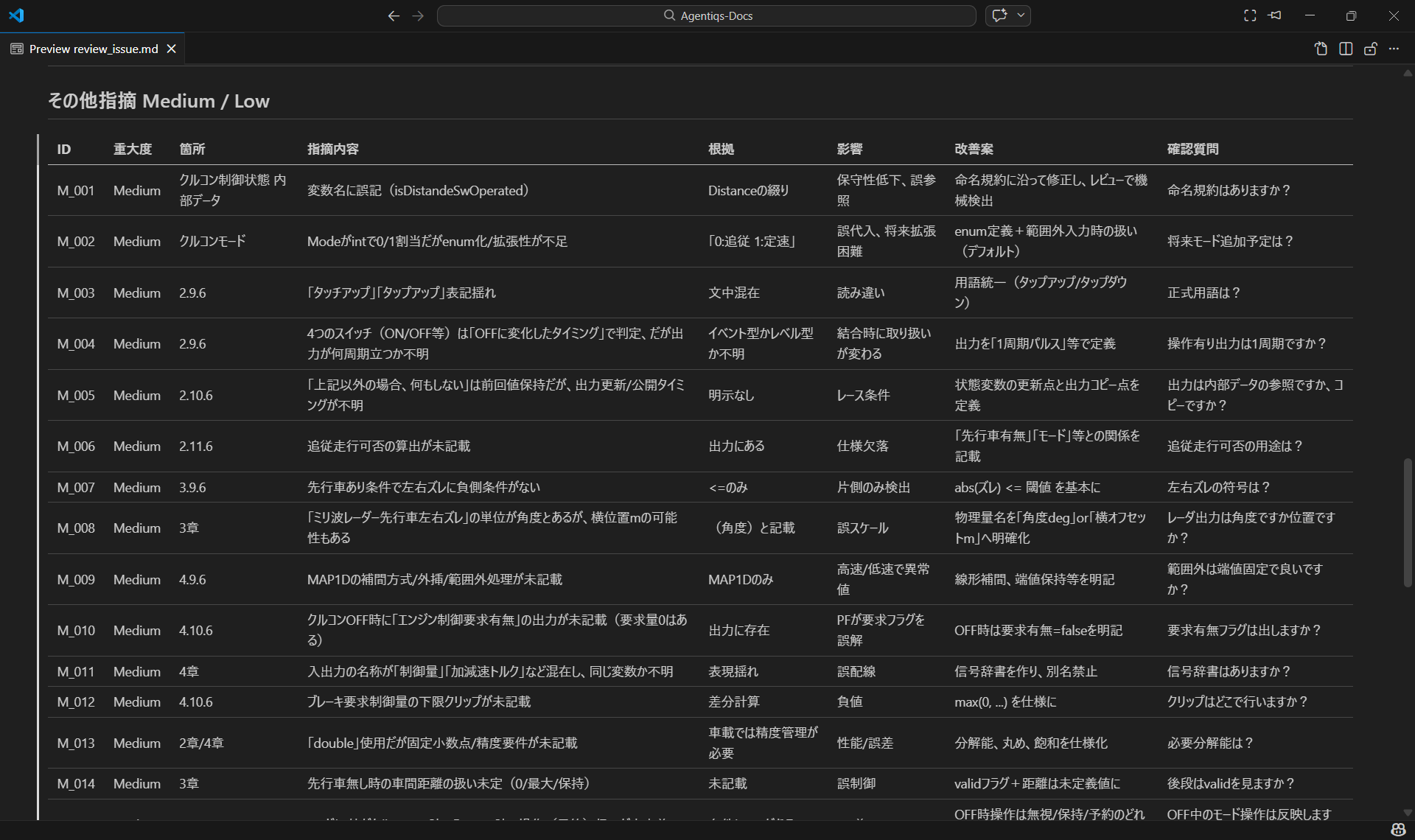
Other Output Formats
You can change the output method depending on your needs.
- To review only a portion of a Word document (only a specific chapter or selected range)
→ Turn on the "Get Selection" function in [Tools] - [Microsoft Word]. - When outputting to Excel or other tools
→ Select the target tool from [Tools] and specify the output method in the system prompt.
Points for Improving Accuracy
Review accuracy largely depends on the system prompt and input method.
Reviewing a large number of design documents at once may cause the following problems:
- Missing or omissions of review points
- Overlooking the scope of the review
- Inconsistent responses
To improve accuracy, consider the following:
- Improving system prompts
- Dividing the review target
- Step-by-step processing using workflows
In particular, when conducting large-scale reviews stably, Utilizing Workflows is effective.
The next chapter will explain automation using workflows to solve these problems.
Examples of Use
By utilizing a specialized AI agent for reviews, you can improve the efficiency and quality of review work.
- Automation of design document reviews
- Standardization of review criteria
- Improved consistency of feedback
Furthermore, by clearly defining review criteria, even new members can conduct reviews using the same standards, enabling quality control that reduces reliance on individual expertise.
We encourage you to try creating an AI agent that can be applied to your daily work.