Startup/Installation
An error occurs when starting Agentiqs
If Agentiqs does not start even once after installation, your .NET version may be outdated.
Example: If it is already installed due to requirements of another tool.
Install the latest versions of both of the following from the .NET 10 installer download page.
- ASP.NET Core Runtime
- .NET Desktop Runtime
Afterward, try starting Agentiqs again.
Automatic startup fails after installation/update with AgentiqsSetup
Agentiqs starts a server on the local machine and simultaneously checks for communication connectivity.
If communication is obstructed by firewall or proxy settings at this time, it will be judged as an abnormality and the server will automatically terminate.
If automatic startup fails, please check the diagnostic information. Below are common causes and solutions.
Checking for Port Conflicts
Agentiqs uses port 58973. Please check the following:
- Is another service already using the same port?
- If so, stop the service or change its port settings.
Checking Firewall Settings
■ If Blocked
Agentiqs may be blocked by your firewall.
If there is a rule blocking it, temporarily disable it or allow communication.
■ If the rule does not exist
Add an exception rule to your firewall using the following steps:
-
Open [Start], type "Allow an application through the firewall" in the search box, and click [Allow an application through Windows Firewall]
-
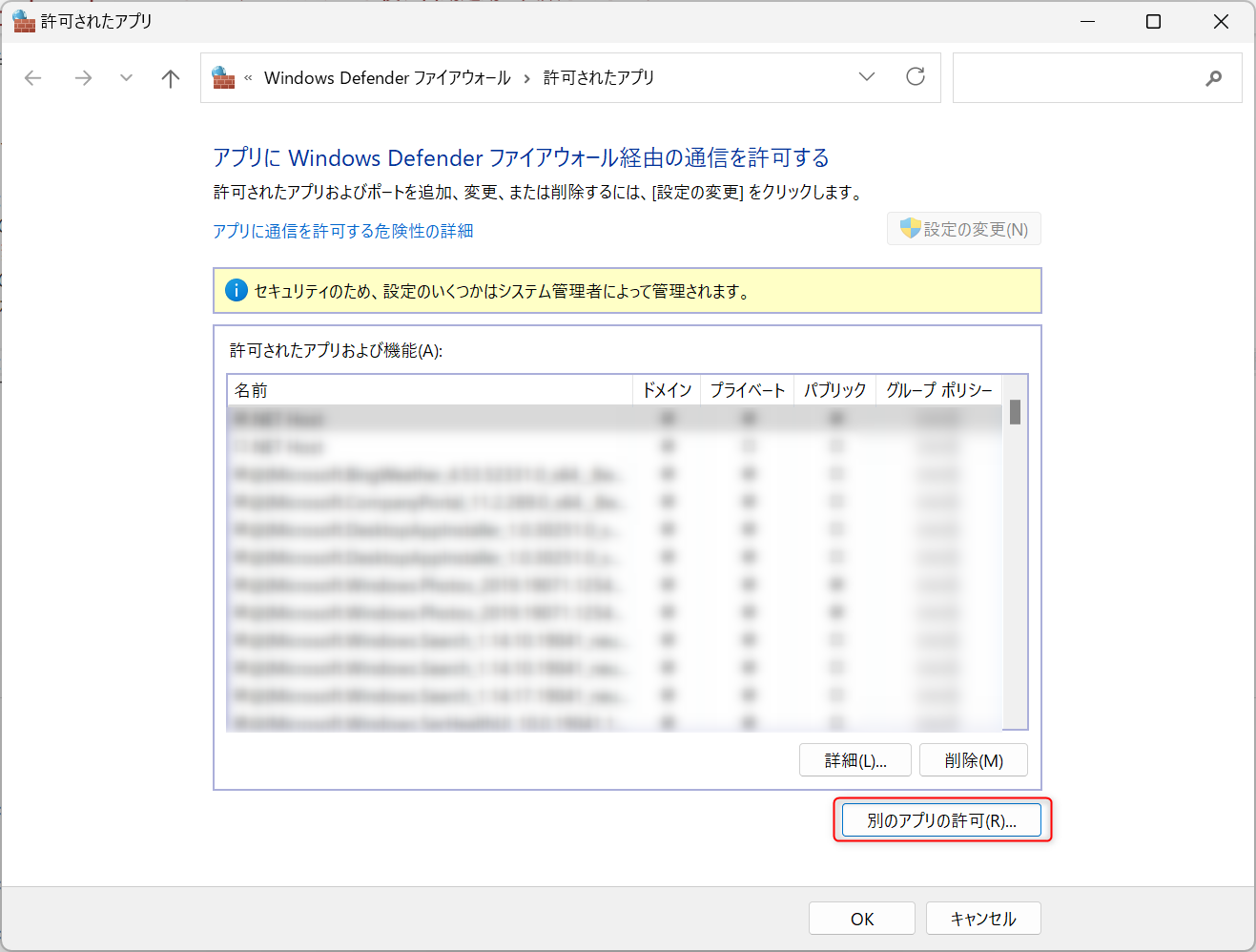
Click the [Change settings]button, and then click the[Allow another app...] button.
-
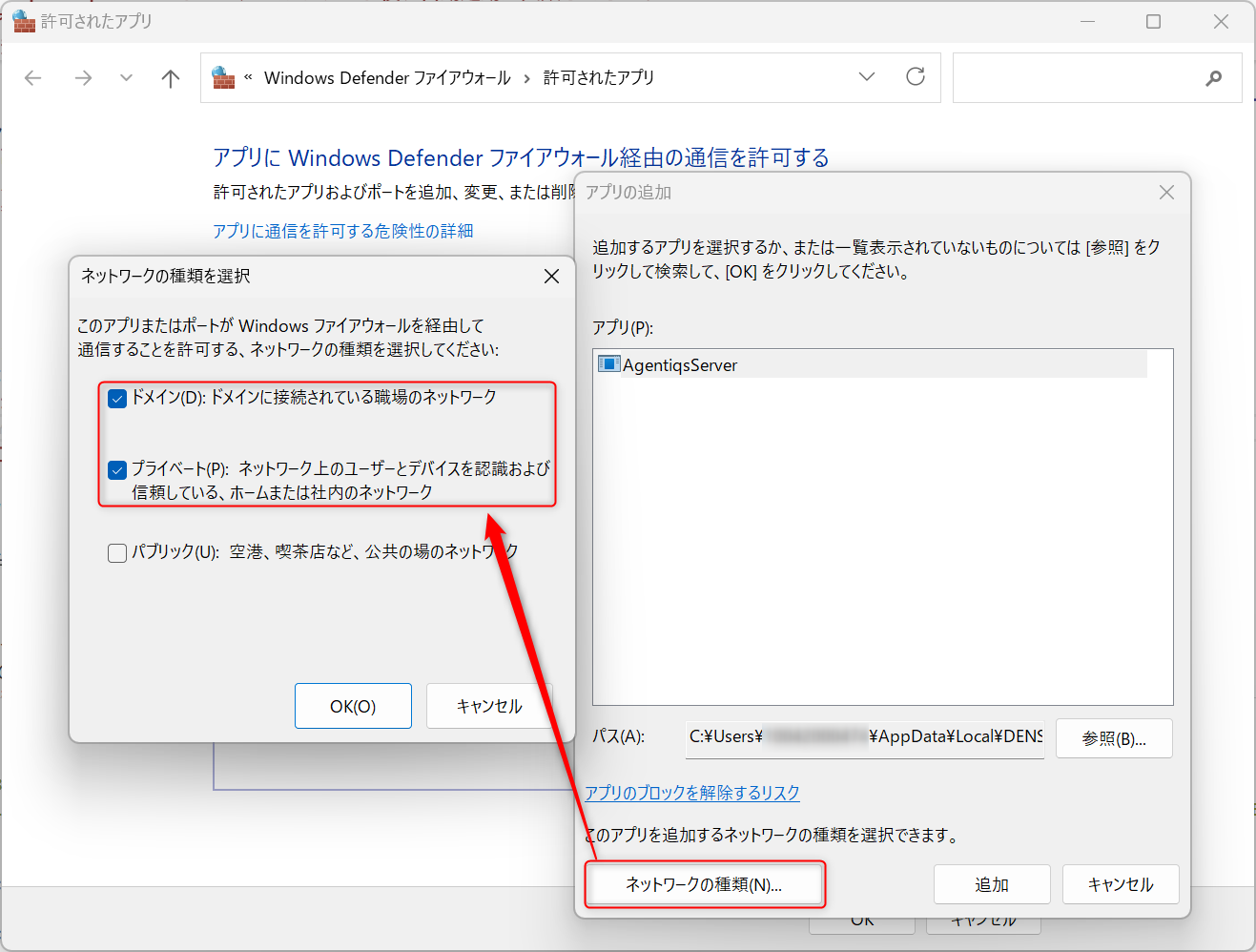
Open the following path from the [Browse...]button and selectAgentiqsServer.exe:
C:\Users\[username]\AppData\Local\DENSO CREATE\Agentiqs\server -
From [Network type], select**"Domain"and Check the box for"Private"and click[OK]**.
-
Click [Add]→[OK] in that order to close the settings screen.
Checking Proxy Settings
If you are using proxy settings on your company network, access to the server on your local machine may be blocked.
Try the following steps to work around this:
-
Open [Start], type "Environment Variables" in the search box, and click [Edit System Variables].
→ Click [Environment Variables…] in the lower right corner of the dialog box.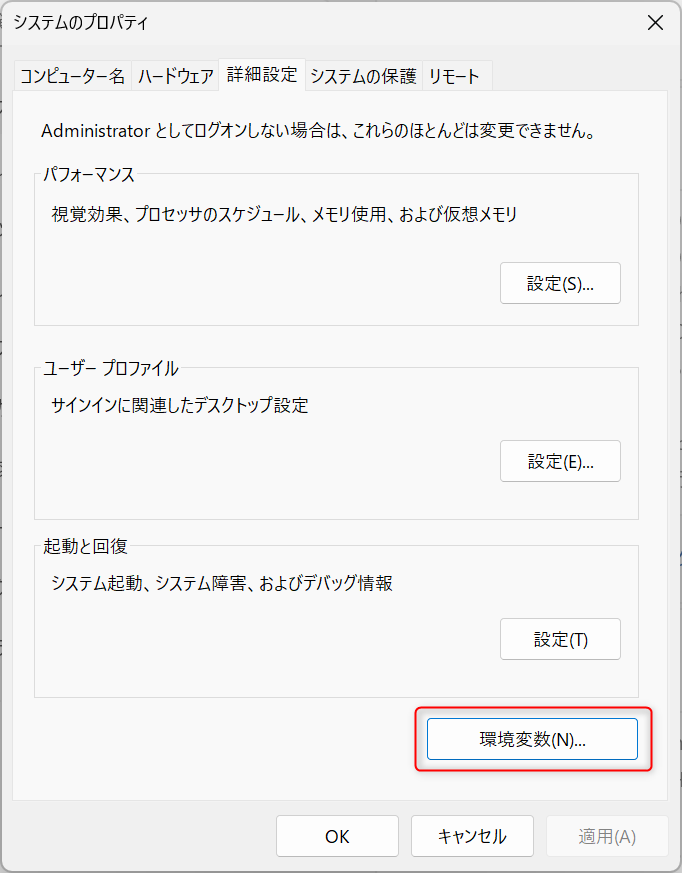
-
Under [System Variables]at the bottom, click[New…].
-
Enter
NO_PROXYin [Variable Name]andlocalhostin[Variable Value], then click**[OK]**. -
If it looks like the image below, the setting is successful.
→ This will allow local communication to proceed directly without going through the proxy.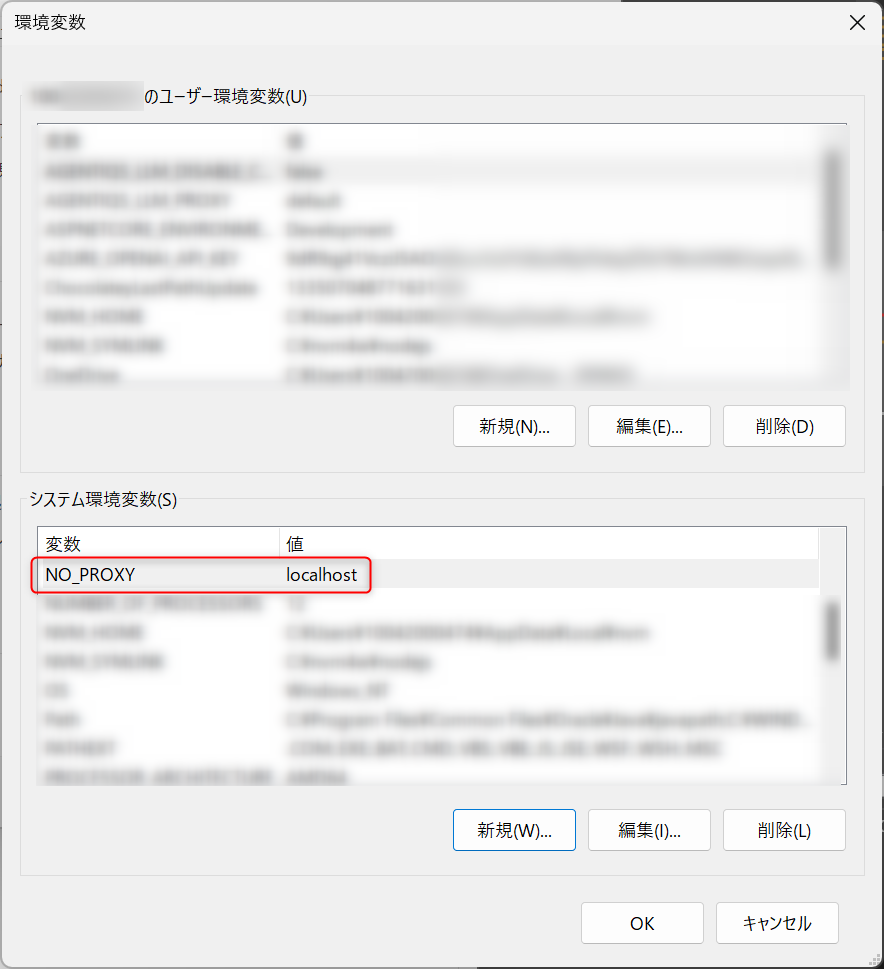
-
Click [OK] to close all dialogs.
Agentiqs does not start after canceling the update
Obtain the installer and perform the installation process again.
License activation is successful, but license activation is requested at startup
License information may not have been retrieved due to network issues.
Close Agentiqs and restart it.