DC Agentiqs Ver.1.2 Release Notes
DC Agentiqs Ver.1.2 expands support across a wide range of areas, including AI reasoning, long-running agents, working folders, document processing, and external tool integration.
This page summarizes the main updates by purpose. For detailed setup and usage, follow the links to the relevant feature pages.
The latest models from each LLM provider are supported. Apply them to your provider settings using Update models in bulk.
Overview of additions
 Skills | 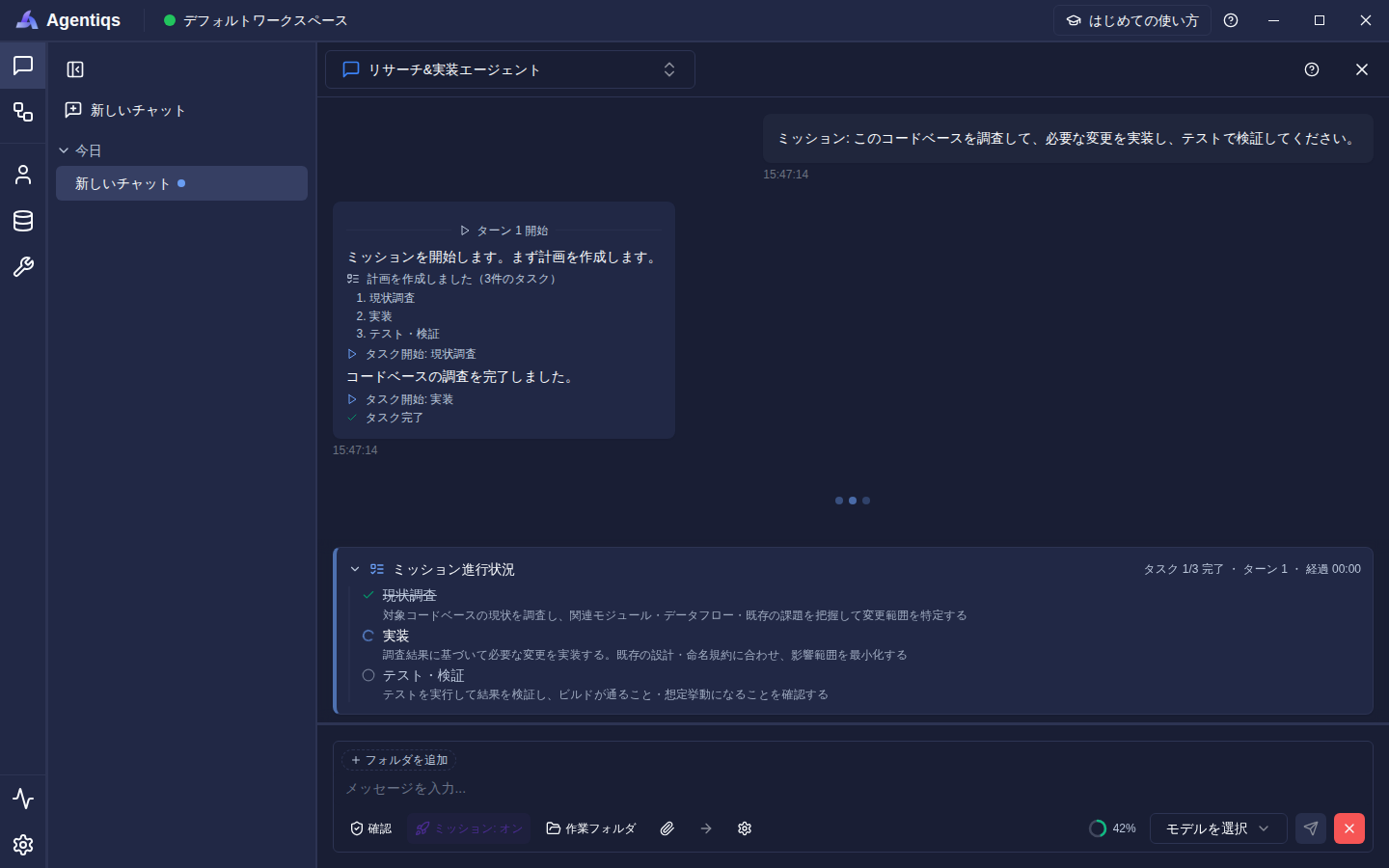 Mission mode | 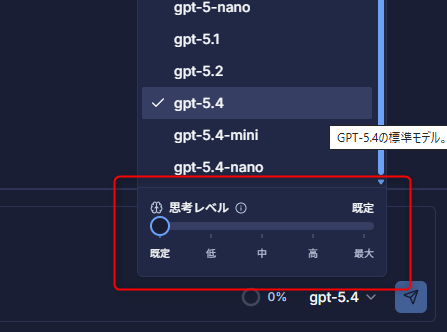 AI reasoning support |
 Entra ID integration | 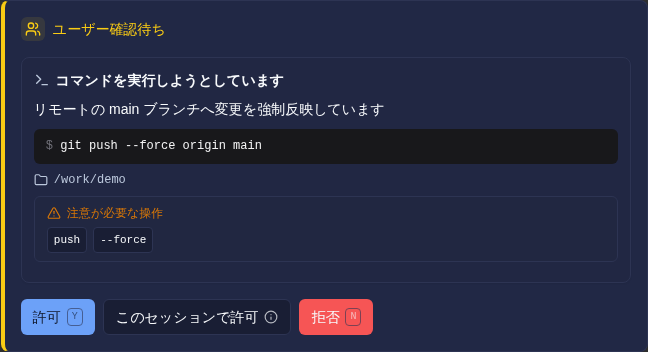 Work folders & system tools | 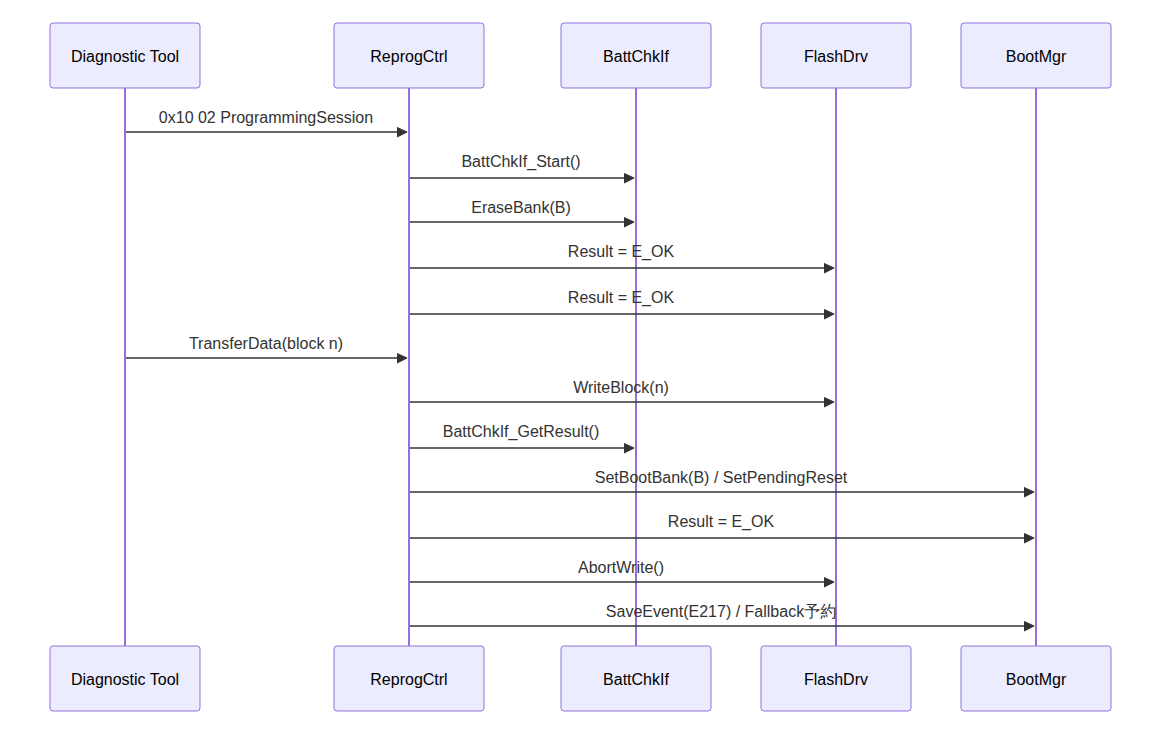 Improved import of existing design documents |
 Local LLM support | 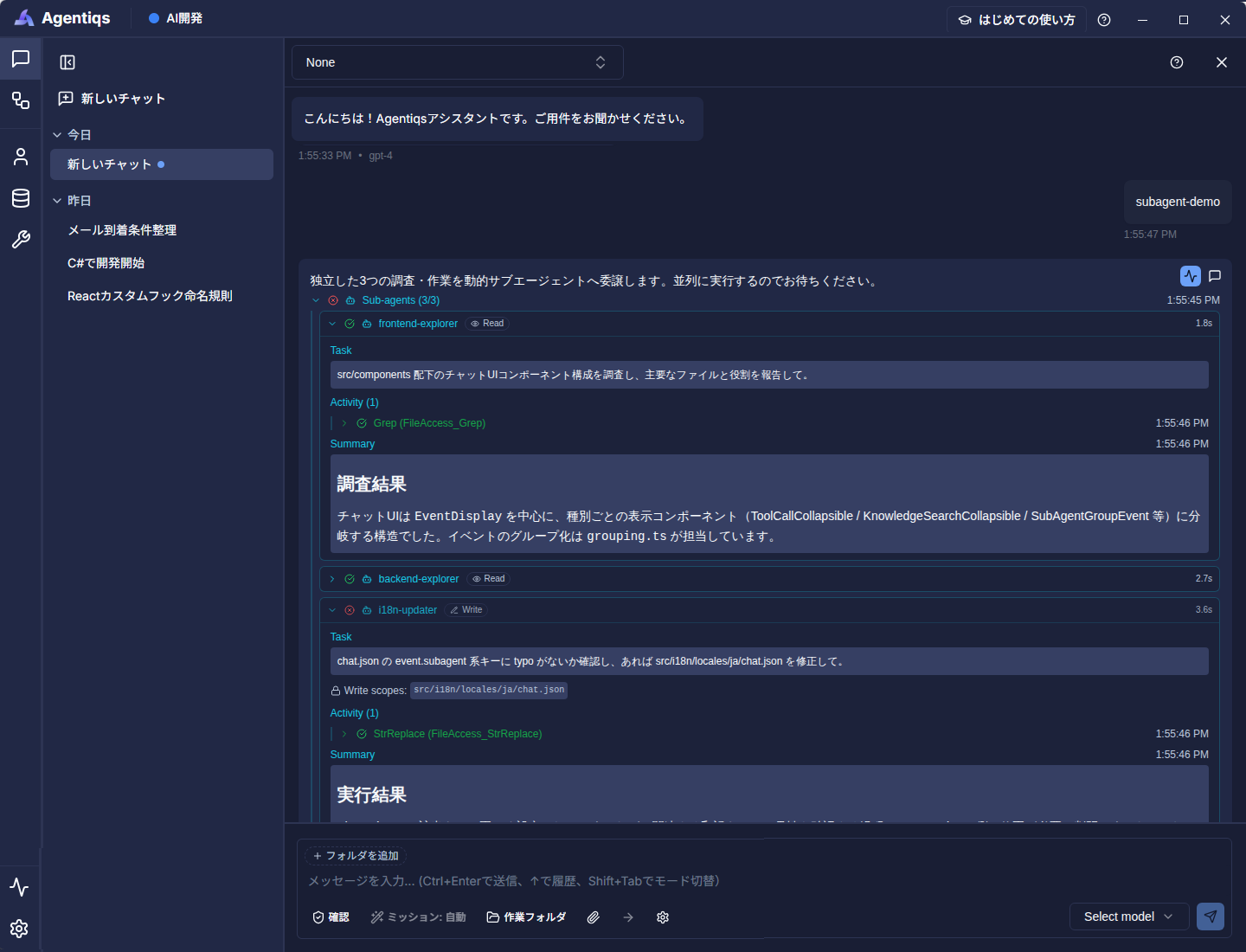 Dynamic sub-agents | 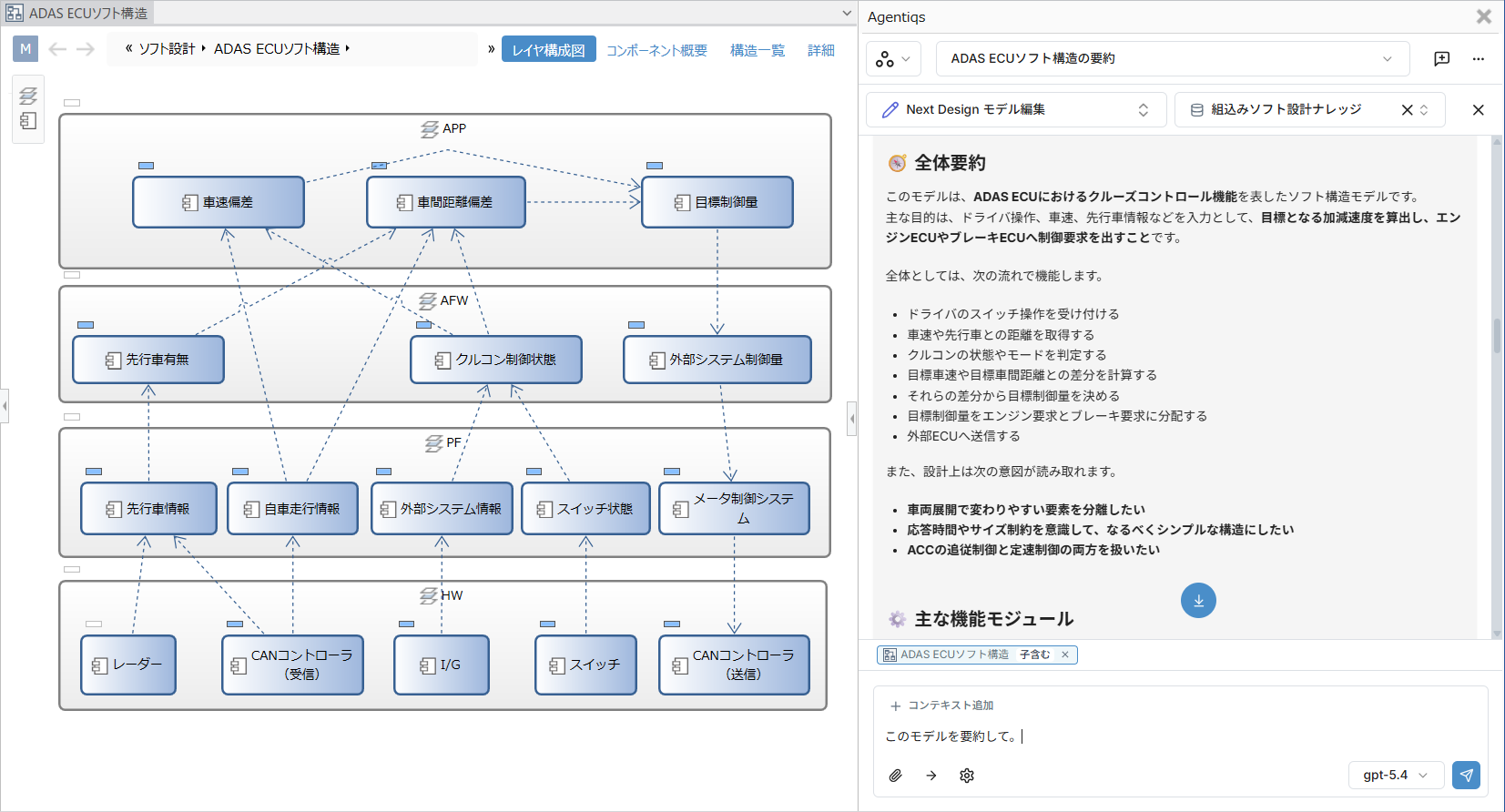 Next Design AI Toolkit |
Checks before upgrading
If you want to keep using settings created in V1.1, review the following changes first.
File Access tool settings
| Change | V1.1 and earlier | V1.2 and later | Required action |
|---|---|---|---|
| Path specification used by tools | Relative and absolute paths | Absolute paths only | Convert any relative paths to absolute paths |
| Function name | Keyword Search | File Content Search | Update prompts that still use the old name |
Workflow save behavior
| Change | V1.1 and earlier | V1.2 and later | Required action |
|---|---|---|---|
| Save / discard method | Confirmed with [Publish], discarded with [Reset] | Saved/restored with Version History | For workflows in shared workspaces, the displayed content is carried over as-is. Back up if needed before upgrading. |
Default behavior changes
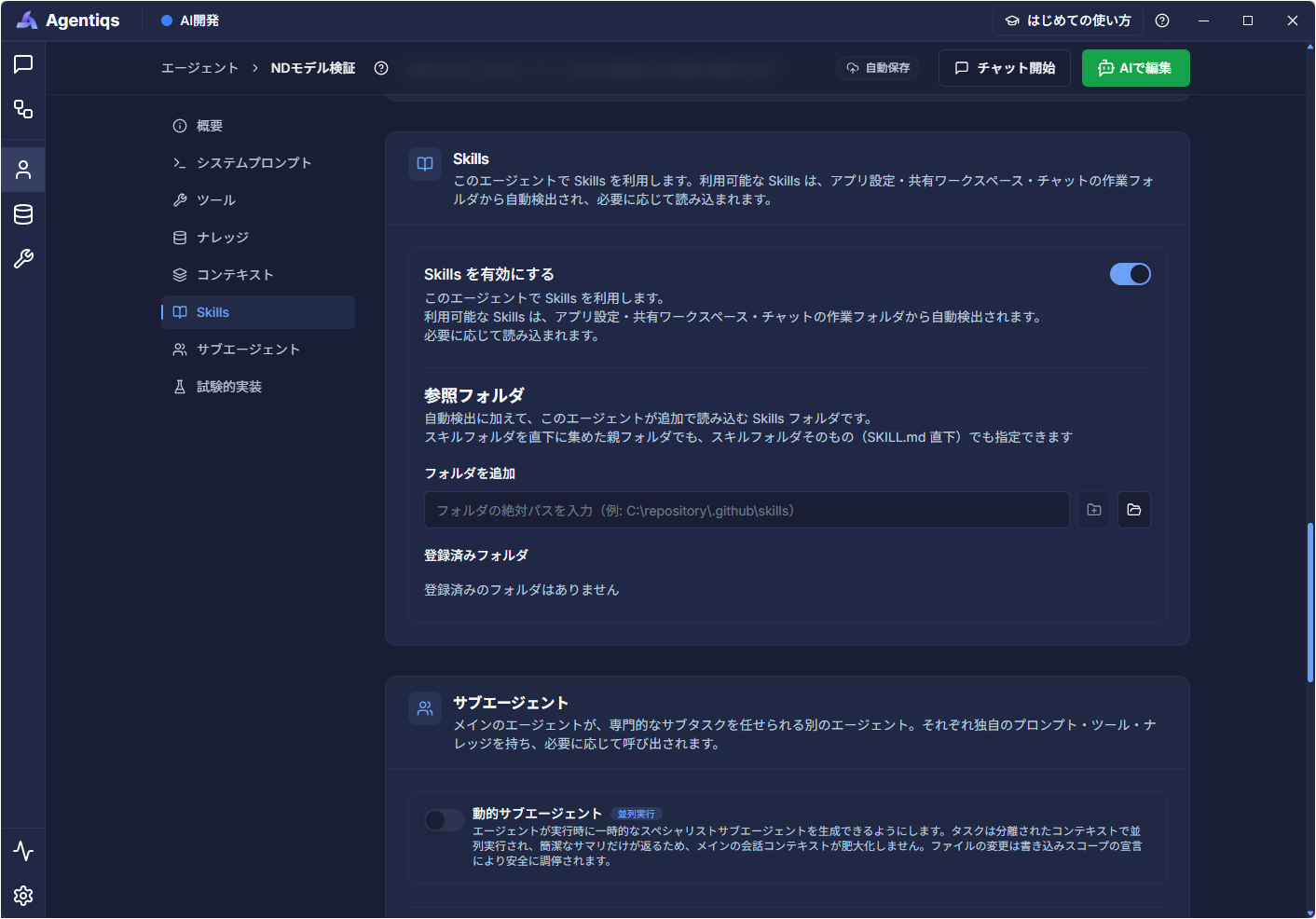
- Skills are now enabled by default. Existing agents are also treated as enabled. If you do not need them, turn them off in the agent's "Skills" tab.
- Reasoning is now enabled by default for reasoning-capable models. This improves quality, but may increase token usage and response time. You can adjust the reasoning level from the chat model selector.
Compatibility with older versions
- The save format for shared workspaces has been updated. If you manage shared workspaces with Git, we recommend that one representative user open each page once in the new version, commit and push the changes, and then have other users pull them before starting work.
Please standardize the Agentiqs version used within your team.
Details of new features
AI models, reasoning, and cost management
| Feature | What changed / benefit | Details |
|---|---|---|
| AI reasoning | You can now adjust reasoning levels for GPT-5, Claude 4, Gemini 2.5 and later models. This helps achieve more accurate responses for complex analysis and design tasks. | Set the reasoning level |
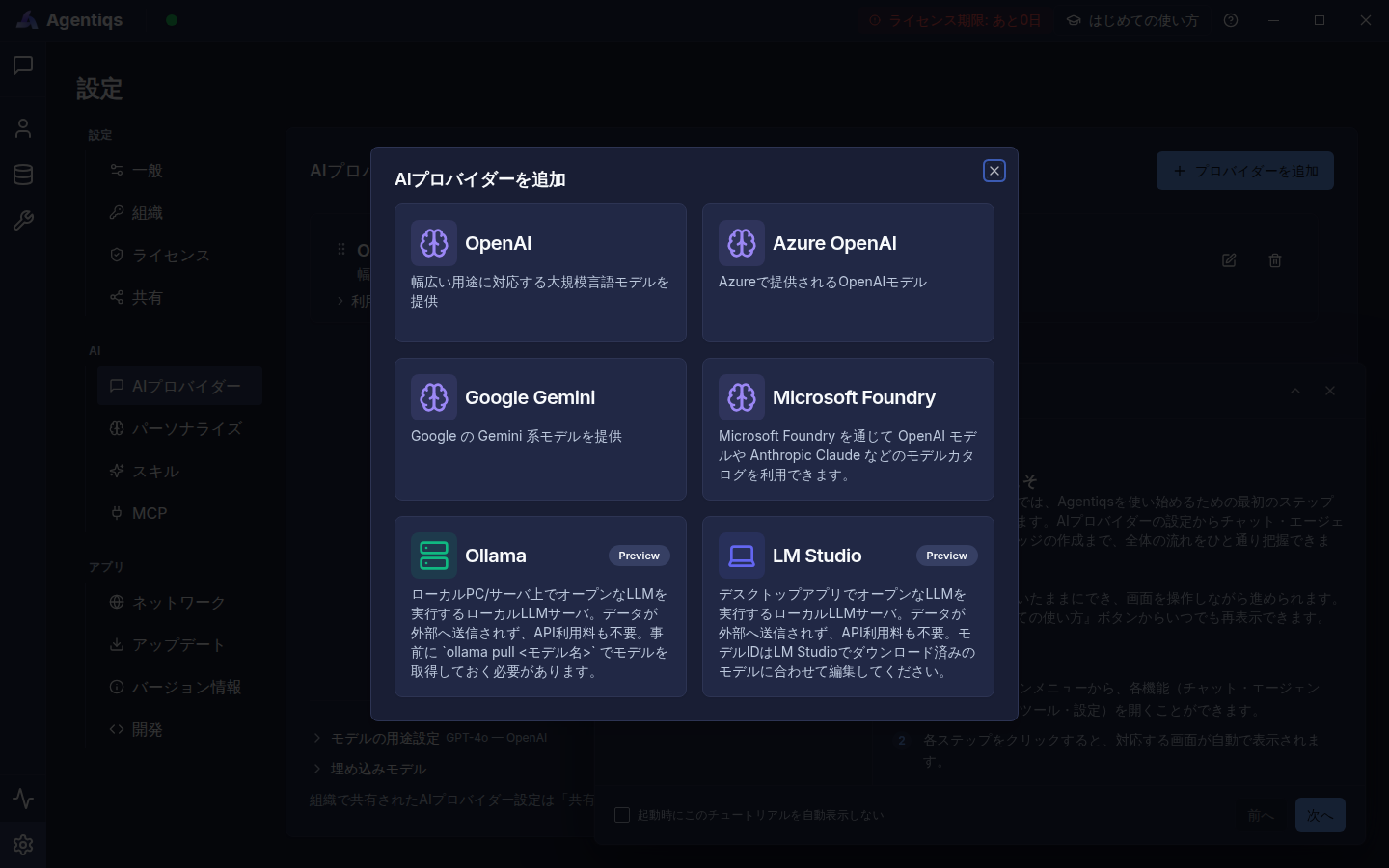
| Local LLMs | You can use Ollama or LM Studio as AI providers. This lets you process sensitive data without sending it outside the organization. | Use a local LLM |
| Context usage and manual compression | You can check usage directly on the chat screen and compress conversation history whenever needed. | Check context window usage |
| Provider priority and model purpose | You can change provider order and assign models to different purposes such as summarization, sub-agents, and image generation. | Set provider priority and model usage |
| Model information and cost management | You can update model information in bulk while checking differences. During chat execution, you can monitor cumulative cost and token usage. | Update models in bulk / Check usage cost |
| Prompt cache | Prompt-structure optimization makes it easier to benefit from caching even in long conversations. | Check AI model usage cost |
Agents and chat experience
| Feature | What changed / benefit | Details |
|---|---|---|
| Skills | Business rules and expertise are automatically detected and used. Dedicated tabs, app-wide folders, and references to Skills from Claude Code, GitHub Copilot, and Codex are also supported. | Use Skills |
| Web search and code interpreter | You can search for the latest information and perform calculations or processing based on script execution results. | Basic AI agent settings |
| Mission mode | The agent can plan, execute, report progress, and finish tasks autonomously. Interrupted tasks can be resumed from the same chat. | Advanced AI agent settings |
| Dynamic sub-agents | Multiple investigations and tasks can run in parallel or in the background, and the results are collected by the parent agent. | Advanced AI agent settings |
| Create and continue conversations from chat | The first prompt used in "Create with AI" is carried over to the AI chat in the edit screen, so you can continue the conversation from creation to refinement. | Create with AI |
| Quick reply | You can answer AI questions using choices or number keys. Question sets that combine multiple questions are also supported. | Use quick reply |
| Tool-call display | You can more easily see the operation, target, state, and result in chat. | Check tool-call details |
| Chat organization | You can group chats and pin frequently used chats. | Group chats |
| HTML live preview | You can view and interact with AI-generated HTML in an isolated environment. | Live preview HTML code |
| Conversation breakpoints | You can exclude older conversations from being sent to the AI and lighten the context while keeping settings intact. | Set conversation breakpoints |
| Icons and colors | You can make agents, tools, and knowledge easier to distinguish by role and purpose. | Set the agent appearance |
Workspaces and working folders
| Feature | What changed / benefit | Details |
|---|---|---|
| Multiple working folders and system tools | You can specify multiple folders per chat and use file operations and command execution. Permission modes let you control the scope of operations. | Set working folders |
| Sharing working folder settings | Folder names, descriptions, and permissions are retained per path and can be reused in other chats. | Set working folders |
| Sensitive file guard | Sensitive files such as .env and private keys are blocked from reading by default. No additional settings are required. | Can I handle sensitive files without security risks? |
| Workspace ordering | You can reorder workspaces by drag and drop. | Reorder workspaces |
| List organization | You can display agents, knowledge, tools, and workflows in flat, grouped, or folder views, and pin them. | Organize lists |
Workflows
| Feature | What changed / benefit | Details |
|---|---|---|
| Version history | You can save versions with names (including AI-suggested names and descriptions) and restore earlier states when needed. Up to 20 versions are kept per workflow. | Save and restore workflow versions |
| Scheduled execution | You can automatically run workflows on an hourly, daily, or weekly schedule. | Run automatically on a schedule |
| Workflow debugger | You can isolate problems with breakpoints, step execution, and variable inspection/editing. | Debug workflows |
| Input variables | Now supports nine data types, including strings, numbers, booleans, arrays, selections, date/time, and files/folders. | Define input and internal variables |
| Questions | You can build fixed-response checks into a workflow using single-select or multi-select questions. | Configure question steps |
| Execution history and cost | You can check elapsed time, title search, variables after completion, and total/step-by-step costs. | View execution history |
| Continue from create to edit with AI | The first prompt used in "Create with AI" is carried over to the AI chat on the edit screen, allowing you to continue from creation to adjustment. | Create with AI |
Knowledge and document processing
| Feature | What changed / benefit | Details |
|---|---|---|
| Office documents and PDF import | Graph-paper Excel sheets, ruled PDF tables, and Office AutoShapes can now be imported in a structured form. | Import Office documents and PDFs |
| Images inside documents | You can interpret images inside Office documents and PDFs by using multimodal-capable models. | Interpret images in documents |
| PlantUML conversion for sequence diagrams | Sequence diagrams drawn in graph-paper Excel or AutoShapes can be converted to PlantUML. | Import sequence diagrams |
| Index update notifications | You can check which knowledge items have re-parse enabled and how many files are targeted, then update only the necessary files. | Check index update notifications |
Tools and external integrations
| Feature | What changed / benefit | Details |
|---|---|---|
| App-wide MCP server settings | A registered MCP server can be used across all workspaces. Import of existing settings is also supported. | Configure MCP servers globally |
| Image generation from chat | You can generate concept diagrams and image ideas directly in chat and download them. | Generate images in chat |
| Lightning Review | When adding a finding, you can set type, severity, priority, status, process, date, and comments together. Rejection history (reason for finding, correction policy, etc.) can also be retrieved. | Lightning Review tool |
| Next Design | You can automatically explore related models and locate target models by model ID (GUID). Automatic diagram layout is also supported. | Next Design tool |
| File Access | Supports multiple edits, file-content search, and file-name search using Glob patterns. | File Access tool |
Security and admin features
| Feature | What changed / benefit | Details |
|---|---|---|
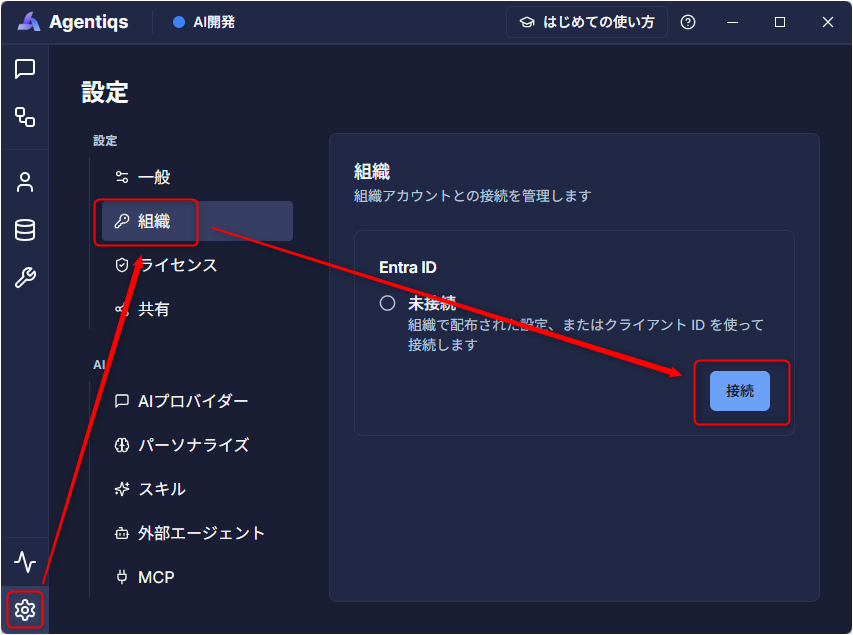
| Entra ID authentication | You can connect to Azure OpenAI / Microsoft Foundry with a company account, without distributing API keys individually. | Connect with Entra ID authentication |
| Automatic Entra ID client ID setup | Embedding the client ID in enterprise licenses simplifies initial setup for end users. | Set up an Azure app for Entra ID authentication |
| Organizational shared settings | AI provider settings and other items can be encrypted and distributed, and changes after the first registration can be reflected automatically. | Distribute via organizational shared settings |
Other UX improvements
| Target | Improvement |
|---|---|
| Create screens | When creating agents and workflows, it is now easier to choose between gallery, manual creation, and Create with AI. |
| Agent settings | Changes to context and tools are now reflected directly, and tool settings can be collapsed for review. |
| Icon picker | The Apply button is shown only when an icon name is entered. |
| Knowledge settings | When knowledge is added to an agent, [Use knowledge] is enabled automatically. |
| Approval dialog | The full command is wrapped for display, and choices can be selected with buttons. Waiting for approval is preserved even if you switch screens. |
| Question / approval popups | The display size is more compact, and multiple questions are now shown one per page. |
| Chat display | The title of a new chat and the running cost are reflected before response completion. |
| List screens | NEW is shown for newly created agents, knowledge, tools, and workflows. |
| In-app tutorials | Tutorials have been added so that first-time users can confirm the workflow. |
| Help | Related help pages can now be opened from each screen. |
Fixes
- Improved target selection for Lightning Review integration Fixed an issue where the wrong target could be selected if multiple review files or outlines with the same name existed in the same workspace.
- Improved child-entity retrieval for Next Design integration Fixed an issue where agent calls to retrieve child entities could fail.
In addition, various other stability and usability improvements have been made.